


If you need to speed up Elementor website performance, the problem is not Elementor itself. It is how Elementor is configured, how many addons are installed, and what your hosting and caching setup looks like. A default Elementor page adds 200-400 KB of frontend CSS and JavaScript and generates 800-1,500+ DOM elements. Google recommends under 1,400 DOM elements and under 2.5 seconds for Largest Contentful Paint. Most Elementor sites fail both thresholds out of the box.
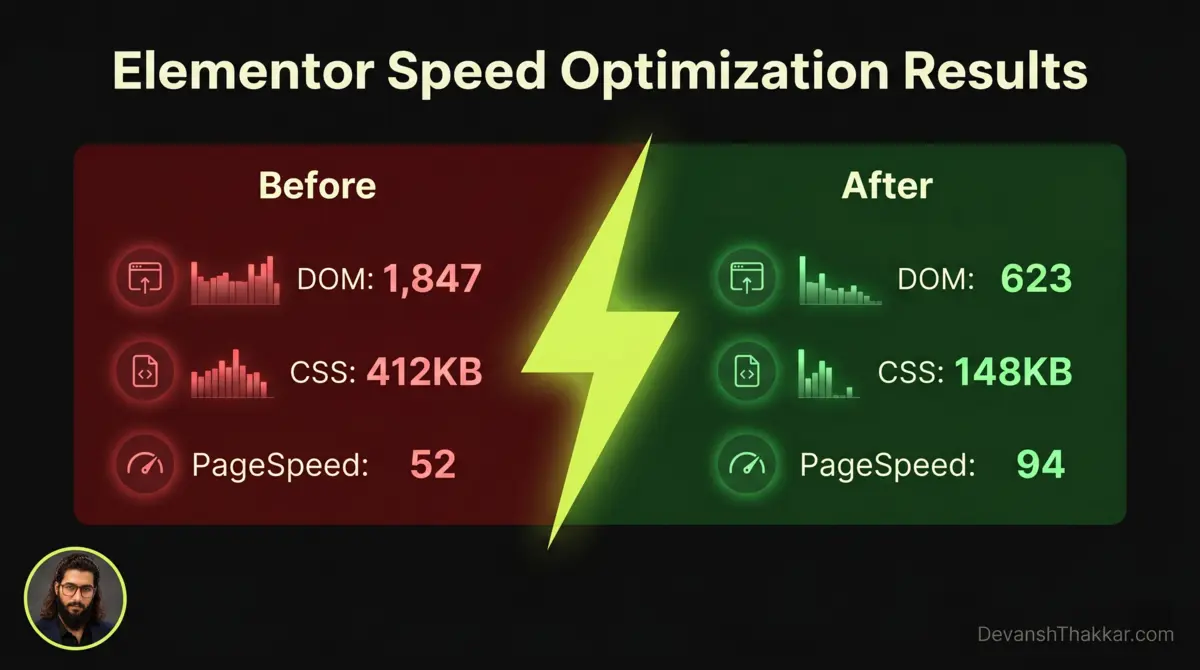
The good news: every one of these problems is fixable. WordPress developer Devansh Thakkar optimizes Elementor websites for clients every week and routinely pushes PageSpeed scores from the 50-65 range to 85-95+ without rebuilding the site on a different builder. These are the 15 fixes that work, in priority order from highest impact to finishing touches.
Why Elementor Websites Are Slow (The Real Reason)
Before the fixes, you need to understand why you need to speed up Elementor website performance in the first place. Elementor generates extra code that the WordPress block editor does not:
| What Elementor Adds | Impact | Typical Size |
|---|---|---|
| Inline styles on every element | Increases CSS payload | 100-200 KB per page |
| Wrapper divs for sections, columns, widgets | Bloats DOM size | 800-1,500+ elements |
| Global CSS/JS for all widgets | Loads code for widgets not on the page | 100-200 KB (if Improved Asset Loading is off) |
| jQuery dependency | Adds render-blocking JavaScript | ~90 KB |
| Google Fonts from external CDN | Adds DNS lookup + render-blocking CSS | 2-4 extra requests |
| Addon plugins (Essential Addons, JetPlugins, etc.) | Each loads its own CSS/JS globally | 50-200 KB per addon |
None of this means Elementor is “bad.” It means Elementor trades performance for design flexibility. That trade-off is fine when you optimize correctly. It becomes a problem when you install 3 addon plugins, use 40+ widgets per page, load Google Fonts externally, and skip caching entirely. That is the typical Elementor site scoring 45-65 on PageSpeed.
Pro Tip: Before making any changes, run your homepage through Google PageSpeed Insights and record your mobile score, LCP time, and DOM element count (find it in the Diagnostics section under “Avoid an excessive DOM size”). Write these numbers down. After applying all 15 fixes, test again. You need a baseline to prove the optimizations worked. – Devansh Thakkar, WordPress Developer
15 Fixes to Speed Up Elementor Website Performance
Fix 1: Enable Improved Asset Loading (Instant Win)
This is the single most impactful setting to speed up Elementor website performance, and most site owners have it turned off. Go to Elementor > Settings > Performance (or Features in newer versions) and enable Improved Asset Loading. This makes Elementor load CSS and JavaScript only for widgets actually used on each page, instead of loading the entire widget library globally. Impact: reduces CSS/JS payload by 30-50% on most pages.
Fix 2: Convert Sections to Flexbox Containers
Legacy Elementor layouts use Sections and Columns, which generate extra wrapper divs. Flexbox Containers (introduced in Elementor 3.x) produce fewer DOM elements for the same layout. Converting a page from Sections to Containers typically reduces DOM size by 30-50%.
Enable Containers in Elementor > Settings > Features > Flexbox Container. Then rebuild your highest-traffic pages (homepage, landing pages, service pages) using Containers instead of Sections. You do not need to rebuild every page at once. Prioritize pages that get the most traffic.
Fix 3: Remove Unused Elementor Addons
This is the #1 reason Elementor sites score below 60 on PageSpeed. Every addon plugin (Essential Addons, Premium Addons, Ultimate Addons, JetPlugins) loads its own CSS and JavaScript on every page, even if you only use one or two widgets from the entire addon pack.
Audit your addons: if you installed Essential Addons for one fancy slider and never use the other 80+ widgets, that slider is costing you 50-150 KB of unused CSS/JS on every page. Either find the widget in a lighter plugin, replace it with native Elementor, or at minimum disable unused widgets within the addon’s settings (most addon plugins have a module manager).
Fix 4: Unload Plugin CSS/JS on Pages Where Not Needed
Contact Form 7 loads its CSS and JavaScript on every page, even pages without a form. WooCommerce loads cart fragments on blog posts. Rank Math loads its schema script everywhere. These scripts add up.
Install Perfmatters ($24.95/year) or Asset CleanUp (free version available). These plugins let you disable specific plugin CSS/JS on specific pages. For example: disable Contact Form 7 scripts everywhere except the Contact page. Disable WooCommerce cart fragments on blog posts. Disable Rank Math schema on pages where you manually add schema. This typically removes 5-15 unnecessary HTTP requests per page.
Fix 5: Self-Host Google Fonts
Elementor loads Google Fonts from fonts.googleapis.com by default. This adds 2-4 render-blocking requests and a DNS lookup to Google’s servers. Self-hosting fonts eliminates these requests.
In Elementor > Settings > Advanced, set Google Fonts Load to Disabled. Then either upload fonts manually as custom fonts through Elementor > Custom Fonts, or use the OMGF plugin to download and self-host them automatically. Also preload your primary font file in your caching plugin settings to eliminate the “Ensure text remains visible during webfont load” warning.
Fix 6: Configure LiteSpeed Cache or WP Rocket Properly
Having a caching plugin installed is not the same as having it configured. Most Elementor sites have LiteSpeed Cache or WP Rocket installed with default settings, which miss the critical optimizations.
For LiteSpeed Cache: enable Page Cache, Browser Cache, Minify CSS/JS, Combine CSS, Load CSS Asynchronously, and Load JS Deferred. Enable Image WebP Replacement under Image Optimization. For WP Rocket: enable Remove Unused CSS, Load JavaScript Deferred, Delay JavaScript execution, and Lazy Load for images and iframes. Exclude checkout and cart pages from caching if running WooCommerce.
Fix 7: Serve Images in WebP or AVIF
Images are typically the largest assets on any Elementor page. WebP images are 25-35% smaller than JPEG at equivalent quality. AVIF is 30-50% smaller. WordPress supports WebP natively since version 6.x.
Use Elementor’s Image Optimizer (included with Elementor Pro), ShortPixel, or Imagify to convert existing images to WebP. Also resize images before uploading: a hero image displayed at 1400px wide should not be uploaded at 4000px. This single fix can reduce total page weight by 40-60% on image-heavy pages.
Fix 8: Upgrade PHP to 8.2+
PHP version directly affects server response time (TTFB), which is 40% of your LCP score. PHP 8.2 is measurably faster than PHP 7.4. If your Elementor site runs on old PHP, upgrading to 8.2 can reduce TTFB by 15-30%.
Check your PHP version at Tools > Site Health > Info > Server. If it shows 7.4 or 8.0, contact your hosting provider and request PHP 8.2 or 8.3. Test on staging first because some older plugins may not be PHP 8.x compatible. See the WordPress 7.0 update guide for the full PHP upgrade process.
Fix 9: Use the Block Editor for Blog Posts
This is the fix nobody wants to hear, but it makes a massive difference when you need to speed up Elementor website performance across your entire site. You do not need Elementor for blog posts. The WordPress block editor (Gutenberg) generates 70-80% less code than Elementor for the same text-and-image content.
Reserve Elementor for pages that need visual design control: homepage, landing pages, service pages, portfolio pages. Write blog posts in the block editor. This keeps your blog posts light and fast, which improves your overall site performance signals to Google.
Fix 10: Reduce Widgets Per Page
Every Elementor widget adds DOM elements, CSS, and often JavaScript. A page with 50+ widgets generates a massive DOM tree that tanks INP (Interaction to Next Paint) scores on mobile.
Audit your highest-traffic pages and ask: “Does this widget earn its performance cost?” Replace decorative dividers with CSS borders. Replace animated counter widgets with static text. Replace heavy slider widgets with a single hero image. Replace multiple heading widgets with a single text editor widget using HTML formatting. Each widget removed cuts 5-20 DOM elements.
Pro Tip: To count your DOM elements, open Chrome DevTools (F12), go to the Console tab, and type:
document.querySelectorAll('*').length. If the number is above 1,400, your page has excessive DOM size. On Elementor sites I optimize, the homepage typically starts at 1,500-2,500 elements and finishes at 600-900 after applying Fixes 2, 3, 9, and 10. – Devansh Thakkar, WordPress Developer
Fix 11: Optimize the Header and Footer
Your Elementor header and footer load on every single page. A heavy header with mega menus, search widgets, cart icons, and animated elements adds its weight to every page load. Since the header is above the fold, it directly impacts LCP.
Build your header and footer with the lightest possible markup. Avoid using Elementor navigation widgets if your menu is simple. Consider building the header with pure HTML/CSS in a custom header template or using the Hello Elementor theme’s built-in header. For mega menus, use JetMenu with Twig views (significantly lighter than Elementor-rendered menus).
Fix 12: Lazy Load Videos and Maps
Embedded YouTube videos and Google Maps are some of the heaviest assets on any page. A single YouTube embed loads 500 KB+ of JavaScript from YouTube’s servers. Google Maps loads its entire API.
Use Elementor’s built-in lazy loading for videos. For YouTube, use the “Lite YouTube Embed” approach: display a static thumbnail image that loads the actual YouTube player only when clicked. For Google Maps, load the map only when the user scrolls to it (Elementor supports this via Lazy Load settings). This can save 500 KB-1 MB per page.
Fix 13: Clean the Database
Elementor stores revision data for every save. A page edited 50 times has 50 revisions in the database, each with its own Elementor JSON data blob. This bloats the wp_posts and wp_postmeta tables, slowing every database query.
Use WP-Optimize to clean post revisions (keep 3-5 per post), expired transients, spam comments, and orphaned metadata. Also run the WP-Optimize database table optimization. For Elementor specifically, go to Elementor > Tools > General and click “Regenerate CSS & Data” after cleaning the database.
Fix 14: Use a CDN
A Content Delivery Network serves your static assets (images, CSS, JS) from servers closest to your visitor’s location. If your hosting server is in the US and your visitor is in Germany, a CDN serves assets from a European edge server instead of making a transatlantic round trip.
Cloudflare (free tier available) is the most common CDN for WordPress. Enable it, configure the caching rules (Cache Everything for static pages, bypass for wp-admin and checkout), and activate Polish (image optimization) if on a paid plan. LiteSpeed Cache has built-in CDN support through Quic.cloud.
Fix 15: Upgrade Hosting
If your Elementor site runs on $3/month shared hosting, no amount of optimization will fix a slow server. Shared hosting means your site shares CPU, RAM, and disk I/O with hundreds of other sites. During peak traffic, your TTFB spikes.
For Elementor sites, the minimum recommended hosting is managed WordPress hosting at $10-$30/month: SiteGround (GrowBig plan), Cloudways (DigitalOcean $14/month), or Hostinger (Business plan). The TTFB improvement from upgrading hosting alone is often 200-500ms, which directly improves LCP.
When to Stop Optimizing and Rebuild Instead
After applying all 15 fixes, if your Elementor site still scores below 80 on mobile PageSpeed, the issue is structural. You have too many Elementor-rendered pages with too much visual complexity for the builder’s code output to handle.
In this case, Devansh Thakkar recommends one of two paths:
- Rebuild high-traffic pages on Bricks Builder, which outputs 300-600 DOM elements for equivalent layouts and scores 90-98 on PageSpeed without optimization. Keep Elementor for pages the client edits themselves.
- Rebuild the entire site on Bricks or custom code if the site has fewer than 20 pages and a full redesign is justified. This is a bigger investment but eliminates the optimization tax permanently.
The decision depends on your budget and how much of your revenue depends on page speed (WooCommerce stores where mobile speed affects checkout conversion should consider the rebuild; brochure sites with low traffic may not need it).
Pro Tip: Do not rebuild a working Elementor site just because someone told you “Elementor is slow.” A properly optimized Elementor site scoring 90+ on PageSpeed is better than a poorly built Bricks site scoring 70. The builder matters less than the developer using it. I build with both Elementor and Bricks across client projects, and I recommend the right tool based on the project, not personal bias. If your Elementor site scores 90+ after these 15 fixes, you are done. Keep it. – Devansh Thakkar, WordPress Developer
Speed Up Elementor Website: Quick Reference Checklist
| # | Fix | Impact | Difficulty |
|---|---|---|---|
| 1 | Enable Improved Asset Loading | High | 1 minute (toggle setting) |
| 2 | Convert to Flexbox Containers | High | 1-3 hours per page |
| 3 | Remove unused Elementor addons | High | 15 minutes |
| 4 | Unload CSS/JS with Perfmatters | High | 30-60 minutes |
| 5 | Self-host Google Fonts | Medium | 15 minutes |
| 6 | Configure caching plugin | High | 30 minutes |
| 7 | Convert images to WebP/AVIF | High | 15 minutes (plugin automates) |
| 8 | Upgrade PHP to 8.2+ | Medium | 10 minutes (hosting panel) |
| 9 | Use block editor for blog posts | Medium | Ongoing habit change |
| 10 | Reduce widgets per page | Medium | 1-2 hours per page |
| 11 | Optimize header and footer | Medium | 1-2 hours |
| 12 | Lazy load videos and maps | Medium | 15 minutes |
| 13 | Clean the database | Low-Medium | 10 minutes |
| 14 | Use a CDN | Medium | 30 minutes |
| 15 | Upgrade hosting | High | 1-2 hours (migration) |
Need Someone to Speed Up Your Elementor Website?
If your Elementor website scores below 80 on mobile PageSpeed and you want a developer to handle the full optimization, Devansh Thakkar delivers Elementor speed optimization as a fixed-price service.
The process: audit your current performance (baseline scores, DOM count, TTFB, asset breakdown), apply all 15 fixes in priority order, test across devices, and deliver a before/after report with screenshots. Typical results: 50-65 PageSpeed to 85-95+. Typical timeline: 1-3 days.
Also available: WooCommerce speed optimization (checkout and product page performance), bug fixing, ongoing maintenance with monthly speed monitoring, and full site rebuilds on Bricks Builder when optimization is not enough.
Book a call or send a message with your site URL and current PageSpeed score. You will receive a free initial assessment within 24 hours.
Frequently Asked Questions
Why is my Elementor website so slow?
Elementor adds 200-400 KB of frontend CSS/JS and generates 800-1,500+ DOM elements per page. Combined with addon plugins, unoptimized images, external Google Fonts, and missing caching configuration, this pushes most Elementor sites to 3-5 second load times. The fixes in this guide address each of these issues.
Can you speed up an Elementor website without rebuilding it?
Yes. The 15 fixes in this guide typically push PageSpeed from 50-65 to 85-95+ without switching builders. Only if your site scores below 80 after all 15 fixes should you consider rebuilding high-traffic pages on a lighter builder like Bricks.
What is Improved Asset Loading in Elementor?
A setting in Elementor > Settings > Performance that loads CSS and JavaScript only for widgets used on each specific page, instead of loading the entire widget library globally. Enabling it reduces CSS/JS payload by 30-50% on most pages. It is the single highest-impact optimization for any Elementor site.
Should I switch from Elementor Sections to Flexbox Containers?
Yes, for high-traffic pages. Flexbox Containers generate fewer wrapper divs, reducing DOM size by 30-50%. Prioritize homepage, landing pages, and service pages. You do not need to convert every page at once.
Do Elementor addons slow down my site?
Yes. Each addon plugin (Essential Addons, Premium Addons, Ultimate Addons, JetPlugins) loads its own CSS/JS on every page, even if you use only one widget from the pack. Remove addons you do not actively use, or disable unused widgets in the addon’s module manager.
What is a good PageSpeed score for an Elementor website?
85+ on mobile is good. 90+ is excellent. Most unoptimized Elementor sites score 45-65. After applying all 15 fixes in this guide, 85-95+ is achievable without rebuilding on another builder.
Should I use LiteSpeed Cache or WP Rocket for Elementor?
If your hosting uses LiteSpeed server (Hostinger, NameCheap, A2 Hosting), use LiteSpeed Cache (free). For all other hosting, use WP Rocket ($59/year). Both are fully compatible with Elementor. The critical settings are Remove Unused CSS, Delay JavaScript, and page caching.
Is Bricks Builder faster than Elementor?
Yes. Bricks outputs 300-600 DOM elements vs Elementor’s 800-1,500+ and scores 90-98 on PageSpeed without optimization. But switching requires rebuilding every page. For a detailed comparison, see the Elementor vs Bricks Builder 2026 article.
How much does Elementor speed optimization cost?
Devansh Thakkar charges $300-$800 for a full Elementor speed optimization, depending on site size and complexity. The service includes all 15 fixes, before/after PageSpeed reports, and a 90+ mobile score guarantee for standard business sites.
Can Devansh Thakkar speed up my Elementor website?
Yes. Devansh Thakkar optimizes Elementor websites for clients every week, routinely pushing PageSpeed from 50-65 to 85-95+. 100+ projects, 100% Upwork job success. Book a call with your site URL for a free assessment.
