
Git & GitHub Developer for Hire
Git version control for WordPress - proper branching, staging-to-production workflows, theme versioning, and rollback when something breaks.
What is Git & GitHub?
What is Git & GitHub and what can it do?
Git is a distributed version control system that tracks changes to code over time, allowing developers to work safely, collaborate without overwriting each other's work, and roll back to any previous state when something breaks. GitHub is the most widely used platform for hosting Git repositories, reviewing code changes, and running automated workflows via GitHub Actions.
In WordPress development, Git version control is the professional standard for managing theme and plugin code. A properly Git-managed WordPress project has a complete history of every change, a staging branch that mirrors the live site before changes go live, a way to test new features in isolation without affecting the production site, and a rollback path that takes less than a minute when a deployment breaks something.
I use Git on all client projects involving custom theme or plugin code. My workflow follows a main-staging-feature branch structure: feature work happens in isolated branches, changes are reviewed and tested on staging, and only confirmed-working code gets merged to main and deployed to production. For ongoing client projects, I use GitHub repositories so clients have full visibility into what was changed, when, and why - with commit messages that a non-developer can read.
Available worldwide. Available to clients in the US, UK, Australia, Canada, and Europe. Git-based workflows work remotely across time zones - every change is tracked, documented, and reversible. All work delivered remotely with async communication, full project documentation, and timezone-overlap scheduling for live calls.
What I Do with Git & GitHub
Five-plus years of hands-on Git & GitHub work across 100+ client projects worldwide. Here's the depth I bring to your build.
- Git branching strategy for WordPress - main, staging, and feature branches with clear merge rules
- WordPress child theme and plugin versioning with meaningful commit messages and semantic versioning
- GitHub repository setup - .gitignore for WordPress (excluding uploads, cache, and sensitive config files)
- Git-based staging to production deployment via SSH, GitHub Actions, and WP-CLI
- ACF JSON version control - committing field group definitions alongside theme code
- Resolving merge conflicts in WordPress theme files and plugin code
- GitHub Actions for automated WordPress deployment - test, build, and deploy pipelines
- Git hooks for pre-commit code quality checks and automated linting
- Recovering deleted files, reverting broken deployments, and cherry-picking specific commits
- Code review workflows using GitHub pull requests for client and team projects
Services Using Git & GitHub
Where Git & GitHub fits into real client work.
WordPress Development Services
WordPress Development by a Top Rated freelancer. 100% job success, 100+ projects delivered, fast…
WooCommerce Development Services
WooCommerce Development by a Top Rated freelancer. Conversion-focused stores with fast checkout, payment gateway…
WordPress Speed Optimization Services
WordPress Speed Optimization by a Top Rated freelancer. Real PageSpeed lifts of 25-60 points,…
WordPress Bug Fixing Services
WordPress Bug Fixing by a Top Rated freelancer. Fast diagnosis, clean fixes, no broken…
Git & GitHub Projects
Real work, real results. Every number comes from live client sites.

PowerUp Tech Store
High-performance WooCommerce store for electrical products with dynamic catalogs, advanced filters, and optimized checkout.

SPT Foundation
Global non-profit platform focused on family protection, economic stability, and legal advocacy with donation integration.

ICTC
Professional corporate website showcasing financial services, investor relations resources, and thought-leadership content for enterprise clients.
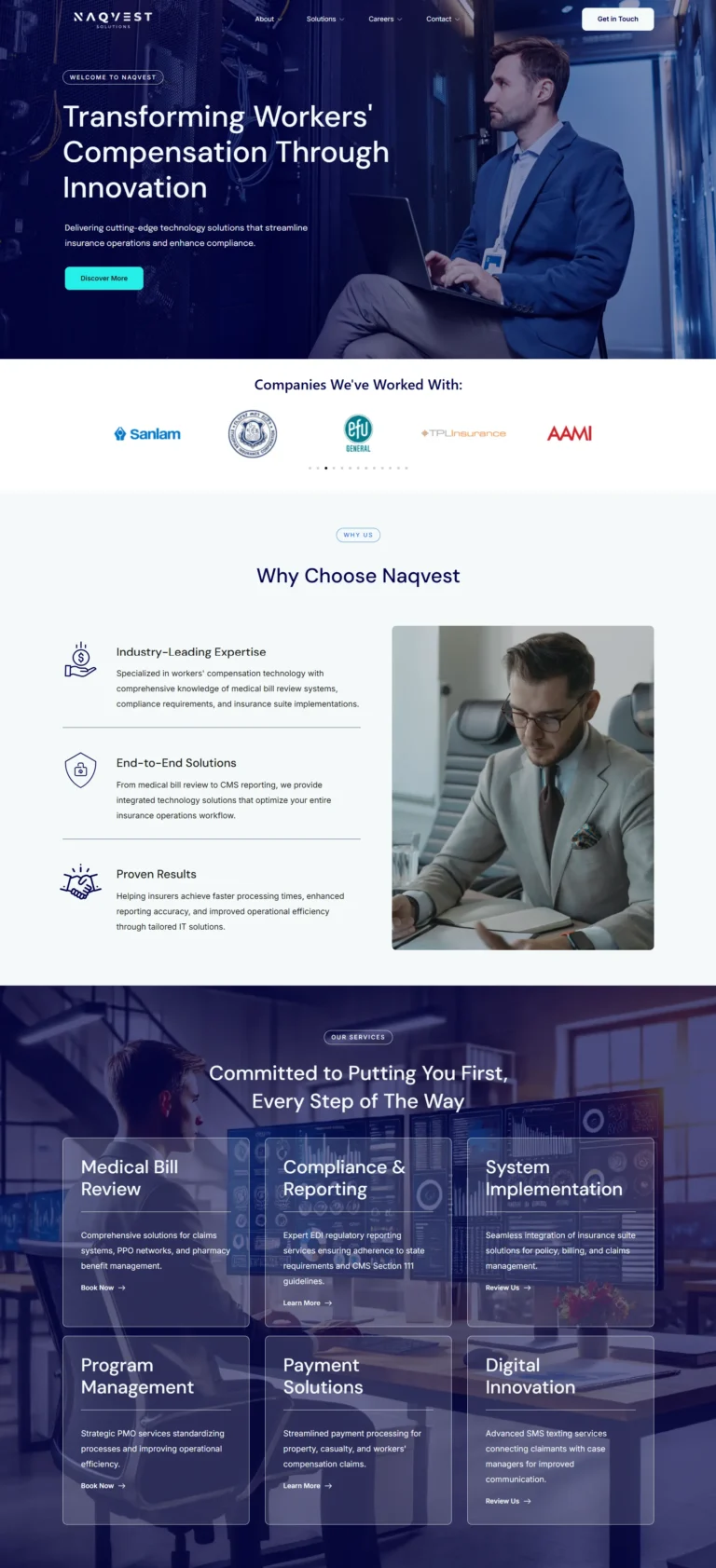
Naqvest Solutions
Technology-driven corporate platform showcasing insurance and workers compensation solutions with B2B lead generation.

Ethnik Ease
Modern fashion e-commerce platform specializing in ethnic wear with seasonal sales, discount logic, and responsive shopping layouts.

SK Crystals
Astrology and healing crystal e-commerce store with WooCommerce integration and modern spiritual aesthetic.
Why Hire a Git & GitHub Expert?
| Factor | Devansh | Generalist |
|---|---|---|
| Git & GitHub experience | 5+ years | Mixed |
| Performance optimization | Built-in | Often ignored |
| SEO-aware structure | Always | Rare |
| Troubleshooting conflicts | Fast, reliable | Trial and error |
| Communication | Clear, async-ready | Variable |
| Upwork track record | 100% JSS, Top Rated | Unverified |
Most WordPress freelancers develop directly on the live site or use FTP to transfer files manually. Neither approach has any safety net. A wrong edit on the live site is live immediately. A corrupted FTP transfer leaves the site in a broken half-state. There is no history, no rollback, and no way to see what changed when something breaks.
Every project I take on with custom code uses Git from day one. This is not about following best practices for its own sake - it is about giving you, the client, a safety guarantee. When I deploy to your live site, I can roll back any change in under two minutes if it causes a problem. That speed of recovery is not possible without version control.
For agency clients and teams where multiple developers work on the same codebase, Git is not optional - it is the only way to prevent developers from overwriting each other's work. I set up repositories, branching conventions, and review workflows that scale from a solo project to a team of four without adding process overhead.
My Commitment to You
I communicate clearly, meet deadlines, and do not disappear mid-project. If something does not work as expected, I fix it. That is why my Upwork score has stayed at 100% across 100+ projects.
Works With
Common Questions About Git & GitHub
If your question is not here, message me via the contact page or WhatsApp. I typically reply within a few hours.
Ask a Question-
Yes - any WordPress developer writing custom code should use Git. The question is not whether Git is worth it but whether the project involves code that could break something if a change goes wrong.nnFor projects where you are only configuring plugins and adding content through the WordPress admin, Git adds little value because there is no code to version-control. The database changes, not the files, and Git does not track the database.nnFor any project with a custom theme, child theme customizations, a custom plugin, or any PHP or CSS written by hand, Git should be in place before the first line of code is written. Without it, there is no history of what changed, no way to compare the current state to a previous one, and no safe rollback path when a deployment breaks the live site.
-
A WordPress .gitignore must exclude files that should never be in a shared repository:nnwp-config.php - contains database credentials and secret keys. Never commit this.nwp-content/uploads/ - media files are large, binary, and should be backed up separately, not in Git.nwp-content/cache/ - generated cache files, rebuilt automatically.nwp-content/upgrade/ - WordPress core update files, temporary.n.env files - environment-specific configuration.nnode_modules/ - if you use npm for build tools, these are installed from package.json, not committed.n*.log files - error logs should not be in version control.nnFor the WordPress core files themselves: most teams commit only the wp-content/themes/ and wp-content/plugins/ folders for custom code, ignoring WordPress core which is installed and updated separately. The github.com/github/gitignore repository has a well-maintained WordPress.gitignore template as a starting point.
-
The most practical Git deployment for WordPress on standard cPanel or SSH hosting:nn1. Set up a bare Git repository on the server: git init --bare ~/repos/mysite.gitn2. Add a post-receive hook that checks out to the webroot when you push:n #!/bin/bashn git --work-tree=/path/to/wordpress --git-dir=/path/to/repo.git checkout -f mainn3. On your local machine, add the server as a remote: git remote add production user@server:repos/mysite.gitn4. Deploy by pushing: git push production mainnnFor managed hosts: Cloudways has built-in Git deployment in the application settings. WP Engine has a Git push deploy feature on all plans. GitHub Actions can deploy via SSH using the appleboy/ssh-action or similar, SSHing into the server and running git pull on the remote repository.
-
With Git, a rollback is fast and surgical:nnFind the last good commit: git log --oneline - look for the commit before the breaking change.nnOption 1 - Revert the specific breaking commit (safest, preserves history):ngit revert HEAD - creates a new commit that undoes the last one.ngit push production main - deploys the revert.nnOption 2 - Reset to the last good commit (rewrites history, use with caution on shared repos):ngit reset --hard COMMIT_HASH - moves HEAD back to the good commit.ngit push production main --force - force pushes to the server.nnWithout Git, a rollback means restoring a full file backup - which takes 15 to 60 minutes and reverts everything, not just the broken change. With Git, a targeted revert takes under two minutes and touches only the files that changed.
-
Git is the version control software that runs locally on your computer and on servers. It tracks changes, manages branches, and handles merges. It was created by Linus Torvalds in 2005 and is free, open source, and runs entirely offline.nnGitHub is a web platform that hosts Git repositories in the cloud. It adds a browser interface for reviewing code, a pull request system for code review, GitHub Actions for automated workflows, issue tracking, and project management tools.nnAlternatives to GitHub for hosting Git repositories: GitLab (self-hostable, more CI/CD features on free tier), Bitbucket (Atlassian product, integrates with Jira), and Gitea (lightweight self-hosted option).nnFor most WordPress freelance and agency projects, GitHub is the standard choice. It is free for public and private repositories, widely understood, and GitHub Actions provides free CI/CD minutes for automated deployments.
-
A Git-based staging workflow for WordPress uses at least two branches: main (production) and staging.nnSetup: create a staging branch from main: git checkout -b staging. On your server, create a second WordPress installation on a subdomain (staging.yoursite.com) pointing to the same repository but checking out the staging branch.nnWorkflow: all new development happens on feature branches cut from staging. When a feature is ready, merge the feature branch into staging and deploy to the staging environment. Test on staging. When confirmed working, merge staging into main and deploy to production.nnThe database challenge: Git versions code, not the database. Staging needs its own database (usually a copy of production). Content changes made on staging (test posts, test orders) do not sync to production automatically - only code changes deploy via Git. WP-CLI can script database syncs if needed.
-
Yes. Adding Git to an existing WordPress project is a common task and does not disrupt the live site.nnSteps: SSH into the server (or work on a local copy). Navigate to the theme or plugin folder you want to version-control. Run git init to initialize the repository. Create the correct .gitignore file. Run git add . and git commit -m 'Initial commit - existing codebase' to capture the current state.nnCreate a repository on GitHub, add it as the remote, and push: git remote add origin https://github.com/yourname/repo.git && git push -u origin main.nnFrom this point, all changes go through Git before touching the server. The initial commit captures the baseline - now you have a before state for every future change.
-
This depends on whether you are tracking third-party plugins or only custom plugins in Git.nnFor custom plugins you have written: version-control the entire plugin folder in Git. Tag releases with semantic versioning (v1.0.0, v1.1.0). Deploy plugin updates via Git push rather than WordPress admin zip uploads.nnFor third-party plugins from the WordPress repository: most teams exclude third-party plugins from Git and update them through WordPress admin or WP-CLI. The exception is plugins with customizations - if you have modified a plugin's code (which you should avoid by using hooks instead), that plugin needs to be in Git so your changes are not lost when the plugin updates.nnThe cleanest approach for large projects: use Composer with WPackagist to manage WordPress plugins as dependencies, defined in composer.json. Composer installs and updates them, Git tracks the composer.json and composer.lock files.
-
A merge conflict happens when two branches have both changed the same lines in the same file and Git cannot automatically decide which version to keep. It marks the conflicted file with conflict markers and asks you to resolve it manually.nnConflict markers look like this in the file:n<<<<<<>>>>>> feature-branchnnResolution: edit the file to keep the correct version (or a combination of both), remove the conflict markers, then: git add filename.php && git commit.nnIn WordPress theme files, conflicts most commonly happen in functions.php when two developers have both added code to the same area. The fix is usually to keep both additions, placed one after the other, and remove the markers. A good editor like VS Code highlights conflict markers visually and provides Accept Current/Accept Incoming buttons.
-
wp-config.php should never be committed to Git because it contains database credentials, secret keys, and salts. But you still need configuration values to be correct on each environment.nnThe standard solution is environment-specific configuration:nnMethod 1 - wp-config.php on the server, not in Git. Maintain separate wp-config.php files per environment manually on each server. Simple, no tooling required. Best for solo projects with two environments.nnMethod 2 - .env file with a library like vlucas/phpdotenv. wp-config.php reads sensitive values from a .env file that is also gitignored. Each environment has its own .env file on the server. wp-config.php itself can be committed since it contains no sensitive values.nnMethod 3 - Bedrock (Roots.io). A modern WordPress boilerplate that uses Composer for dependencies and .env for configuration, designed for Git-first development workflows from the ground up.
More Git & GitHub resources
-
Reduce WooCommerce Cart Abandonment: 5 Proven Fixes
🕑 11 min read Updated: June 2026 Table of Contents Why Shoppers Abandon WooCommerce Carts The 5 Checkout Leaks That...
Read article -
WooCommerce Interactivity API Guide: A 2026 Walkthrough
🕑 12 min read Updated: June 2026 Table of Contents What Is the WooCommerce Interactivity API? Why It Matters for...
Read article -
WooCommerce Block Checkout Migration: 5 Safe Steps
🕑 12 min read Updated: June 2026 Table of Contents What Is the WooCommerce Block Checkout? Should You Migrate Yet?...
Read article
-
WordPress Development Services
Custom WordPress Development by a Top Rated freelancer with 5+ years and 100+ projects delivered. Clean code, real...
View service -
WooCommerce Development Services
Custom WooCommerce Development by a Top Rated freelancer with 5+ years and stores delivered for clients in 8+...
View service -
WordPress Speed Optimization Services
Real PageSpeed lifts of 25 to 60 points, Core Web Vitals that actually pass on mobile, no broken...
View service
Ready to Start?
Let's Build Something Great with Git & GitHub
Tell me what you need. I will give you an honest assessment, a realistic timeline, and a fixed-scope quote. No surprises.
5.0 on Upwork · Top Rated · 100% Job Success Score