Expert Level 100% Job Success Top Rated

HTML & CSS Developer for Hire

Semantic HTML and precise CSS - the foundation every WordPress site is built on, done right from the first line.

5+Years Experience
100+Projects Delivered
100%Job Success Score
5+Years on Upwork
Answer Block

What is HTML & CSS?

What is HTML & CSS and what can it do?

HTML and CSS are the foundational languages of every webpage. HTML defines the structure and meaning of content - headings, paragraphs, lists, navigation, forms, and semantic landmarks. CSS controls how that content looks - layout, typography, color, spacing, animation, and responsive behavior across screen sizes.

In WordPress development, HTML and CSS appear everywhere: in PHP template files that output markup, in page builder elements that need overrides, in child theme stylesheets that modify the parent theme, in custom post type templates, and in the inline styles that often need to be refactored for performance. Getting HTML and CSS right means accessible, well-structured pages that search engines can parse cleanly, screen readers can navigate correctly, and browsers can render efficiently.

I write semantic HTML and well-organized CSS across all my WordPress projects. My CSS follows a consistent methodology - scoped class names, CSS custom properties for design tokens, mobile-first responsive design with logical breakpoints, and Flexbox or Grid for layout rather than floats or absolute positioning hacks. On Elementor and Bricks projects, I write targeted CSS overrides that respect the builder's specificity rather than fighting it with blanket !important declarations.
Available to clients in the US, UK, Australia, Canada, and Europe for front-end development within WordPress projects. I work remotely across time zones with async communication and deliver full documentation on every project.

Devansh's Expertise

What I Do with HTML & CSS

  • Semantic HTML5 - correct use of heading hierarchy, landmark elements, and accessible markup
  • CSS Flexbox and Grid for layout - responsive, maintainable, and compatible with all modern browsers
  • CSS custom properties (variables) for design tokens - colors, spacing, and typography managed centrally
  • Mobile-first responsive design with clean breakpoints and fluid typography
  • CSS specificity management - overriding Elementor, Divi, and theme styles without blanket !important abuse
  • WordPress child theme CSS - enqueued correctly through wp_enqueue_style() with proper versioning
  • CSS animations and transitions - hover effects, entrance animations, and scroll-triggered reveals
  • BEM naming convention and scoped class naming for CSS that scales across a large site
  • Accessibility - contrast ratios, focus states, ARIA labels, and keyboard navigation
  • CSS performance - critical CSS extraction, unused CSS removal, and minimizing render-blocking stylesheets
Real-World Applications

What I Build with HTML & CSS

Every project ships with clean code, full testing, and clear handover documentation.

Custom WordPress Templates

PHP template files with hand-written semantic HTML - correct landmark structure, proper heading hierarchy, accessible form markup, and structured data attributes. Output that search engines parse cleanly, screen readers navigate correctly, and browsers render without layout thrashing.

Child Theme Stylesheets

CSS for WordPress child themes that overrides the parent theme cleanly. Scoped class names to avoid conflicts, CSS custom properties to match the design system, and enqueued through wp_enqueue_style() with a version hash so browsers do not serve stale cached styles after changes.

Page Builder CSS Overrides

Targeted CSS to override Elementor, Divi, or Bricks Builder default styles - typography, button colors, spacing, hover states, and mobile layout adjustments. Written with sufficient specificity to win without relying on !important for every rule, which creates cascading override problems.

Responsive Design Fixes

Making broken or poorly responsive WordPress sites work correctly across mobile, tablet, and desktop. Diagnosing where fixed widths, overflow issues, or missing viewport meta tags are causing layout problems, and writing targeted CSS media queries to fix them without disrupting the desktop layout.

CSS Animations and Interactions

Hover effects, transition animations, entrance animations on scroll, skeleton loading states, and progress indicators - all in pure CSS or minimal JavaScript. Performant animations that use transform and opacity rather than properties that trigger layout recalculation and cause CLS.

Accessibility Improvements

Contrast ratio fixes to meet WCAG AA, visible focus states for keyboard navigation, skip-to-content links, correct ARIA labels on icon buttons and form inputs, semantic heading order corrections, and alt text on images. Accessibility improvements that also improve SEO and user experience for all visitors.

100+Projects
5+Years Experience
100%Job Success Score
WCAGAccessibility Standard
Portfolio

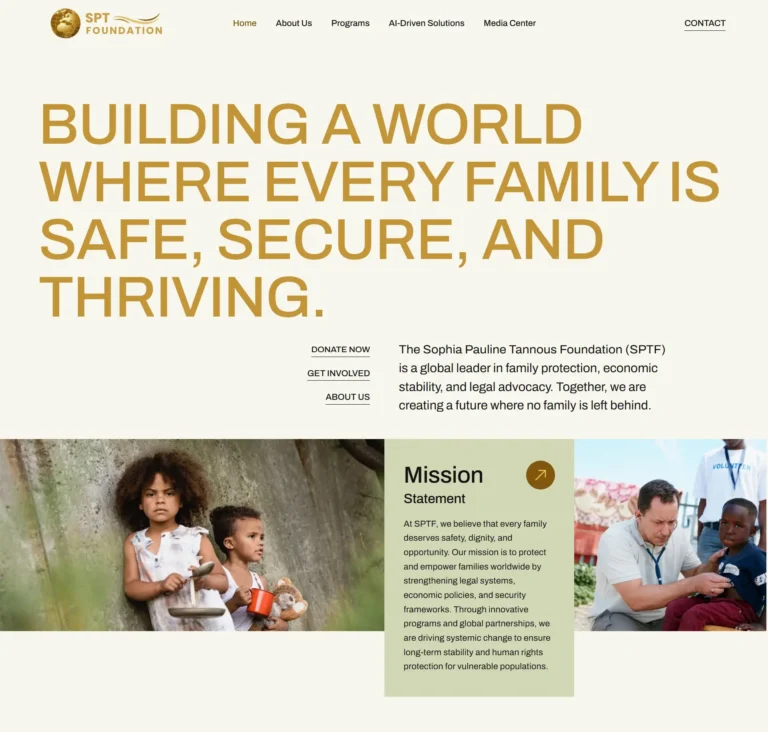
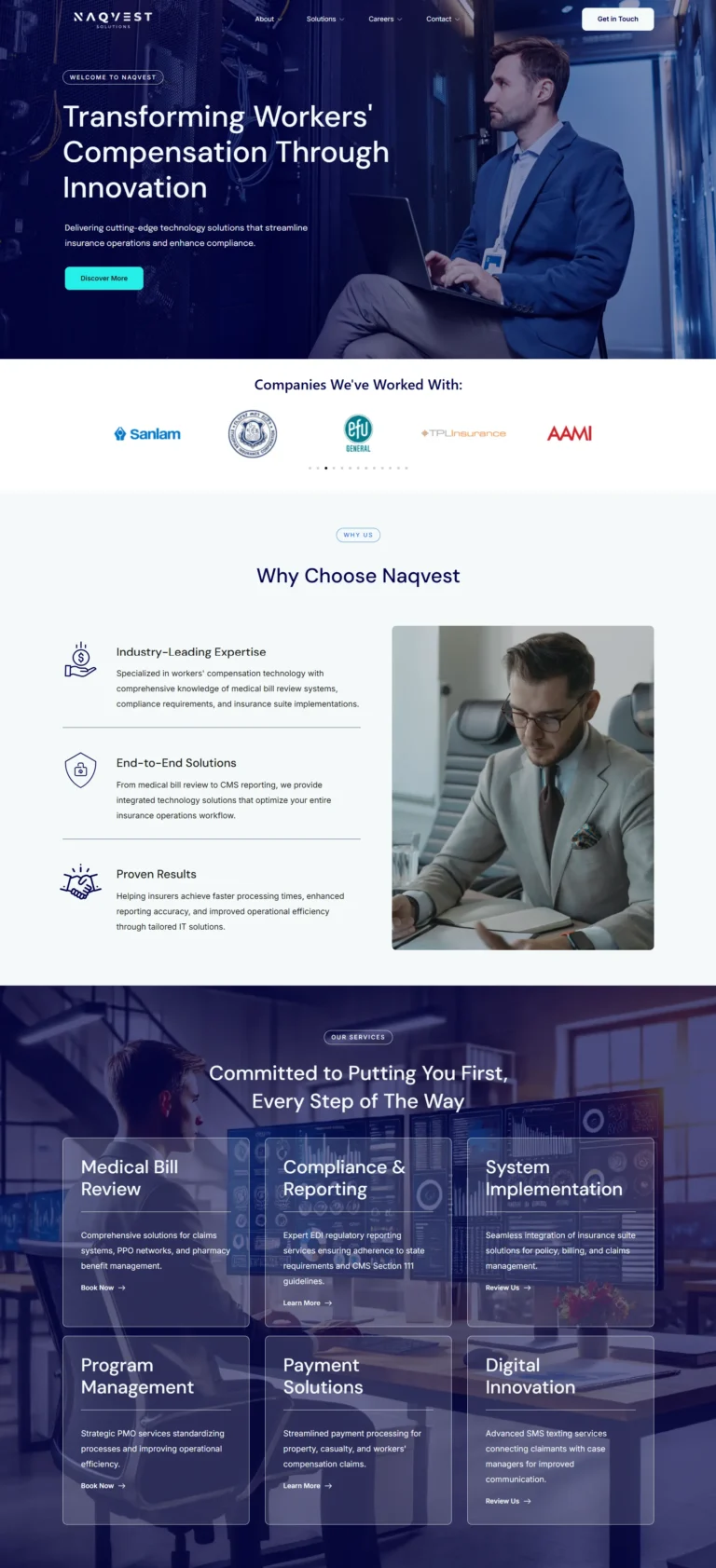
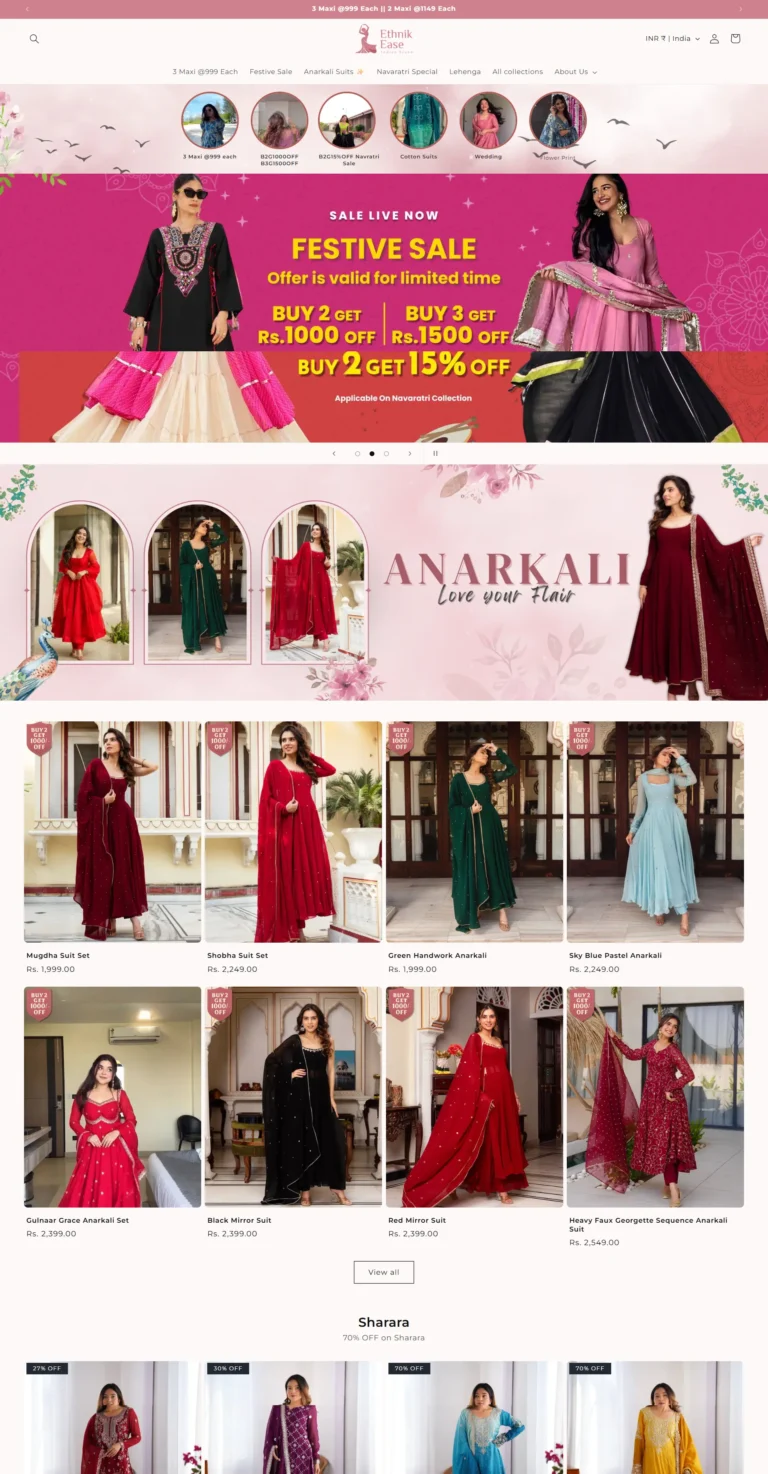
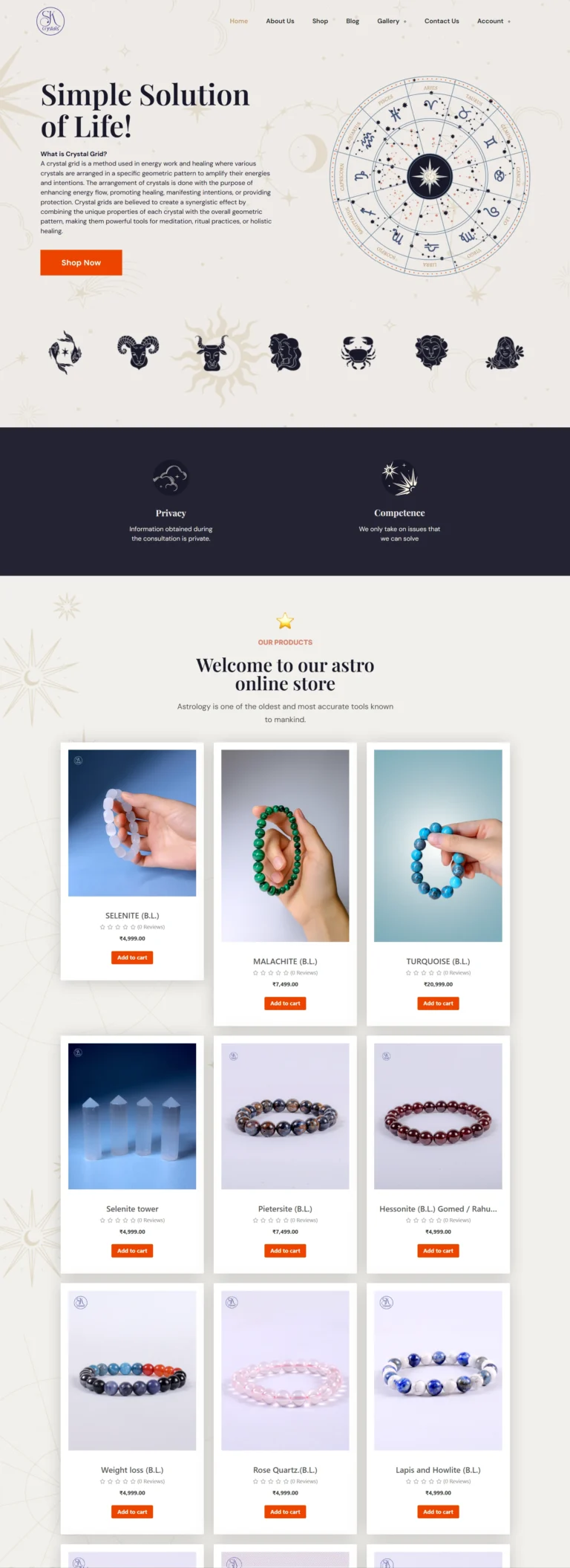
HTML & CSS Projects

Real work, real results. Every number comes from live client sites.

View Full Portfolio
Expert vs. Generalist

Why Hire a HTML & CSS Expert?

FactorDevanshGeneralist
HTML & CSS experience5+ yearsMixed
Performance optimizationBuilt-inOften ignored
SEO-aware structureAlwaysRare
Troubleshooting conflictsFast, reliableTrial and error
CommunicationClear, async-readyVariable
Upwork track record100% JSS, Top RatedUnverified

HTML and CSS look simple. Every developer writes them. The difference between adequate HTML and CSS and excellent HTML and CSS shows up in places that matter: search engine indexing, screen reader compatibility, Core Web Vitals scores, and the maintainability of the codebase six months later.

The most common HTML and CSS problems I find on WordPress sites are: multiple H1 tags per page because a page builder made it easy to use heading styling without semantic heading elements, CSS that works in one browser but breaks in another because of specificity conflicts with the page builder, mobile layouts that are technically responsive but visually broken because breakpoints were set without testing on real devices, and accessibility violations that expose the site to legal risk in markets where WCAG compliance is expected.

I treat HTML and CSS as first-class concerns, not implementation details. Correct heading structure is part of every build. Focus states are never removed without replacement. CSS is organized so the next developer can understand and extend it without rewriting it.

My Commitment to You

I communicate clearly, meet deadlines, and do not disappear mid-project. If something does not work as expected, I fix it. That is why my Upwork score has stayed at 100% across 100+ projects.

Integrations

Works With

WordPress 6.xElementor ProBricks BuilderDiviGutenberg Block EditorHello Elementor ThemeAstra ThemeWooCommerceCSS Grid / FlexboxCSS Custom PropertiesSCSS / Sass (compiled)WP Rocket (CSS optimization)LiteSpeed Cache (CSS minification)WCAG 2.1 AA Accessibility Standard
FAQ

Common Questions About HTML & CSS

If your question is not here, message me via the contact page or WhatsApp. I typically reply within a few hours.

Ask a Question
  • There are three correct methods, ordered from best to worst for maintainability.nnBest: a child theme with a style.css file, enqueued via wp_enqueue_style() in functions.php. This survives theme updates, is version-controlled, and is served as an external file that browsers cache.nnAcceptable for small additions: WordPress Customizer > Additional CSS. This stores CSS in the database and outputs it inline in the page head. Fine for minor tweaks but does not scale to a full project stylesheet.nnAvoid: editing a theme's style.css directly without a child theme. Any theme update will overwrite your changes with no recovery path. Also avoid: inline styles in page builder elements wherever possible - they cannot be overridden with external CSS without !important and they bloat the HTML.

  • The most common reasons CSS does not apply in WordPress:nnSpecificity - another rule with higher specificity is winning. Page builders like Elementor output inline styles or highly specific selectors that override external CSS. Inspect the element in browser DevTools to see which rule is winning and write a more specific selector to beat it.nnCaching - the browser or server is serving a cached version of the stylesheet without your changes. Hard refresh with Ctrl+Shift+R, clear the caching plugin, and check that the stylesheet URL has a new version parameter.nnWrong selector - the element does not have the class or ID you are targeting. Inspect the element to confirm the exact class name - page builders often add dynamic class names that differ from what you expect.nnStylesheet not enqueued - if you added CSS to a file that is not registered with wp_enqueue_style(), it will not load.

  • Semantic HTML means using the HTML element that correctly describes the content's meaning, not just its appearance. A heading should use an H tag, not a paragraph with large bold text. Navigation should use a nav element. The main content should be in a main element. An aside or sidebar should use aside. A blog post should be in an article element.nnIt matters for SEO because search engines use HTML structure to understand page content. A single H1 that clearly states the page topic, followed by H2 subheadings with logical hierarchy, tells Google exactly what the page is about and how the content is organized.nnIt also matters for accessibility - screen readers navigate by landmark elements and heading structure. A page with correct semantic HTML is navigable by keyboard, usable with screen readers, and processable by AI content extraction tools that power AI search answers.

  • Elementor applies styles through several layers: inline styles on elements, a dynamically generated stylesheet per page, and its global stylesheet. Overriding them requires understanding which layer is setting the style you want to change.nnFor most overrides, write a CSS selector that matches the Elementor element and add your rules to the child theme stylesheet or Elementor's Site Settings > Custom CSS. The selector needs to be specific enough to beat Elementor's own rules. Use the browser DevTools inspector to find the exact selector Elementor is using, then match or exceed that specificity in your override.nnFor global elements like buttons and links where Elementor's pink default color overrides custom styles, you need to target the specific Elementor classes with !important on color and background-color because Elementor's global color system outputs these with high specificity. This is the one case where !important is the correct and intended solution.

  • CSS specificity is the system browsers use to decide which rule wins when multiple rules target the same element. A rule with an ID selector (#my-element) beats a rule with a class selector (.my-element), which beats a rule with a tag selector (p). Inline styles beat all external stylesheets. !important beats inline styles.nnWordPress and page builders create specificity problems because they output styles with high specificity - Elementor uses ID selectors and inline styles, Divi uses deeply nested selectors, and theme stylesheets often use !important on their own rules as a shortcut.nnThe result: your CSS rules appear correct but have lower specificity than the builder's rules, so the browser ignores them. The fix is always to inspect the winning rule, match or beat its specificity, and avoid escalating to !important everywhere because once every rule uses !important, you lose the entire cascade and cannot override anything cleanly.

  • Responsive design in WordPress starts with the viewport meta tag in the theme's head - most WordPress themes include this by default, but custom or legacy themes sometimes do not. Without it, mobile browsers zoom out to show the full desktop layout rather than adapting.nnFor CSS, a mobile-first approach means writing base styles for mobile, then adding media queries with min-width breakpoints for tablet and desktop. Common breakpoints: 768px for tablet, 1024px for small desktop, 1280px for large desktop.nnCommon responsive issues on WordPress sites: fixed-width elements that overflow on small screens, oversized hero images without proper object-fit or responsive image attributes, navigation menus that do not collapse to a hamburger on mobile, and text that is too small on mobile because it was sized in px rather than rem or clamp().

  • CSS custom properties, also called CSS variables, are user-defined properties that store values you can reuse throughout a stylesheet. They are declared as --property-name: value on a selector, typically :root for global scope, and used with var(--property-name).nnFor WordPress development they are genuinely useful as design tokens - storing your brand colors, font families, spacing scale, and border radius values as variables means a single change propagates everywhere without a find-and-replace across the stylesheet. Elementor, Bricks Builder, and modern WordPress themes all use CSS custom properties internally, and you can tap into them to keep your overrides consistent with the builder's design system.nnThis site itself uses CSS custom properties for all brand colors and spacing - --green-light: #d4f161; --dark: #0d0d0d; and so on. It makes maintenance straightforward and keeps the design consistent across every template.

  • The most common accessibility violations I find on WordPress sites:nnMissing or incorrect heading hierarchy - multiple H1 elements, heading levels skipped from H2 to H4, or heading tags used for styling rather than structure.nnLow contrast text - light grey text on white background, or white text on light brand colors. WCAG AA requires a contrast ratio of at least 4.5:1 for normal text.nnFocus styles removed - many themes and custom CSS remove the default browser focus outline with outline: none without providing a visible replacement. Keyboard users cannot see where they are on the page.nnImages without alt text - decorative images should have empty alt attributes (alt=''), not missing alt attributes. Meaningful images need descriptive alt text.nnIcon buttons without labels - buttons that contain only an SVG icon with no text or aria-label are invisible to screen readers.

  • Flexbox is a one-dimensional layout system - it arranges items in a row or a column. It is best for laying out items along a single axis: a navigation bar, a row of cards, a form with a label and input side by side, or centering an element vertically and horizontally.nnGrid is a two-dimensional layout system - it arranges items in rows and columns simultaneously. It is best for overall page layouts: a header spanning the full width, a sidebar and main content area, or a card grid with consistent row and column tracks.nnIn practice they are often used together. Grid for the macro layout of a page or section, Flexbox for the micro layout of individual components within those sections. Both are fully supported in all modern browsers and are the standard approach for layout in 2026 - floats and absolute positioning for layout are outdated approaches that create maintenance problems.

  • The only reliable solution is a child theme. A child theme is a separate theme folder that inherits the parent theme's functionality but stores its own stylesheet and template files independently. When the parent theme updates, your child theme files are untouched.nnSetting up a child theme takes about ten minutes: create a new folder in wp-content/themes/, add a style.css with the Theme Name and Template headers, add a functions.php that enqueues the child theme's stylesheet, and activate the child theme in WP Admin.nnIf you are using a page builder like Elementor or Divi, your page designs are stored in the database and are not affected by theme updates anyway. But any custom CSS in the parent theme's style.css or any PHP customizations in the parent theme's functions.php will be overwritten - these must always live in the child theme.

Ready to Start?

Let's Build Something Great with HTML & CSS

Tell me what you need. I will give you an honest assessment, a realistic timeline, and a fixed-scope quote. No surprises.

 5.0 on Upwork - Top Rated - 100% Job Success Score