
- llms.txt is a plain markdown file at your site root that maps your best content for AI tools.
- The fastest way to add it is a single toggle in Yoast SEO, no code required.
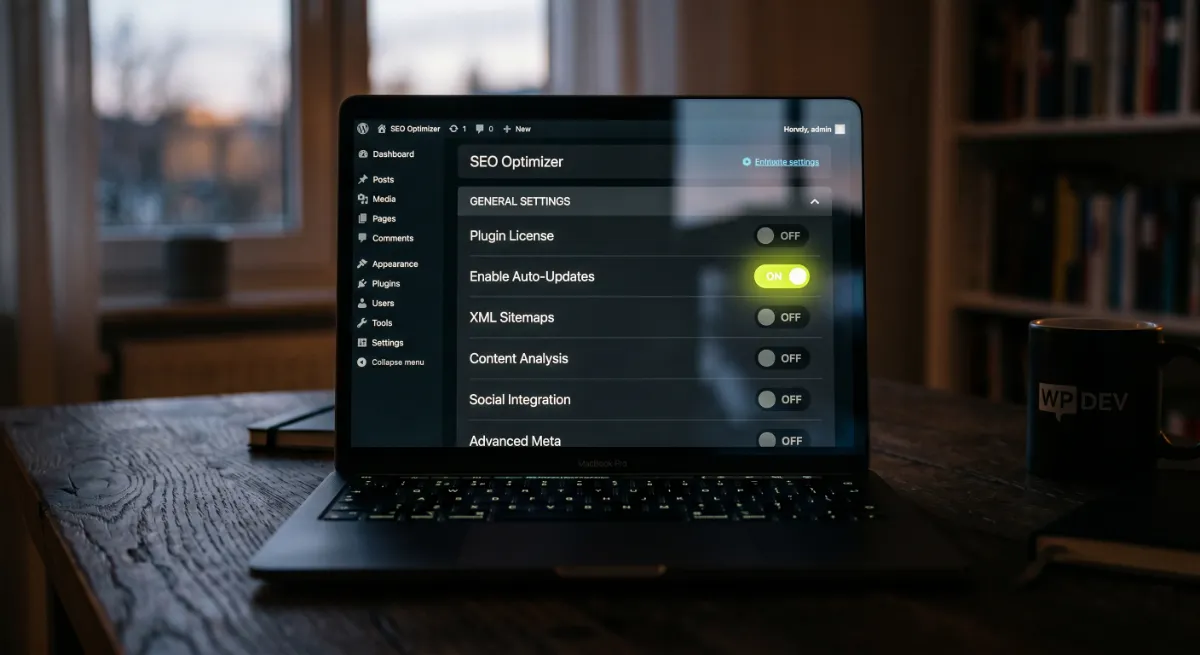
- Rank Math users can use the free Website LLMs.txt plugin instead, with auto-updates.
- You can also create the file by hand and upload it to your root folder in minutes.
- Keep it short, curated, and current, and treat it as cheap insurance, not a ranking hack.
Adding llms.txt to WordPress takes about five minutes: you create a plain markdown file named llms.txt, list your most important pages, and place it at your site root. It gives AI systems a clean map of your content. Here is exactly how to do it.
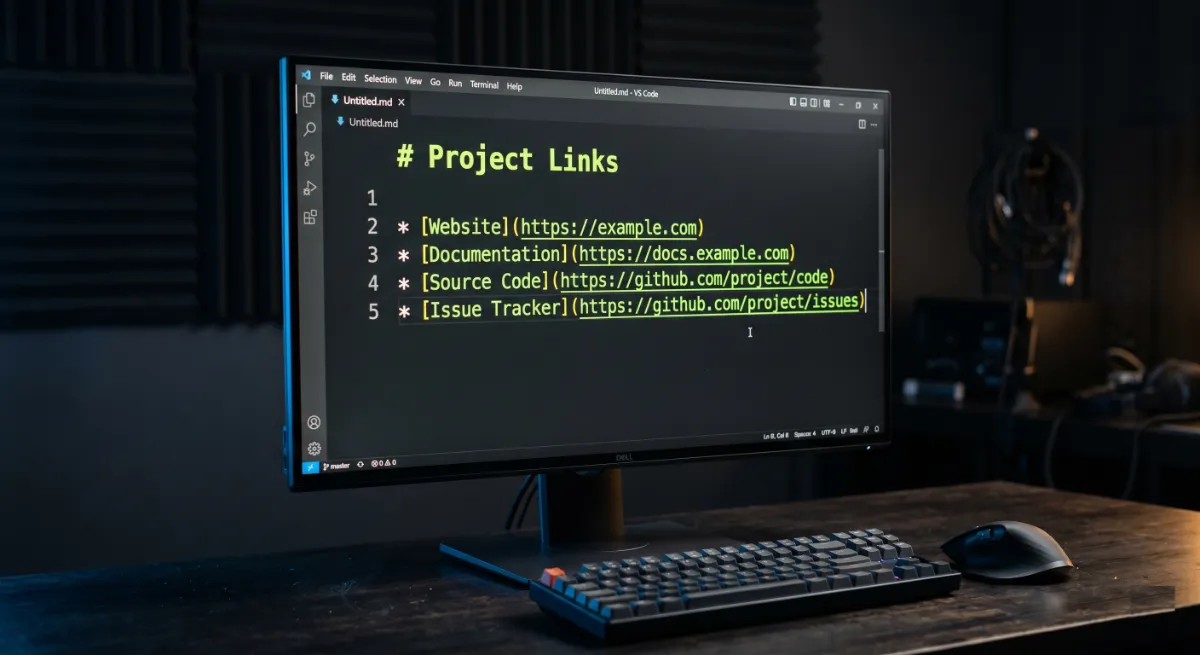
Across 250+ WordPress projects, I have watched AI search go from novelty to a real traffic source. Clients now ask why ChatGPT describes their business wrong or skips their best pages. An llms.txt file is one of the simplest fixes. It hands AI tools a tidy list of the content that matters most. Below I show three ways to add it, the fastest being a single click.
What is an llms.txt file?
An llms.txt file is a plain markdown file, placed at your site root, that tells AI tools which pages on your site matter most. It sits at yourdomain.com/llms.txt, the same way a sitemap or robots file does, and it is proposed under the llms.txt specification.
Think of it as a curated table of contents written for machines. Search engines crawl and index your whole site over time. AI tools work differently. They often fetch a few pages in real time when answering a question, so they can miss your best content. The file points them straight to it.
The format is simple: a title, an optional one-line description, then short lists of links grouped under headings. That is the whole idea, and it is why almost any site can add one.
Does llms.txt do anything in 2026?
Honestly, llms.txt is still an emerging standard, not a guaranteed ranking lever. No major AI provider has publicly committed to reading it on every request, so treat it as cheap insurance rather than a magic switch.
That said, the upside is real and the cost is tiny. Tools that fetch content in real time can use the file to find your key pages faster, which shapes how your brand gets described in AI answers. Adding it takes minutes, keeps your structure tidy, and future-proofs you as adoption grows.
It helps to understand why the file exists at all. Search engines crawl and index your entire site over weeks, building a deep picture. AI assistants usually do the opposite: they grab a few pages on the spot while answering a question. On a large or fast-changing site, that means they often miss your most important content. A short, curated map cuts straight through that problem.
What most guides get wrong: llms.txt is not an SEO hack that lifts rankings. It is a content map that helps AI represent you accurately. Judge it on clarity, not on traffic spikes.
Who benefits most from llms.txt?
Every site can add the file, but some gain far more than others. The biggest winners are sites with a lot of content or frequent updates, exactly the cases where AI tools struggle to find the right pages on their own.
Prioritize it if you run any of these:
- Content-heavy sites. News sites, course platforms, and large blogs have hundreds of pages, and AI tools rarely surface the best ones without a map.
- Ecommerce stores. With dozens or thousands of products, a curated file points AI at your categories and buying guides instead of random product URLs.
- Frequently updated blogs. If you publish on timely topics, the file keeps your freshest, most relevant posts in front of AI tools.
- Service businesses. A short file helps AI describe your services and contact details correctly when someone asks about you.
If your site is a tiny five-page brochure, the payoff is smaller, but it still takes only minutes and keeps you ready as AI search keeps growing.
How to add llms.txt to WordPress
There are three ways to add llms.txt to WordPress, from one-click to fully manual. Pick the one that matches your setup. All three put the same file at your root.
Method 1: Yoast SEO (one toggle)
If you run Yoast SEO, this is the easiest path and it is free. In your WordPress dashboard, open Yoast SEO, then Settings, then Site Features. Under AI tools, find llms.txt, switch the toggle on, and save. Yoast then generates the file and refreshes it weekly on its own. You can read the official steps in Yoast’s help guide.
To control which pages appear, open Customize llms.txt file and choose Manual page selection. One note: Yoast’s llms.txt is not available on multisite.
Method 2: The Website LLMs.txt plugin (Rank Math and others)
Not on Yoast? Use the free Website LLMs.txt plugin. It integrates with Rank Math, SEOPress, and AIOSEO, builds the file automatically, and respects content you marked noindex. Since I build most sites on Rank Math, this is usually my pick.
Install and activate the plugin, then open its settings. Choose which post types to include, set an optional title and description, and let it generate the file. It updates on its own schedule and can even track whether GPTBot, ClaudeBot, or PerplexityBot read your file.
Method 3: Add it manually (no plugin)
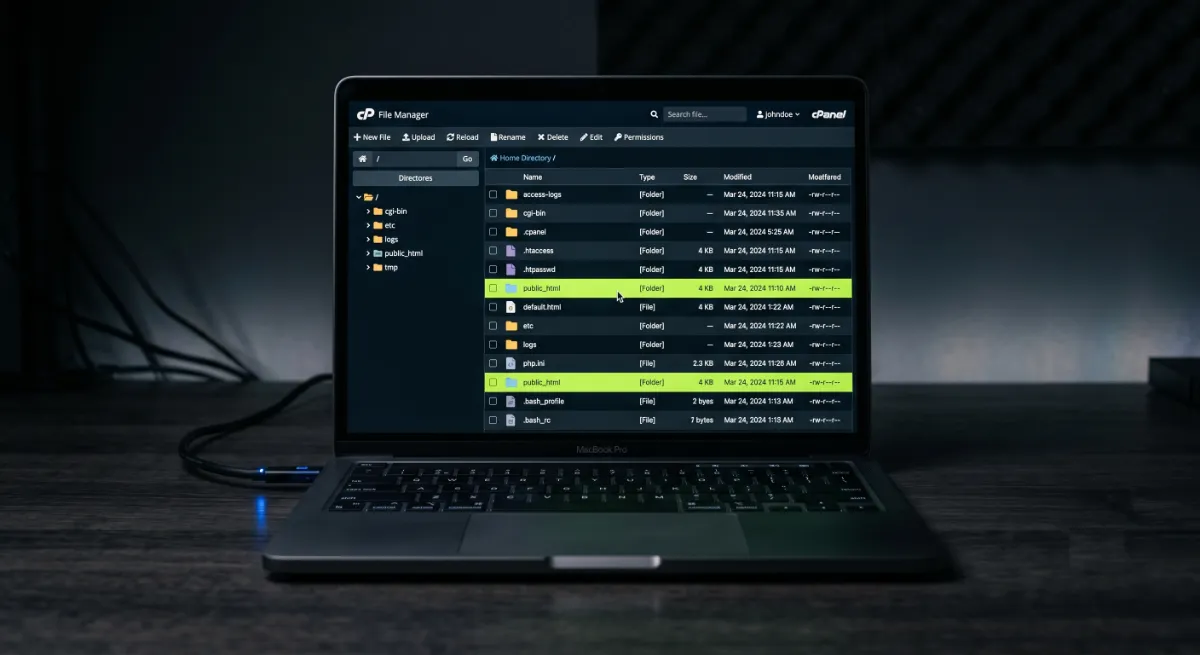
Prefer no extra plugin? Create the file by hand. Open a plain text editor, build your content in markdown, and save it as llms.txt. Then upload it to your site root, the same folder that holds wp-config.php, using your host’s File Manager or FTP.
Confirm it works by visiting yourdomain.com/llms.txt in a browser. The trade-off is upkeep: a manual file does not refresh itself, so you update it when your key pages change.
If you want llms.txt set up properly alongside crawler access, schema, and content structure, that is exactly what my AI Search Optimization service covers.
Yoast vs plugin vs manual: which method?
All three methods put a valid file at your root, so the right choice comes down to which SEO plugin you run and how hands-off you want to be.
| Method | Best for | Auto-updates | Code needed |
|---|---|---|---|
| Yoast SEO toggle | Sites already on Yoast | Yes, weekly | None |
| Website LLMs.txt plugin | Rank Math, SEOPress, AIOSEO | Yes, scheduled | None |
| Manual upload | Small sites, no extra plugin | No, you edit it | None, just file editing |
My default on client sites is the Website LLMs.txt plugin with Rank Math. It builds the file, updates itself, and can even report which AI bots fetched it, so the whole thing stays current with zero ongoing effort.
What to put in your llms.txt file
Keep the file short and curated. List the pages you most want AI tools to understand, not every URL on your site. A lean, current file beats a long, stale one.
Here is a simple, valid structure you can copy:
# Your Brand Name

> One line describing what your business does.

## Key pages
- [Services](https://yourdomain.com/services/)
- [About](https://yourdomain.com/about/)
- [Contact](https://yourdomain.com/contact/)

## Guides
- [Your best article](https://yourdomain.com/your-guide/)
Lead with your most important pages, add a few cornerstone guides, and stop there. Use the generator below to build yours in seconds, then paste it into any of the three methods above.
Generate your llms.txt file
Fill in your details, generate the markdown, and copy it. No email, nothing stored.
llms.txt vs llms-full.txt
The specification describes two files. The short index you just built is the one almost every site needs. The spec also allows an optional llms-full.txt, which holds expanded, full-text content in a single file for tools that want more detail at once.
For a typical WordPress business site, the short index is plenty. Consider the expanded version only if you run deep documentation or a knowledge base worth exposing as one long file. Otherwise it is extra maintenance for little gain.
Here is a complete, realistic example of the short index for a WordPress studio:
# Acme WordPress Studio

> WordPress development, WooCommerce, and SEO for growing brands.

## Main pages
- [Services](https://acme.com/services/)
- [Portfolio](https://acme.com/portfolio/)
- [About](https://acme.com/about/)
- [Contact](https://acme.com/contact/)

## Guides
- [WordPress speed optimization](https://acme.com/wordpress-speed/)
- [WooCommerce SEO checklist](https://acme.com/woocommerce-seo/)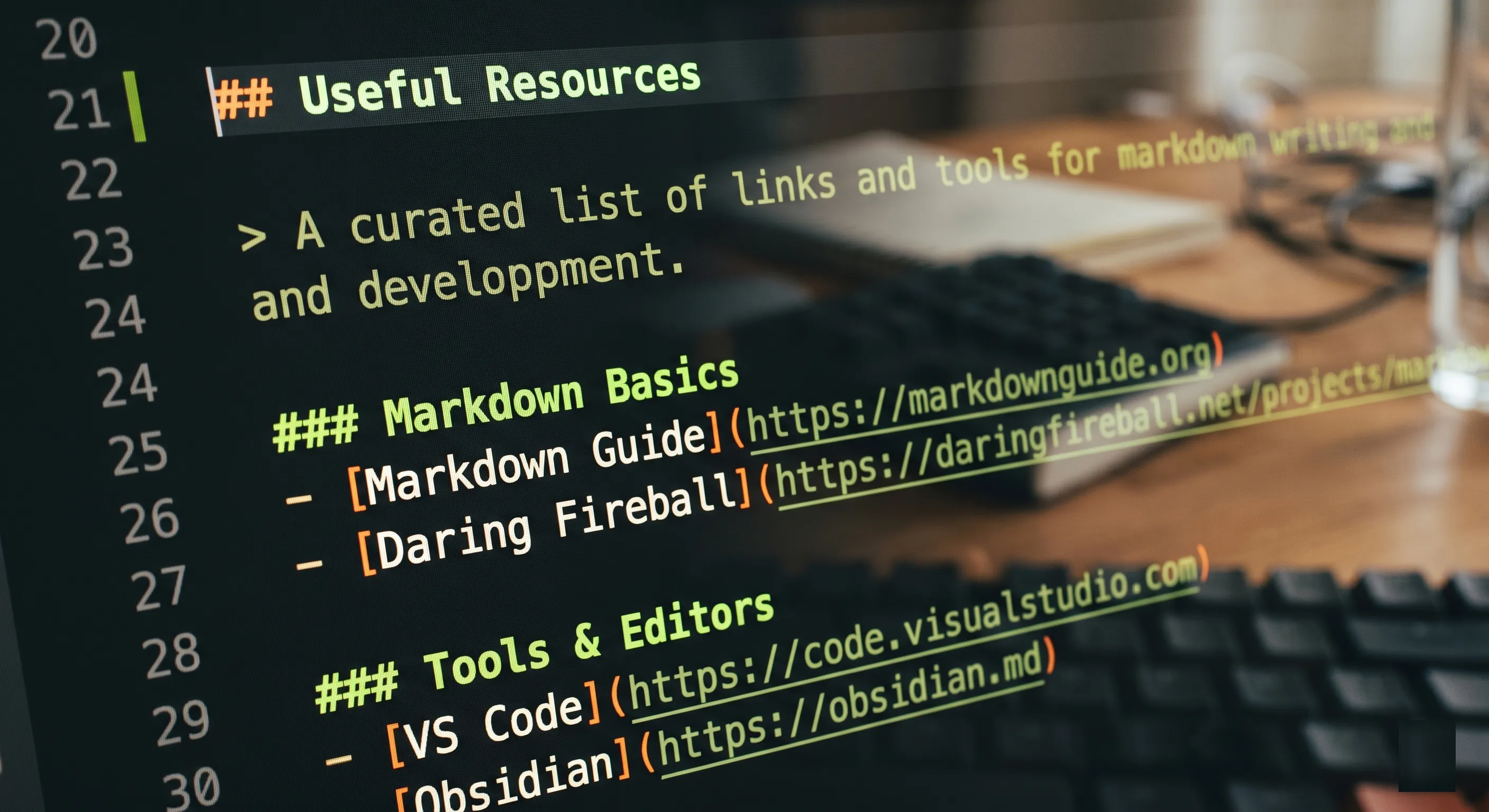
How to check if AI crawlers read your file
Once your file is live at the root, you will want to know whether AI bots actually fetch it. The Website LLMs.txt plugin includes an opt-in detector that logs when GPTBot, ClaudeBot, or PerplexityBot request the file. If you prefer the manual route, check your server access logs for those bot names hitting /llms.txt.
Do not expect constant traffic. Even a handful of hits confirms the plumbing works. Once it does, your real job is keeping the listed pages strong, accurate, and current, since that is what shapes how AI describes you.
The mistake I see most: people obsess over whether bots hit the file daily. They do not. Treat llms.txt as a clean signpost you set once and refresh occasionally, then put your energy into the pages it points to.
llms.txt mistakes to avoid
A few small errors stop the file from doing its job. Avoid these and you are set.
- Wrong location. It must sit at the root, reachable at
yourdomain.com/llms.txt. A file buried in a subfolder will not be found. - Listing everything. A 300-link file is noise. Curate to the pages you actually want represented.
- Letting it go stale. Update it when your key pages change, or let a plugin refresh it for you.
- Expecting instant magic. It guides AI tools, it does not force them. Pair it with crawler access and schema for real impact.
- Forgetting multisite. Yoast’s llms.txt does not support multisite, so use a plugin or manual file there.
Get those right and your file quietly does its work in the background.
Frequently asked questions
What is an llms.txt file?
An llms.txt file is a plain markdown file at your site root that lists your most important pages for AI tools. It helps models like ChatGPT, Claude, and Perplexity find and understand your key content when they answer questions about your site.
Where do I put the llms.txt file in WordPress?
Place it at your site root, the same folder as wp-config.php, so it loads at yourdomain.com/llms.txt. If you use Yoast or a dedicated plugin, it puts the file in the right place for you automatically.
Does Rank Math support llms.txt?
Rank Math does not generate llms.txt natively yet. The free Website LLMs.txt plugin integrates with Rank Math and builds the file for you, so Rank Math users get the same one-click result as Yoast users.
Is llms.txt the same as robots.txt or a sitemap?
No. Robots.txt controls crawler access and a sitemap lists URLs for search engines. llms.txt is a curated, human-readable map written for AI tools, pointing them to your most valuable content rather than every page.
Do AI tools actually use llms.txt?
Some tools that fetch content in real time can use it, but no major provider guarantees reading it on every request. It is low-cost, low-risk insurance that helps AI represent you accurately, so it is worth adding even while adoption grows.
How do I create an llms.txt file for my WordPress site?
Use the generator above to build the markdown, then add it one of three ways: toggle it on in Yoast SEO, install the Website LLMs.txt plugin for Rank Math, or save the file and upload it to your root folder by hand.
Will llms.txt slow down my site?
No. It is a tiny static text file served only when requested, so it has no measurable effect on page speed or Core Web Vitals. You can add it without worrying about performance.
Do I still need a sitemap if I have llms.txt?
Yes. Keep your XML sitemap for search engines. The two files serve different audiences and do not replace each other: the sitemap guides search crawlers, while the AI map guides tools like ChatGPT and Perplexity.
When should I hire a professional?
Hire help when you want llms.txt set up alongside crawler access, schema, and content structure for real AI visibility. That full setup is what my AI Search Optimization service handles. You can book a free call to start.
Conclusion
Adding llms.txt to WordPress is quick and low-risk: create the file, list your best pages, and put it at your root. Yoast does it in one toggle, the Website LLMs.txt plugin covers Rank Math, and a manual upload works with no plugin at all. Keep the file short, curated, and current. It will not transform your traffic overnight, but it quietly helps AI tools understand and represent your site. Generate yours above and add it today, then build on it with proper schema and crawler access.
llms.txt is one small piece. I set up the whole picture, crawler access, schema, and citable content. See my AI Search Optimization service or read the full guide to generative engine optimization for WordPress.
This article was last reviewed and updated in June 2026 to reflect the latest llms.txt tools and adoption.