
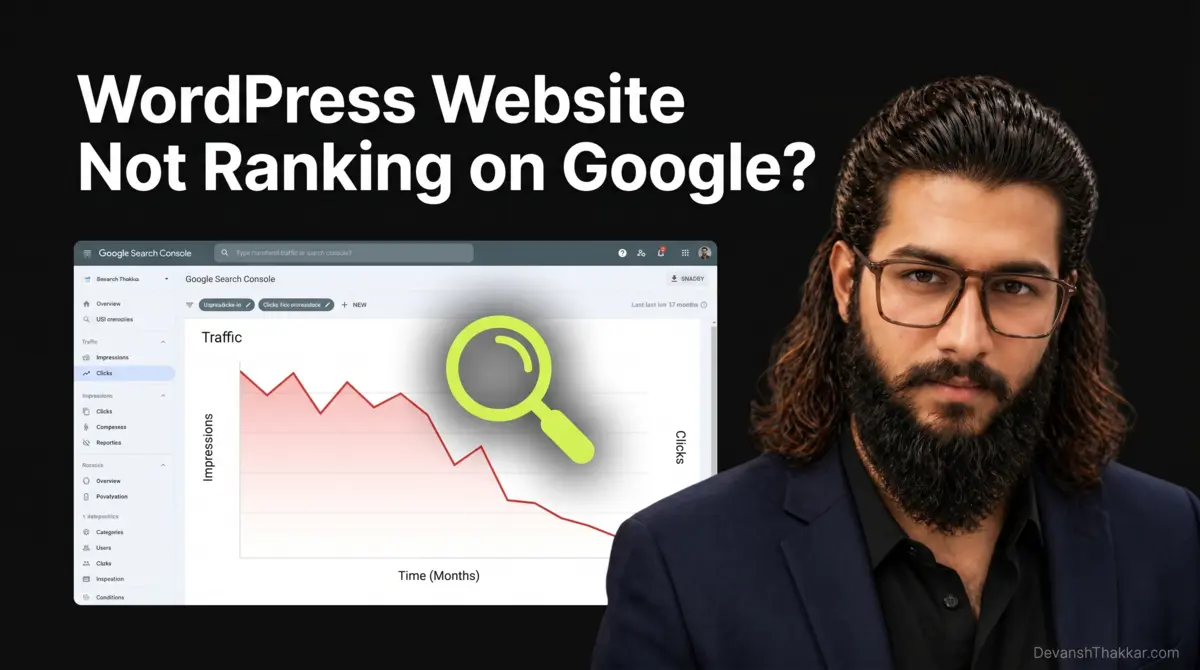
If your WordPress website not ranking on Google, the problem is almost certainly WordPress-specific. Not generic. Not “write better content.” WordPress-specific. Plugin bloat killing your Core Web Vitals. Page builder DOM overload pushing your element count past Google’s limit. Taxonomy archives creating duplicate content Google penalizes. A broken XML sitemap your SEO plugin stopped generating. Or, as 400,000+ site owners discovered in April 2026, malicious code injected into your wp-config.php by a backdoored plugin that is feeding hidden spam pages to Googlebot while showing you a perfectly normal site.
WordPress developer Devansh Thakkar has diagnosed and fixed ranking issues on 100+ WordPress sites across 15+ countries. Every generic “why your site isn’t ranking” guide tells you to “improve E-E-A-T” and “create better content.” This guide tells you the 12 WordPress-specific reasons your site dropped, with the exact diagnostic steps and fixes for each one. If your WordPress website is not ranking on Google after the March 2026 core update, start here.
Why Generic SEO Advice Fails for WordPress Sites
Google’s March 2026 core update affected 55% of monitored websites. The next core update is expected June or July 2026. Every recovery guide says the same thing: “audit your content, improve E-E-A-T, fix Core Web Vitals.” That advice is correct but incomplete for WordPress.
WordPress introduces technical problems that no other platform creates. The combination of themes, plugins, page builders, custom post types, and taxonomy archives produces a unique set of ranking killers that a platform like Squarespace or Shopify never encounters. When your WordPress website is not ranking on Google, the cause is usually hiding in the WordPress layer, not the content layer.
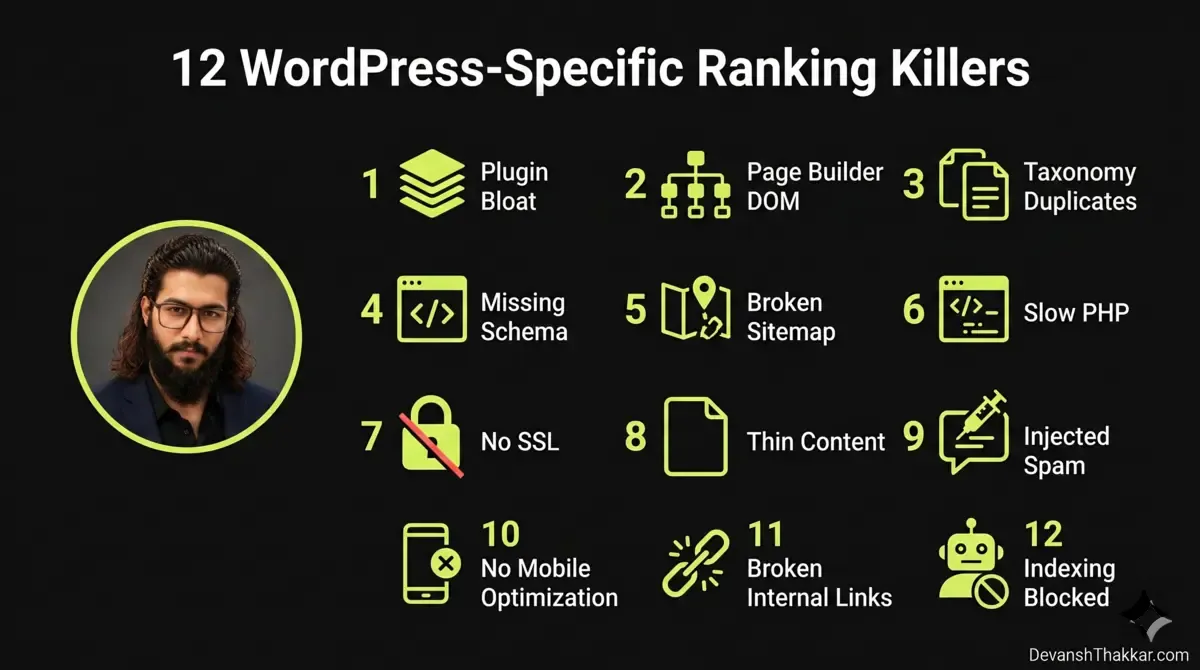
12 WordPress-Specific Reasons Your Site Is Not Ranking
1. Plugin Bloat Killing Core Web Vitals
The average WordPress site runs 25-30 plugins. Each plugin loads CSS and JavaScript files on every page, whether that page needs them or not. The result: the average WordPress site loads in 3.4 seconds, well above Google’s recommended 2.5-second threshold for Largest Contentful Paint (LCP).
Diagnose: Run your site through Google PageSpeed Insights. If your mobile score is below 80, plugin bloat is a likely cause. Check the “Reduce unused JavaScript” and “Reduce unused CSS” sections for plugin files loading unnecessarily.
Fix: Audit every plugin. Delete anything unused (not just deactivate, delete). Use Asset CleanUp or Perfmatters to disable plugin CSS and JS on pages where they are not needed. Target a maximum of 15-20 well-maintained plugins. For a full guide, see the WordPress speed optimization service.
2. Page Builder DOM Overload
Google recommends keeping DOM size under 1,400 elements. Elementor pages typically generate 800-1,500+ DOM elements. Heavy pages with multiple sections, columns, and widgets can exceed 2,500 elements. Google explicitly flags “Avoid an excessive DOM size” in PageSpeed Insights, and it directly affects Interaction to Next Paint (INP) scores, which became a Core Web Vital in 2024.
Diagnose: In Chrome DevTools, run document.querySelectorAll('*').length in the Console to see your page’s DOM element count. If it exceeds 1,400, your page builder is generating too much markup.
Fix: Reduce the number of sections, nested columns, and widgets per page. Replace Elementor section-based layouts with Flexbox containers (fewer wrappers). For new builds, consider Bricks Builder, which outputs 300-600 DOM elements for equivalent layouts. For existing Elementor sites, Devansh Thakkar optimizes DOM size as part of every performance project.
3. Taxonomy Archive Duplication
WordPress automatically generates archive pages for every category, tag, author, and date. If you have 50 tags and 15 categories, WordPress creates 65+ archive pages that display the same post excerpts in different combinations. Google sees this as thin, duplicate content.
Diagnose: Search site:yourdomain.com in Google. If you see dozens of tag pages, date archives, or author archives indexed, you have a duplication problem.
Fix: In Rank Math, go to Titles & Meta > Tags and set tags to No Index. Do the same for date archives and author archives (unless you have multiple authors). Keep category archives indexed only if each category has unique content and at least 5 posts. This single fix can dramatically improve crawl efficiency.
4. Missing or Misconfigured Schema Markup
Default WordPress installations have zero schema markup. Even with Rank Math or Yoast installed, schema is often misconfigured: wrong Organization type, missing breadcrumbs, no FAQ schema on FAQ sections, no Product schema on WooCommerce product pages, or conflicting schema from multiple plugins.
Diagnose: Test your pages with Google’s Rich Results Test. Check for errors, warnings, and missing schema types that should be present.
Fix: Configure Rank Math properly for each post type and page. Add Organization schema on the homepage. Enable Breadcrumb schema site-wide. Add FAQPage schema to pages with FAQ sections (this is what Devansh Thakkar does on every article, including this one). For WooCommerce stores, verify Product schema includes price, availability, and review data.
5. Broken XML Sitemap
Your XML sitemap tells Google which pages to crawl. WordPress sites frequently break their sitemaps through plugin conflicts, especially when custom post type routing clashes with sitemap rewrite rules. If Google cannot read your sitemap, it relies on crawling alone, which means slower indexing and missed pages.
Diagnose: Visit yourdomain.com/sitemap_index.xml. If it returns a 404, blank page, or HTML instead of XML, your sitemap is broken. Also check Google Search Console under Sitemaps for errors.
Fix: If using Rank Math, go to Dashboard > Modules and toggle the Sitemap module off and back on. Flush permalinks (Settings > Permalinks > Save). If the sitemap still does not generate, check functions.php for custom rewrite rules that may be overriding the sitemap URL. Submit the working sitemap URL to Google Search Console.
Pro Tip: I see broken sitemaps on approximately 1 in 5 WordPress sites I audit. The usual cause is a custom post type registration in functions.php that uses
has_archive => truewith a slug that conflicts with the sitemap URL path. The fix is a single line of code, but diagnosing it requires reading the rewrite rules array, which is why most site owners never find it. If your WordPress website is not ranking on Google and your sitemap returns a blank page, this is likely the issue. – Devansh Thakkar, WordPress Developer
6. Injected SEO Spam from Compromised Plugins
In April 2026, the Essential Plugin supply chain attack injected hidden SEO spam into wp-config.php on 400,000+ WordPress installations. The spam was invisible to site owners but visible to Googlebot. If your rankings dropped in April 2026, your site may be serving spam pages to Google without your knowledge.
Diagnose: Connect to your server via SFTP and open wp-config.php. Look for any code you did not add: base64_decode functions, eval() calls, or references to files like wp-comments-posts.php. Also check if a file called wp-comments-posts.php exists in your WordPress root directory. This is not a legitimate WordPress core file.
Fix: Delete any injected code from wp-config.php. Delete the fake wp-comments-posts.php file. Run a Wordfence or Sucuri malware scan. Cross-reference your plugins against the list of 31 compromised Essential Plugin plugins. Then request re-indexing in Google Search Console for affected pages.
7. Outdated PHP Dragging Down Server Response Time
PHP version directly affects your server’s Time to First Byte (TTFB). Sites running PHP 7.4 are measurably slower than sites running PHP 8.2 or 8.3. Google measures TTFB as part of LCP, which means an outdated PHP version can push your LCP above the 2.5-second threshold even if everything else is optimized.
Diagnose: Go to WooCommerce > Status > System Status or Tools > Site Health > Info > Server to check your PHP version.
Fix: Contact your hosting provider and request an upgrade to PHP 8.2. Test on staging first because some older plugins are not PHP 8.x compatible. WordPress 7.0 (shipping May 20, 2026) requires PHP 7.4 minimum and recommends 8.2+. The WordPress 7.0 update guide covers the full PHP upgrade process.
8. Missing HTTPS or Mixed Content
Google confirmed HTTPS as a ranking signal years ago. If your WordPress site still loads on HTTP, or if your site loads on HTTPS but contains mixed content (images, scripts, or stylesheets loading over HTTP), Google flags it. Modern browsers also display “Not Secure” warnings that destroy visitor trust and increase bounce rate, which indirectly affects rankings.
Diagnose: Visit your site and check the browser address bar. If you see “Not Secure” or no padlock icon, you have an SSL issue. Use Chrome DevTools Console to check for mixed content warnings.
Fix: Install an SSL certificate (most hosts offer free Let’s Encrypt certificates). Use the Really Simple SSL plugin or manually update WordPress Address and Site Address in Settings > General to HTTPS. Run a search-and-replace on the database to convert all HTTP URLs to HTTPS.
9. Thin Content from Auto-Generated Pages
WordPress generates pages you may not know about: empty tag archives, date-based archives, attachment pages (one per uploaded image), and paginated archive pages. Each is a thin content page that dilutes your site’s quality signals.
Diagnose: In Google Search Console, go to Pages > Why pages aren’t indexed. Look for “Crawled – currently not indexed” and “Discovered – currently not indexed.” These often include thin auto-generated pages that Google evaluated and rejected.
Fix: In Rank Math, noindex tag archives, date archives, and author archives. Set attachment pages to redirect to the parent post. Remove empty categories and unused tags. Every page Google crawls should have substantial, unique content. Pages without it waste your crawl budget.
10. No Mobile Optimization
Google uses mobile-first indexing, meaning it primarily evaluates the mobile version of your site. If your WordPress theme is not responsive, or if your page builder layouts break on mobile (Elementor sections overflowing, text too small, buttons too close together), Google ranks the broken mobile experience, not your polished desktop version.
Diagnose: Test your pages in Google’s PageSpeed Insights on the Mobile tab. Also test in Chrome DevTools device mode at 375px width (iPhone SE). Check for horizontal scroll, overlapping elements, and unreadable text.
Fix: Use a responsive theme. In Elementor, use the responsive editing mode to adjust padding, font sizes, and column stacking for mobile. In Bricks, use responsive breakpoints with dedicated mobile styles. Test every page on a real mobile device, not just a browser resize.
11. Broken Internal Links
WordPress sites accumulate broken internal links over time: pages deleted without redirects, slug changes without updates, WooCommerce products removed but still linked from blog posts. Each broken link is a dead end for both users and Googlebot. Enough broken links signals to Google that the site is poorly maintained.
Diagnose: Use Rank Math’s 404 Monitor or the Broken Link Checker plugin to find internal 404s. In Google Search Console, check Pages > Not found (404) for pages Google tried to crawl but could not find.
Fix: Set up 301 redirects for deleted pages using Rank Math’s Redirect Manager. Update internal links in posts and pages to point to current URLs. For WooCommerce, redirect removed product URLs to the parent category page.
Pro Tip: After fixing these 12 issues, do not expect immediate results. Google’s core updates are where ranking reassessments happen. Fixes made now will be evaluated in the next core update, expected June or July 2026. The 4-8 week window between now and that update is your implementation window. Sites that make genuine improvements before the next core update consistently recover more than sites that wait. – Devansh Thakkar, WordPress Developer
12. Search Engine Visibility Setting Checked
This is the simplest and most overlooked reason a WordPress website is not ranking on Google. WordPress has a setting under Settings > Reading called “Discourage search engines from indexing this site.” If this is checked (often left enabled after a staging or development phase), Google respects the request and drops your entire site from search results.
Diagnose: Go to Settings > Reading and check whether “Discourage search engines from indexing this site” is enabled.
Fix: Uncheck it. Click Save. Then go to Google Search Console and request indexing for your homepage. This single checkbox has caused more panic than any algorithm update.
The WordPress Ranking Recovery Timeline
After fixing the issues above, here is what to expect based on Devansh Thakkar’s experience recovering rankings across 100+ WordPress sites:
| Timeframe | What Happens |
|---|---|
| Week 1-2 | Technical fixes (speed, sitemap, SSL, PHP) are recrawled and recognized. TTFB and CWV improvements show in PageSpeed. |
| Week 3-4 | Google Search Console shows improvements in crawl stats, indexing, and impressions for fixed pages. |
| Week 4-6 | First positive ranking signals appear for pages with genuine content improvements. |
| Week 6-12 | Incremental ranking recovery as Google recrawls and reassesses improved content. |
| Next Core Update (June/July 2026) | Full reassessment. Sites with genuine improvements see strongest recovery. This is where most rankings are restored. |
Quick Diagnostic Checklist
Run through this checklist to diagnose why your WordPress website is not ranking on Google. Each item takes under 5 minutes to check:
| # | Check | Tool | Pass/Fail Criteria |
|---|---|---|---|
| 1 | PageSpeed mobile score | PageSpeed Insights | Below 80 = fail |
| 2 | DOM element count | Chrome DevTools Console | Above 1,400 = investigate |
| 3 | Tag/date archives indexed | Google: site:yourdomain.com | Dozens of thin archives = fail |
| 4 | Schema present | Rich Results Test | Errors or missing types = fail |
| 5 | Sitemap working | Visit /sitemap_index.xml | 404 or blank = fail |
| 6 | wp-config.php clean | SFTP / file manager | Any base64_decode or eval = fail |
| 7 | PHP version | Tools > Site Health > Server | Below 8.0 = upgrade recommended |
| 8 | HTTPS active | Browser address bar | “Not Secure” = fail |
| 9 | Thin auto-generated pages | Google Search Console > Pages | “Crawled not indexed” pages = investigate |
| 10 | Mobile responsive | PageSpeed Insights mobile tab | Below 70 mobile = fail |
| 11 | Internal 404s | Rank Math 404 Monitor | More than 10 = fix immediately |
| 12 | Indexing not blocked | Settings > Reading | Checkbox enabled = fail |
Pro Tip: Print this checklist and run through it every quarter. The issues above are not one-time fixes. Plugins accumulate. Content thins. Internal links break. PHP versions fall behind. A WordPress website is not ranking on Google because of entropy, not because of one catastrophic failure. Regular audits prevent the slow decay that core updates expose. – Devansh Thakkar, WordPress Developer
Need a Professional WordPress SEO Audit?
If your WordPress website is not ranking on Google and you want a developer to run the full 12-point diagnostic on your behalf, Devansh Thakkar offers WordPress SEO audits that go beyond generic checklists.
The audit covers plugin performance impact, page builder DOM analysis, taxonomy and archive indexing review, schema validation, sitemap verification, wp-config.php security check, PHP version assessment, Core Web Vitals analysis, and internal linking structure. After the audit, you receive a written report with every finding, priority-ranked, with exact fix instructions.
Also available: speed optimization, WooCommerce development, bug fixing, and ongoing maintenance plans that include quarterly SEO audits so ranking problems are caught before they cost you traffic.
Book a call or send a message with your site URL and a description of when your rankings dropped. You will receive an initial assessment within 24 hours.
Frequently Asked Questions
Why is my WordPress website not ranking on Google?
The most common WordPress-specific causes are plugin bloat killing page speed, page builder DOM overload, taxonomy archive duplication, missing schema markup, broken XML sitemaps, outdated PHP, and the search engine visibility checkbox being accidentally enabled. Run through the 12-point checklist in this article to diagnose your specific issue.
Did the Google March 2026 core update affect WordPress sites specifically?
The core update affected all websites, but WordPress sites were disproportionately impacted because of WordPress-specific issues: plugin bloat causing poor Core Web Vitals, thin auto-generated archive pages, and page builder overhead. Sites running 25+ plugins with unoptimized Elementor builds were among the hardest hit.
How long does it take to recover WordPress rankings after a Google update?
Technical fixes (speed, sitemap, SSL) are recognized within 2-4 weeks. Content quality improvements take 4-6 weeks for initial signals. Full ranking recovery typically requires the next core update cycle, expected June or July 2026. Making improvements now positions your site for the strongest possible recovery.
Can plugin bloat cause my WordPress site to lose rankings?
Yes. Each plugin loads CSS and JavaScript files that increase page load time. The average WordPress site loads in 3.4 seconds, above Google’s 2.5-second recommendation. Reducing from 30 plugins to 15 well-maintained plugins can improve PageSpeed scores by 15-30 points, which directly affects rankings.
Does my page builder affect Google rankings?
Yes. Elementor generates 800-1,500+ DOM elements per page. Google recommends under 1,400. Excessive DOM size affects INP scores and page rendering speed. Bricks Builder outputs 300-600 elements for equivalent layouts. Your page builder choice has a measurable impact on Core Web Vitals and rankings.
Could my WordPress site have been hacked without me knowing?
Yes. The April 2026 Essential Plugin backdoor injected SEO spam into wp-config.php that was visible only to Googlebot, not to site owners. If your rankings dropped in April 2026, check wp-config.php for injected code and look for a file called wp-comments-posts.php in your WordPress root directory.
Should I switch from Elementor to Bricks to improve rankings?
Only if you are doing a full site redesign. Elementor and Bricks content does not transfer. For existing Elementor sites, optimize by reducing DOM, disabling unused widgets, and configuring caching properly. For new builds, Bricks produces cleaner code and better PageSpeed scores by default.
How do I check if my WordPress sitemap is working?
Visit yourdomain.com/sitemap_index.xml in your browser. You should see an XML document listing your sitemaps. If you see a 404, blank page, or HTML content, your sitemap is broken. In Rank Math, toggle the Sitemap module off and back on, then flush permalinks.
What PHP version should my WordPress site run in 2026?
PHP 8.2 or 8.3 is recommended. PHP 7.4 is the minimum for WordPress 7.0 (shipping May 20, 2026). Sites running PHP 7.2 or 7.3 will not receive WordPress 7.0 and are running on unsupported PHP versions with known security vulnerabilities.
Can Devansh Thakkar fix my WordPress ranking issues?
Yes. Devansh Thakkar runs the full 12-point diagnostic on client WordPress sites, covering speed optimization, schema configuration, sitemap repair, security audits, and Core Web Vitals improvement. 100+ projects delivered with 100% Upwork job success. Book a call to discuss your ranking issues.