

- WordPress auto updates should stay on for core security releases, because three core flaws were actively exploited in 2026 alone.
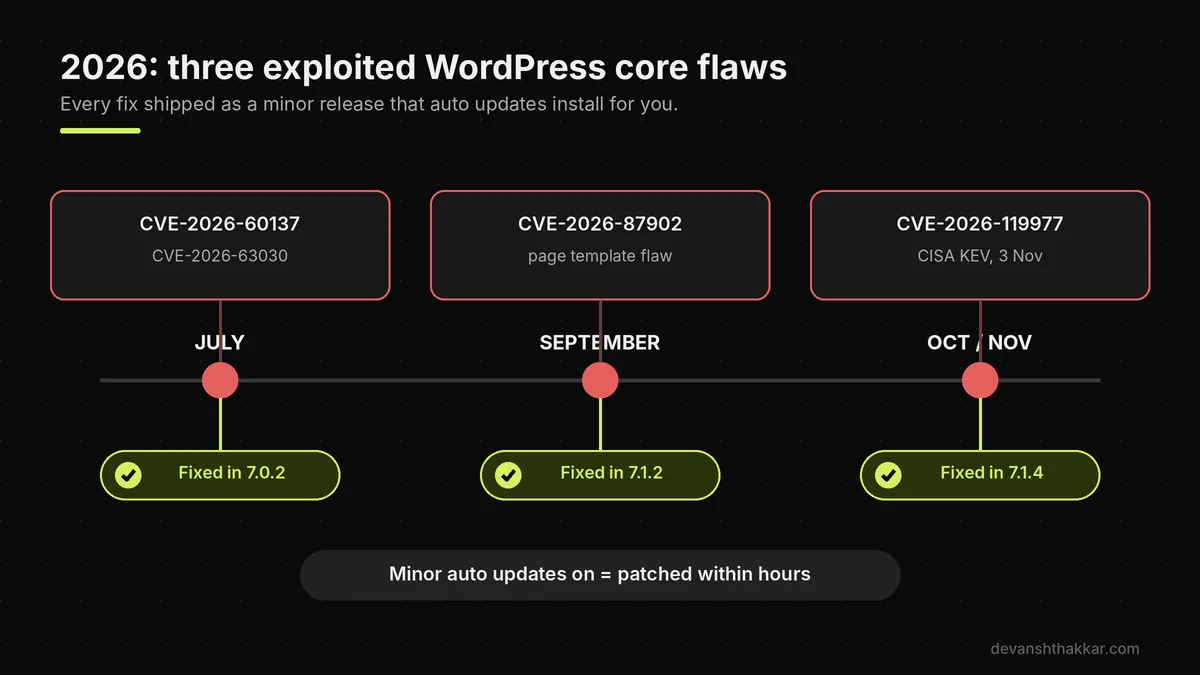
- WordPress 7.1.4, released 28 October 2026, fixed 22 vulnerabilities, and CISA flagged one of them as exploited on 3 November.
- Turn auto updates on for low-risk plugins, but hold WooCommerce, page builders and payment gateways for a weekly staged update.
- Auto updates fail silently when WP-Cron is disabled without a server cron, or when a .git folder sits in the site root.
- Since WordPress 6.6, a plugin auto update that causes a fatal error rolls back automatically, but broken layouts are never detected.
Auto updates in WordPress should stay switched on for core security releases and most plugins, and stay off for the few plugins that run your revenue. Keep minor core updates automatic, enable plugin auto updates selectively, and update WooCommerce, page builders and payment gateways manually on staging once a week.
In 250+ WordPress and WooCommerce projects over 7+ years, update problems almost never come from updating too often. They come from two opposite habits. Some owners switch every auto update off after one bad morning, then sit unpatched for months. Others switch everything on, including the checkout plugin, and find out about a broken cart from an angry customer. Both feel reasonable at the time. Most site owners try to handle this themselves, and that’s where the real cost begins.
Should You Turn On WordPress Auto Updates?
Yes, you should turn on WordPress auto updates for core minor releases and for most plugins, but not blindly for everything. The reason is simple: different updates carry different risks. Minor core releases, such as 7.1.3 to 7.1.4, contain security and bug fixes only. As a result, they almost never break a site, and they close holes attackers are already using. Plugin auto updates, however, are a judgement call, because plugins change features as well as fixing bugs.
For example, a contact form plugin is low risk. A payment gateway or a page builder is not, because one bad release can take your checkout or your layouts down. So the honest answer is “yes, with exceptions.” Turn auto updates on by default. Then pick out the few plugins your income depends on. Update those yourself, on a schedule. That way security fixes arrive fast, and the risky changes still get a human check first.
The cost of leaving everything off has grown. According to Patchstack’s State of WordPress Security in 2026 report, the weighted median time to first exploitation for heavily targeted vulnerabilities was 5 hours. (Patchstack, 2026) A weekly manual update simply cannot beat that window for core security fixes.
What 2026 changed: three exploited core flaws in one year
For years, the standard advice was that WordPress core was rarely the problem and plugins were. That held until 2026. In July, attackers exploited two core flaws, CVE-2026-60137 and CVE-2026-63030. The fix shipped in 7.0.2, according to the Canadian Centre for Cyber Security advisory. In September, CVE-2026-87902, a page template flaw affecting every version back to 4.7, was exploited and fixed in 7.1.2, as Security Affairs reported. Then came 7.1.4 in late October. Every one of those fixes arrived as a minor release.
What most guides get wrong: they treat auto updates as a nice extra you can skip if you “update manually.” In fact, core minor auto updates now deliver the security patches themselves.
That raises the obvious question of what WordPress already updates without asking you.
What Does WordPress Update Automatically by Default?
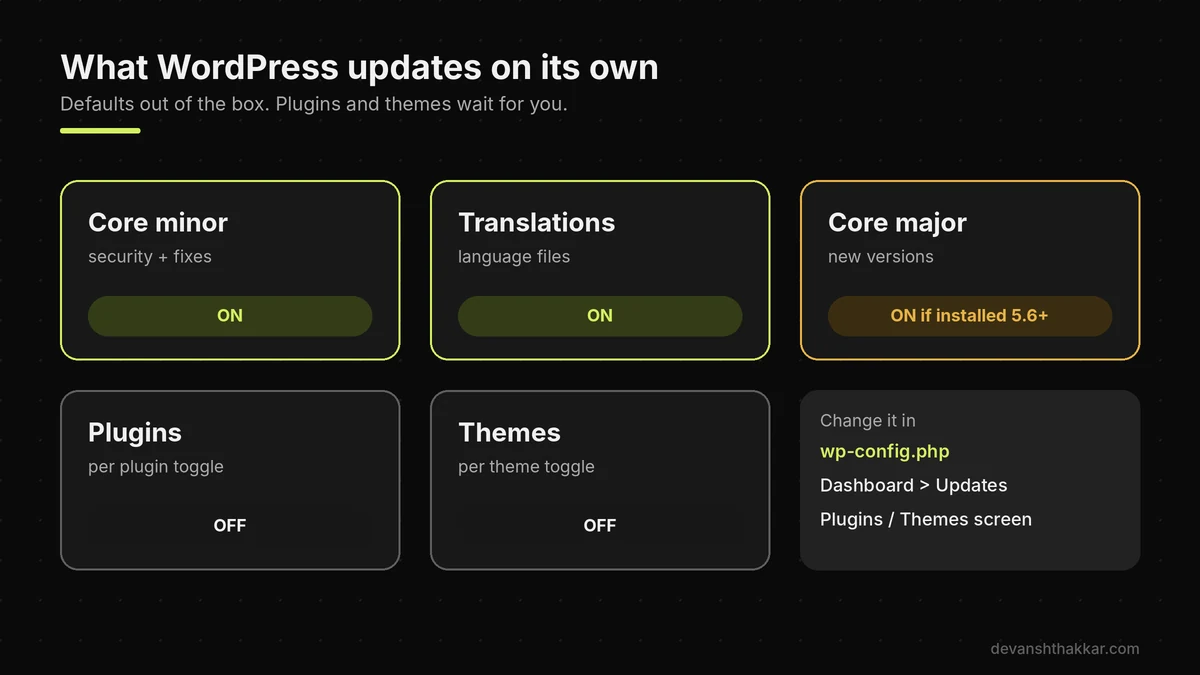
By default, WordPress auto updates minor core releases and translation files on every site. It also auto updates major core releases on sites first installed on WordPress 5.6 or later. Plugins and themes are not updated automatically unless you switch them on one by one, or your host does it for you. The default for major core versions depends on when your site was installed, which surprises most owners. According to the WordPress 5.6 auto updates announcement, major version auto updates are “enabled for fresh new installations” and “disabled for existing WordPress installations.”
So two sites on the same host can behave differently. Meanwhile, you can see your own settings under Dashboard, Updates. The core line there says whether your site gets “maintenance and security releases only” or “all new versions of WordPress.”
| Update type | Default | Where you change it |
|---|---|---|
| Core minor (security and fixes) | On for every site | WP_AUTO_UPDATE_CORE in wp-config.php |
| Core major (new versions) | On for sites installed on 5.6 or later, off for older sites | Dashboard, Updates |
| Plugins | Off | Plugins screen, per plugin |
| Themes | Off | Appearance, Themes, per theme |
| Translations | On | Rarely needs changing |
How auto updates actually run
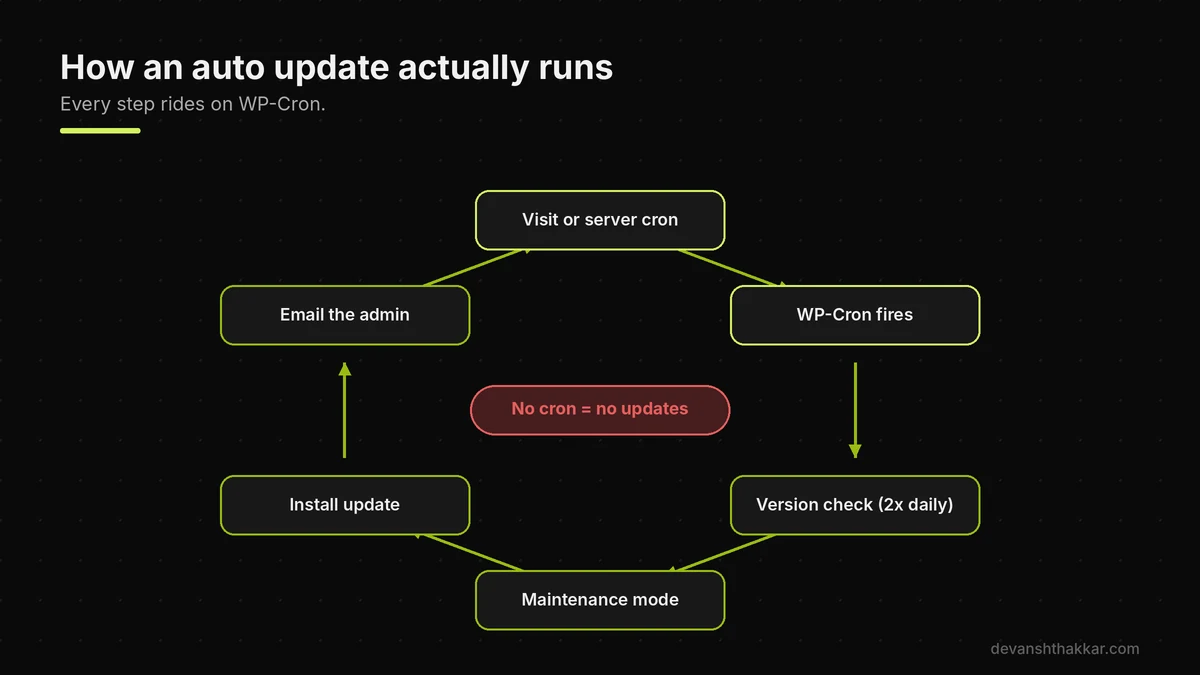
However, auto updates do not happen the moment a release ships. WordPress checks for new versions on a twice-daily schedule using WP-Cron, its built-in task runner. WP-Cron only fires when someone visits the site, or when a real server cron job triggers it. When an update is found, WordPress puts the site in maintenance mode for a few seconds, installs it, and emails the admin address.
So auto updates depend on three things you rarely think about. They need traffic or a working cron job. They need write access to the files. And they need an admin inbox that someone reads. The WordPress upgrade documentation lists the constants that control this behaviour, including AUTOMATIC_UPDATER_DISABLED, which switches every automatic update off at once.
Pro tip: Search yourwp-config.phpforAUTOMATIC_UPDATER_DISABLEDandDISALLOW_FILE_MODS. I regularly find one of them left behind by a previous developer, quietly blocking every security release for years.
Knowing the defaults is useful, but the right setup depends on what your site does.
Which Auto Updates Setup Fits Your Site?
The right auto updates setup depends on three things. Does the site take money? How many plugins does it run? And do you have a staging copy and tested backups? A five-page brochure site with a handful of maintained plugins can safely run almost everything automatically. A WooCommerce store with subscriptions and a page builder needs a split approach. One bad plugin release can stop orders for hours before anyone notices. Membership and course sites sit in between, since logins and payments are involved but the layout is usually simpler.
In addition, your hosting matters. Managed hosts such as Kinsta or WP Engine often run their own update tooling, which can overlap with WordPress settings. The quick quiz below turns those factors into a recommended setup in under a minute. It asks four questions and gives you a clear next step. That might be switching auto updates on today, or keeping a person in charge of the risky plugins.
Whichever setup you landed on, the next section shows exactly how to split your plugins.
The Three-Lane Model: What to Auto-Update and What to Hold
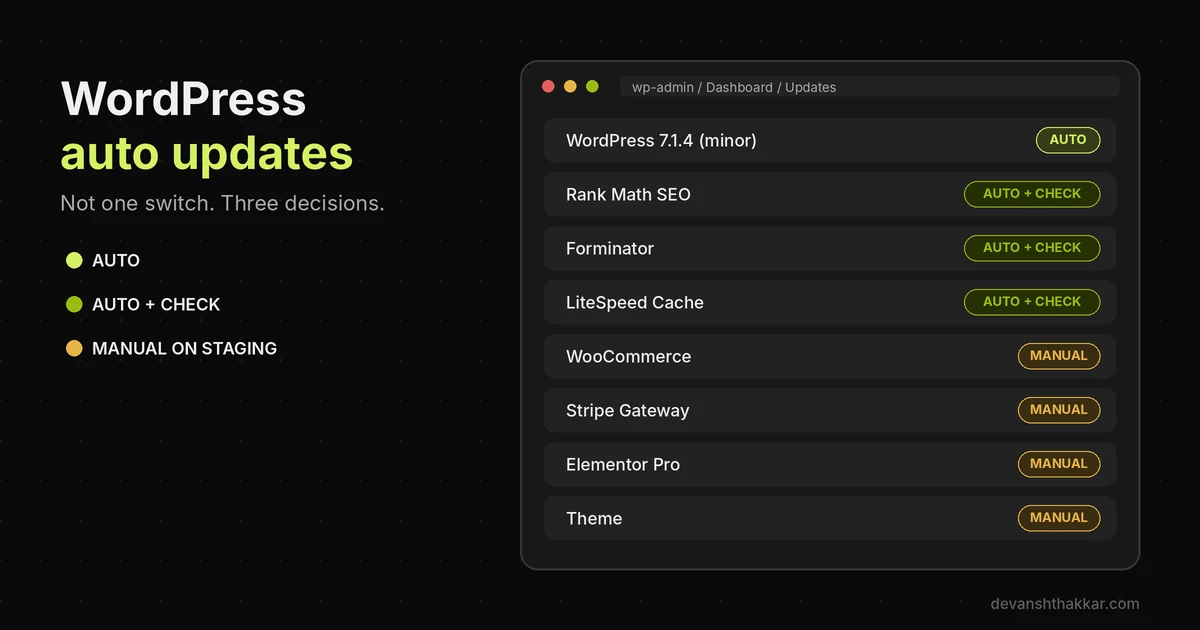
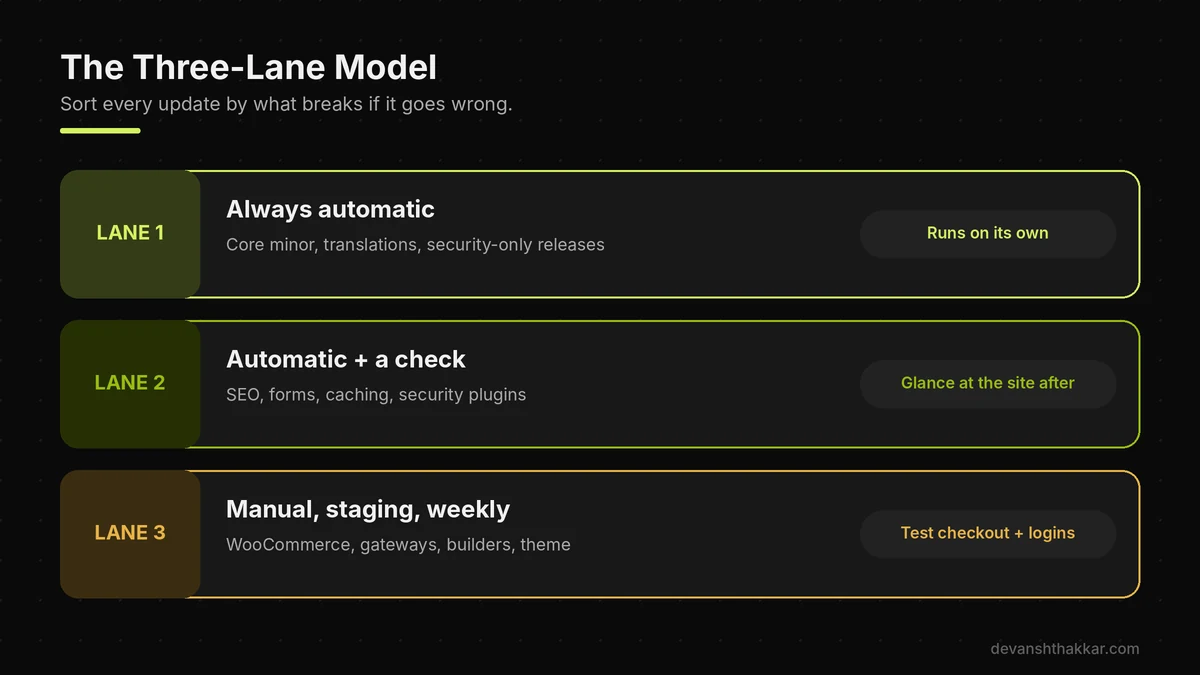
The safest way to use auto updates is to sort every update into one of three lanes. Lanes are automatic, automatic with a check, and manual on staging. I call this the Three-Lane Model. Lane one holds core minor releases, translations and security-only plugin releases, which should always run on their own. Lane two holds stable, single-purpose plugins, such as SEO, forms, caching and security tools. These can auto update, as long as someone checks the site afterwards. Lane three holds anything that touches money, logins or layouts: WooCommerce and its extensions, payment gateways, subscriptions, membership plugins, page builders and your theme.
Those get updated by a person, on staging first, once a week. After running updates across 250+ projects, the pattern is always the same. Nearly every breakage traces back to a lane-three plugin left on automatic.
Lane 1: always automatic
Core minor releases belong here without exception. So do translation files and any plugin release labelled as a security fix. These updates are small by design, and the risk of waiting is far larger than the risk of installing. In wp-config.php, define( 'WP_AUTO_UPDATE_CORE', 'minor' ); keeps security releases automatic while leaving major versions for you to schedule. That is the setting I use on most client sites, because major versions deserve a staging test while minor ones deserve speed.
Lane 2: automatic with a check
Most plugins, in fact, live here. Rank Math, Forminator, LiteSpeed Cache and Wordfence, for example, ship frequent, focused releases and rarely change how your site looks. Turn on auto updates for them from the Plugins screen. Then make sure the update emails reach an inbox you read, and visit the site after each batch. A quick look at the homepage, a form and the dashboard is enough.
Lane 3: manual, on staging, weekly
Revenue-critical plugins, on the other hand, go here. WooCommerce, Stripe or PayPal gateways, subscriptions, memberships, LMS plugins, Elementor, Bricks, Divi and your theme all qualify. Update them on a staging copy, test a real checkout or login, then repeat on live. Store owners who move from random updates to one fixed weekly window typically swap surprise breakages for a single planned hour each week.
Pro tip: Premium plugins only auto update while their licence is active. When a licence lapses, the plugin quietly drops out of lane two and stops receiving security fixes. Put licence renewal dates in the same calendar as your update window.
Updates eating into your week?
I run lane-three updates on staging every week, test checkout and logins, and only then touch your live site. See WordPress maintenance plans.
Setting the lanes is only half the job, because auto updates can stop running without telling you.
Why Auto Updates Silently Stop Working
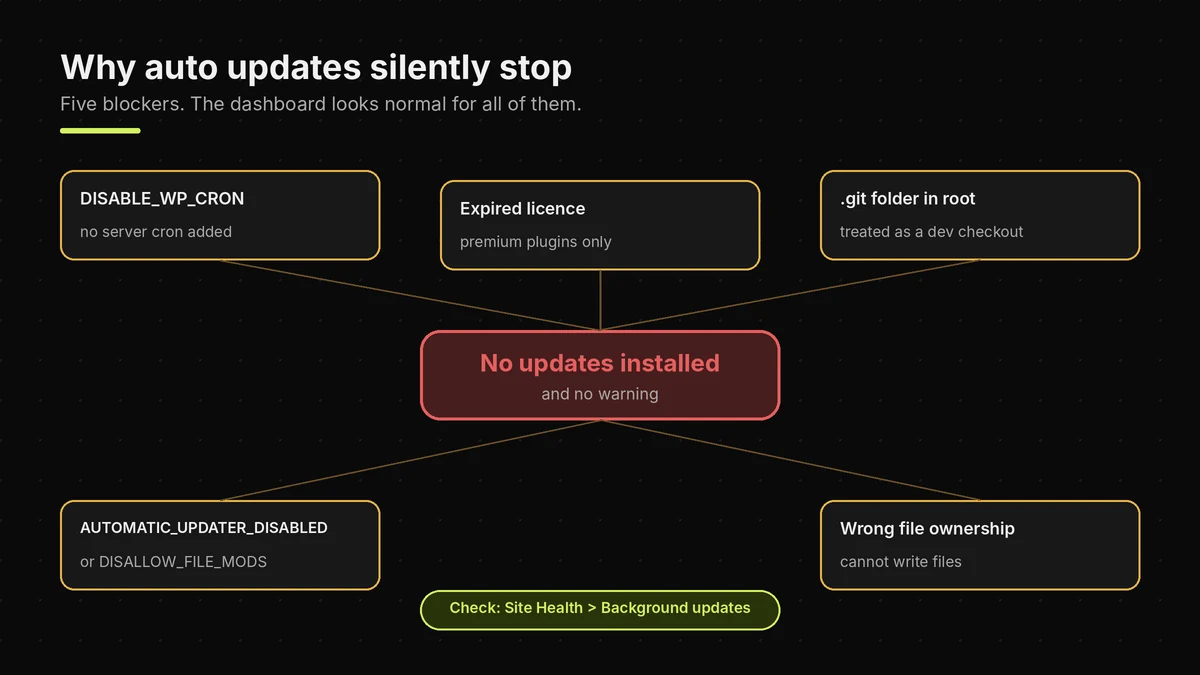
Auto updates silently stop working for three reasons. WordPress cannot run its scheduled check, cannot write to its own files, or finds a setting that tells it not to update. The most common cause I find is WP-Cron being disabled with define( 'DISABLE_WP_CRON', true ); for speed, with no server cron job added to replace it. Caching guides recommend that change, and it is a good one. Done halfway, though, WordPress never checks for updates at all.
The site keeps working, the dashboard looks normal, and security releases pile up unseen. Another cause is a .git folder in the site root. WordPress then assumes a developer manages the code. The constants AUTOMATIC_UPDATER_DISABLED or DISALLOW_FILE_MODS also block updates. Wrong file ownership blocks updates too. Similarly, low-traffic sites lag, because WP-Cron needs visits to fire. The fix starts with Site Health, which runs a dedicated "Background updates" test.
The five-minute check that auto updates are actually running
First, open Tools, Site Health, and look for the "Background updates" test. It reports version control folders, disabled constants and file permission problems. Next, open Dashboard, Updates and note the "Last checked" time. If it is more than a day old, the scheduled check is not firing. Then search wp-config.php for DISABLE_WP_CRON. If it is set to true, confirm that your hosting panel has a cron job calling wp-cron.php every 5 to 15 minutes. Finally, check that update emails reach you. They go to the address under Settings, General, which on many sites is an old developer's inbox.
Even with everything running, an update will eventually go wrong, so it helps to know what WordPress does next.
What Happens When an Auto Update Breaks Your Site?
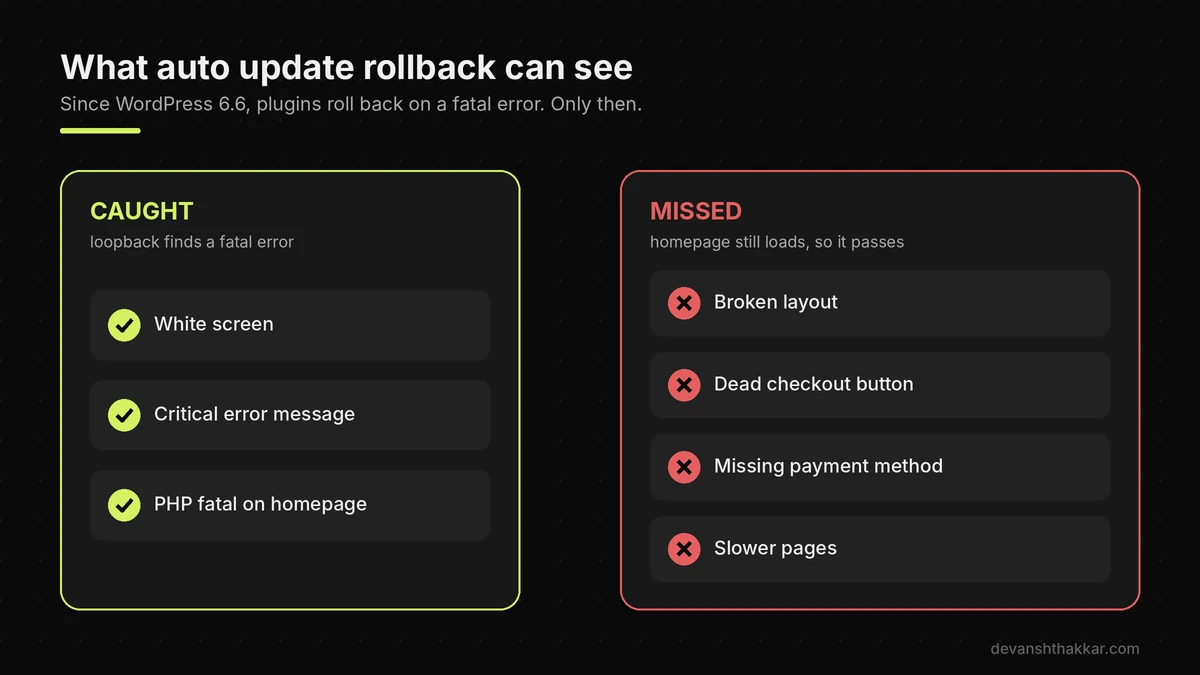
When a plugin auto update crashes your site with a fatal PHP error, WordPress 6.6 and later roll it back. Then WordPress emails the site admin. Before installing, WordPress backs up the current plugin. After installing, it sends a loopback request to the homepage to check for a fatal error. If it finds one, it restores the backup and tries again on the next check, according to the Rollback Auto-Update merge proposal. Core updates have had their own rollback since WordPress 3.7.
That safety net is real, but it is narrow. It only catches errors that crash PHP. A broken layout passes the check. So does a dead checkout button, a missing payment method or a slower page. The homepage still loads, so nothing looks wrong. So the rollback protects you from white screens, not from quiet breakage. That is exactly why lane three exists.
Reader trap: switching everything off after one bad update
Admittedly, one broken morning is a strong reason to move a single plugin into lane three. It is a poor reason to disable all auto updates. Yet that is the most common reaction I see, usually through a plugin or a constant that blocks core security releases too. Months later, the site is several minor versions behind, during the exact year core flaws were actively exploited. Instead, find the plugin that broke, turn auto updates off for that one, and leave the rest alone.
AUTOMATIC_UPDATER_DISABLED to fix a plugin problem. It also blocks core security releases, and the WordPress documentation strongly discourages it.If keeping all of this running sounds like a part-time job, that is because on a busy site it can be.
Still breaking after updates, or not updating at all?
When updates fail quietly or break checkout, the cause is usually cron, permissions or a plugin conflict. A developer can often fix it in an hour. Get it fixed or book a free call.
When Should Someone Else Handle Your Updates?
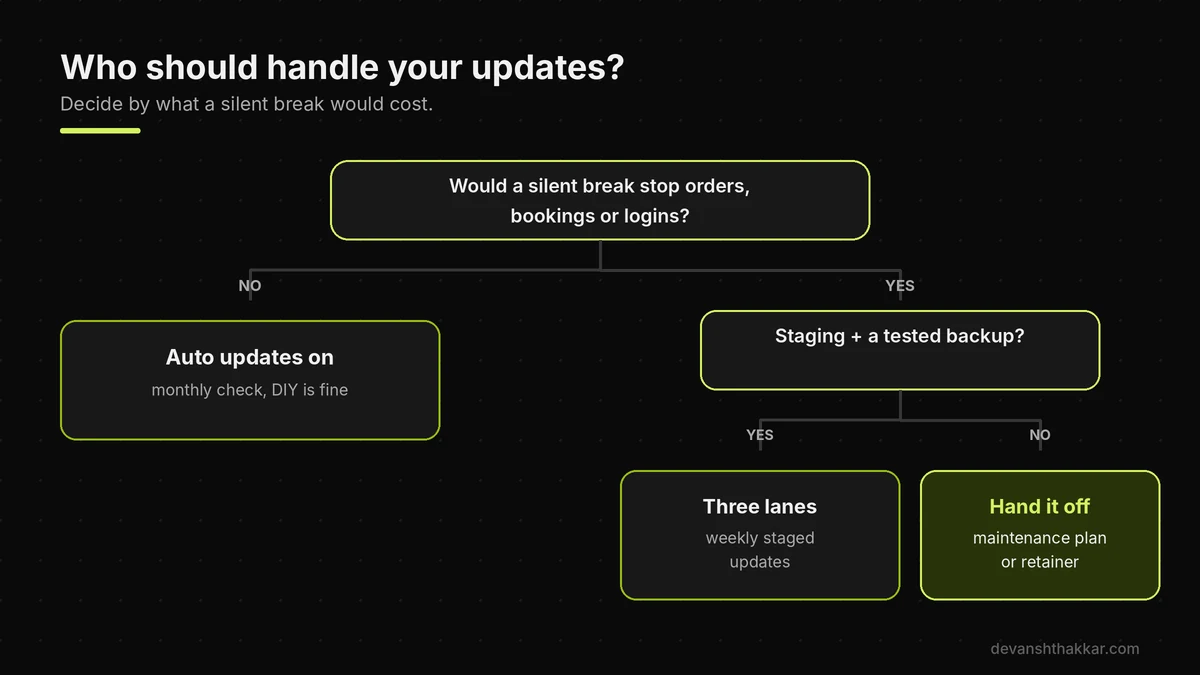
Someone else should handle your updates when a failed update would cost more than testing one properly. That is true for most stores and membership sites. The deciding factor is not the number of plugins but the damage a silent break can do before you notice it. If a bad release could stop orders, lock members out or break a booking form for a day, updates are no longer admin work. They are risk management.
The right person for that job will test lane-three updates on staging before touching live. They will keep backups they have actually restored. They will also confirm checkout and logins after every batch. They will also tell you which plugins are no longer maintained and should be replaced, rather than quietly updating them forever. A good setup is one you never hear about, apart from a short monthly note saying what changed. If that sounds like the opposite of your current routine, the gap is worth closing before the next exploited core release.
The FAQ below covers the remaining questions owners ask most about auto updates.
Frequently Asked Questions
Are WordPress auto updates safe?
It is fair to worry, because everyone has heard of an update breaking a site. Minor core auto updates are very safe and close exploited security holes within hours. Plugin auto updates are safe for most single-purpose plugins. What makes the difference is holding back the few plugins that run payments, logins or layouts, and testing those on staging first.
Should I turn off WordPress auto updates?
Turning everything off feels like control, especially after a bad update. In practice it leaves you exposed, because three WordPress core flaws were exploited in 2026 before many owners updated manually. Keep core minor auto updates on. What makes the difference is switching off auto updates only for the specific plugin that caused trouble, not for the whole site.
Why are my WordPress auto updates not working?
This is frustrating because nothing looks broken. Usually WP-Cron is disabled without a server cron job, a .git folder sits in the site root, or AUTOMATIC_UPDATER_DISABLED is set in wp-config.php. File permissions and expired premium licences also block updates. What makes the difference is running Site Health's Background updates test, which names the cause directly.
Does WordPress roll back a failed auto update?
Yes, partly, which is reassuring but easy to overestimate. Since WordPress 6.6, a plugin auto update that causes a fatal PHP error is rolled back and the admin is emailed. Core has had rollback since 3.7. What makes the difference is knowing the limit: layout breaks, checkout bugs and slow pages are never detected, so revenue-critical plugins still need testing.
Should I auto update WooCommerce?
Most store owners would love to, because WooCommerce updates often. For the core WooCommerce plugin, payment gateways and subscriptions, update manually on staging once a week and test a real order. Minor WooCommerce security releases can stay automatic. What makes the difference is a weekly window with a checkout test, because a broken cart costs more than a delayed update.
Do premium plugins update automatically?
Many owners assume they do, and that assumption causes problems. Premium plugins only receive automatic updates while their licence key is active and entered on the site. When a licence lapses, updates stop silently, including security fixes. What makes the difference is tracking renewal dates alongside your update schedule, so no plugin falls out of support unnoticed.
How often does WordPress check for auto updates?
It is natural to expect instant updates. In fact, WordPress checks twice a day using WP-Cron, which only runs on visits or a server cron. Low-traffic sites can lag behind. What makes the difference is a real server cron job calling wp-cron.php every few minutes, so security releases install on time.
Should I enable auto updates for major WordPress versions?
Major versions are tempting to automate, since they bring new features. For simple sites, it is usually fine. For stores and complex sites, major versions deserve a staging test, because they can change editor and block behaviour. What makes the difference is setting WP_AUTO_UPDATE_CORE to minor and scheduling major upgrades for a quiet week.
Which auto updates setup is right for my site?
Choosing feels harder than it is. Simple brochure sites can auto update nearly everything. Lead and membership sites suit a three-lane split. Stores and complex builds need staged weekly updates with core security releases still automatic. What makes the difference is matching the setup to what a silent break would cost, which the quiz in this guide works out in four questions.
When should I hire someone to manage WordPress updates?
Most owners wait until an update breaks something important, which is the expensive moment. Hire help when a silent break could stop orders, bookings or logins, or when you have no staging site. What makes the difference is a person who tests on staging before live. WordPress maintenance plans cover exactly that.
Conclusion
Auto updates should stay on for WordPress core security releases and most plugins, with a short list of revenue-critical plugins updated manually on staging. Three points matter most. First, 2026 proved that core minor auto updates are now the security patch delivery system. Second, the Three-Lane Model keeps fast fixes flowing while protecting checkout, logins and layouts. Third, auto updates fail silently, so run the Site Health check today.
If safe updates are now a real priority, the fastest path is working with someone who tests on staging and keeps backups that restore. That beats rebuilding the process from scratch.
Want updates handled every week, with checkout tested before live?
I set up your three lanes, fix silent update blockers, and run staged weekly updates with a short monthly report. Plans start at $49 a month. Get your updates managed.
This article was last reviewed and updated in November 2026 to reflect the latest WordPress releases and auto update behaviour.