
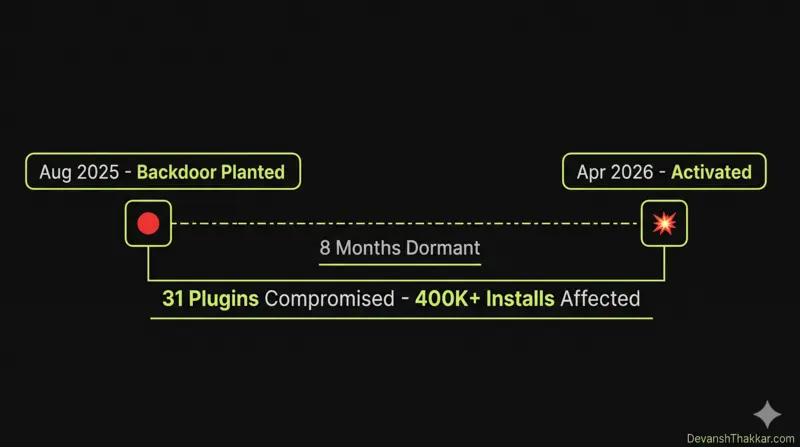
Knowing how to check if WordPress plugins are safe is no longer optional. On April 5, 2026, a backdoor hidden inside 31 WordPress plugins activated after sitting dormant for 8 months. The attacker had purchased the entire Essential Plugin portfolio on Flippa for six figures, planted a PHP deserialization backdoor in a fake “compatibility update,” and waited. When it activated, it injected hidden SEO spam into wp-config.php on every affected site, visible only to Googlebot. Site owners saw nothing wrong. Google saw spam pages.
The same week, Smart Slider 3 Pro (800,000+ active installations) was separately compromised through its update server. Two supply chain attacks in one week. Both exploiting trust in the official WordPress update channel.
WordPress developer Devansh Thakkar has audited plugin security on 100+ client sites across 15+ countries. This is the 7-step process to check if your WordPress plugins are safe, whether you were affected by the Essential Plugin attack or not. These steps apply to every WordPress site, every time.
What Happened: The Essential Plugin Supply Chain Attack
Before the 7-step process, you need to understand what happened and why learning how to check if WordPress plugins are safe matters more now than ever. Here is the timeline:
| Date | Event |
|---|---|
| Early 2025 | Buyer “Kris” purchases the Essential Plugin portfolio (31 plugins, 400K+ installs) on Flippa for six figures |
| August 8, 2025 | Backdoor planted in version 2.6.7 of all plugins, disguised as “Check compatibility with WordPress version 6.8.2” |
| Aug 2025 – Apr 2026 | Backdoor sits dormant for 8 months, passing every security scan because no malicious payload was delivered yet |
| April 5-6, 2026 | Backdoor activates. analytics.essentialplugin.com pushes malicious payloads for 6 hours 44 minutes |
| April 7, 2026 | WordPress.org permanently closes all 31 Essential Plugin plugins in a single day |
| April 8, 2026 | WordPress.org forces auto-update to v2.6.9.1, disabling the phone-home mechanism (but NOT cleaning wp-config.php) |
The critical detail: the forced auto-update disabled the backdoor’s communication channel but did not clean the malicious code already injected into wp-config.php. Sites that were compromised before April 7 are still serving hidden spam to Google right now unless they have been manually cleaned.
Pro Tip: This attack succeeded because WordPress.org has no mechanism to review or flag plugin ownership transfers. Any plugin on the repository can be sold to anyone, and the new owner inherits full commit access with zero notification to the thousands of sites running that plugin. This is a structural gap, not a bug that will be patched. The only defense is your own vigilance. Learning how to check if WordPress plugins are safe is the single most important security skill for any site owner. – Devansh Thakkar, WordPress Developer
The 7-Step Process to Check if WordPress Plugins Are Safe
These steps are ordered from fastest to most thorough. Steps 1-4 take under 15 minutes. Steps 5-7 are deeper and may require developer assistance. If you want to know how to check if WordPress plugins are safe after the Essential Plugin attack or any future attack, this is the process Devansh Thakkar runs on every client site.
Step 1: Check if Any Plugin Has Been Closed on WordPress.org
A closed plugin is a red flag. When WordPress.org closes a plugin, it means the plugin has been removed from the repository for security or guideline violations. It will no longer receive updates, and any site running it is exposed.
How to check:
- Go to Plugins > Installed Plugins in your WordPress admin
- For each plugin, click “View details” or visit
wordpress.org/plugins/[plugin-slug]/ - If you see a banner saying “This plugin has been closed” or the page returns a 404, remove the plugin immediately
- Cross-reference against the list of 31 Essential Plugin plugins published by Austin Ginder at Anchor Hosting
The affected Essential Plugin plugins include: Countdown Timer Ultimate, Popup Anything on Click, WP Responsive Recent Post Slider, WP Testimonial with Widget, WP Team Showcase and Slider, Responsive WP FAQ with Category, SP News and Widget, Hero Banner Ultimate, Album and Image Gallery Plus Lightbox, Audio Player with Playlist Ultimate, Blog Designer for Post and Widget, and approximately 20 others. If any of these are on your site, delete them now.
Step 2: Check the “Last Updated” Date
A plugin that has not been updated in over 12 months is a risk. It may contain unpatched vulnerabilities, and the developer may have abandoned it.
How to check:
- Visit the plugin’s page on WordPress.org
- Look at the “Last updated” date in the sidebar
- If it was last updated more than 12 months ago, find an alternative
- If it says “Not tested with your version of WordPress”, treat it as a warning
An abandoned plugin is not automatically dangerous, but it is an unmonitored attack surface. Every plugin on your site should have an active developer behind it who ships security patches when vulnerabilities are disclosed.
Step 3: Review Recent Changelogs for Suspicious Entries
The Essential Plugin backdoor was hidden behind a changelog entry that read “Check compatibility with WordPress version 6.8.2.” It looked completely normal. But understanding how to check if WordPress plugins are safe means looking at changelogs with a critical eye.
Warning signs in changelogs:
- A vague “compatibility update” that adds hundreds of lines of code
- A new developer name or “under new management” notice
- A sudden burst of updates after months of inactivity (could indicate a new owner pushing changes)
- Changelog entries that do not match the actual code changes (requires developer-level review)
Step 4: Remove Plugins You Do Not Actively Use
This is the single most impactful security action any WordPress site owner can take. Deactivated plugins are still on your server and still executable by attackers. Deactivation does not protect you. Deletion does.
- Go to Plugins > Installed Plugins
- For each plugin, ask: “Does my site actively need this plugin right now?”
- If the answer is no, delete it (not just deactivate)
- Target a total plugin count of under 20. The average WordPress site runs 25-30 plugins. Each one is an attack surface.
On client sites, Devansh Thakkar routinely removes 8-12 unnecessary plugins during security audits. Common culprits: plugins installed for a one-time task and forgotten, duplicate functionality plugins (two SEO plugins, two caching plugins), and “just in case” plugins that have never been configured.
Step 5: Scan wp-config.php for Injected Code
The Essential Plugin malware injected code directly into wp-config.php, one of the most sensitive files in any WordPress installation. The forced auto-update from WordPress.org did not clean this file. If your site was compromised, the malicious code is still there.
How to check:
- Connect to your site via SFTP (FileZilla, Cyberduck) or your hosting file manager
- Open
wp-config.phpin the root of your WordPress installation - Look for any code you did not add. Specifically look for:
- Lines that
requireorincludefiles you do not recognize base64_decodeoreval()functions (almost always malicious)- URLs pointing to external domains (especially anything with “analytics” or unfamiliar domains)
- References to a file called
wp-comments-posts.php(this is the fake core file the Essential Plugin malware created)
- Lines that
- Also check if a file called
wp-comments-posts.phpexists in your WordPress root directory. This file is NOT a legitimate WordPress core file. If it exists, your site was compromised. Delete it.
Pro Tip: If you are not comfortable editing wp-config.php, do not guess. A single wrong deletion can take your entire site offline. This is the point where hiring a developer for a proper security audit saves you from turning a malware issue into a downtime issue. The audit takes 1-2 hours. The damage from a broken wp-config.php can take days to fix. – Devansh Thakkar, WordPress Developer
Step 6: Run a Malware Scan
Install one of these security plugins and run a full scan:
- Wordfence (free version available) – the most comprehensive scanner, checks core files, plugins, and themes against the WordPress.org repository versions
- Sucuri Security (free version available) – server-side scanning with integrity monitoring
- MalCare – deep scanning that checks files and database, good at catching dormant malware
After the scan completes, review the results. Pay attention to:
- Modified core files (any WordPress core file that does not match the official version)
- Unknown files in plugin or theme directories
- Database entries with suspicious content (base64 strings, iframe injections)
- Unknown admin users (check Users > All Users for accounts you did not create)
Step 7: Set Up Ongoing Monitoring
Knowing how to check if WordPress plugins are safe is not a one-time task. It is an ongoing practice. After the initial audit, set up these protections:
- Enable auto-updates selectively. Enable auto-updates for plugins from trusted, established developers (WooCommerce, Rank Math, Elementor). Disable auto-updates for smaller plugins and review each update manually before applying.
- Subscribe to security feeds. Follow Patchstack’s vulnerability database and Wordfence’s weekly threat reports for early warnings about compromised plugins.
- Review plugins quarterly. Every 3 months, review your entire plugin list. Remove anything unused. Check update dates. Verify each plugin is still actively maintained.
- Set up file integrity monitoring. Wordfence and Sucuri both offer alerts when core files or plugin files change unexpectedly.
- Keep backups current. Daily automated backups to an off-site location (Dropbox, Google Drive, Amazon S3) using UpdraftPlus or BlogVault. If a plugin compromise happens, you can restore to a clean snapshot.
Why This Attack Was Different (and Why It Will Happen Again)
The Essential Plugin attack was not a typical vulnerability exploit. It was a supply chain attack. The attacker did not find a bug. They bought the plugin, inherited trusted commit access, and WordPress.org distributed their malware through the official update channel for 8 months.
This will happen again because:
- WordPress.org does not review plugin ownership transfers. Any plugin can be sold to anyone via Flippa, MicroAcquire, or a private deal. The new owner gets commit access with zero notification to users.
- Plugin sales are increasing. Many small plugin developers are selling their portfolios as revenue declines. Buyers with malicious intent look for plugins with high install counts and low revenue, the exact profile of the Essential Plugin portfolio.
- Dormant backdoors evade scanners. The Essential Plugin backdoor sat inactive for 8 months. No security scanner flags code that is not doing anything malicious yet. The payload only becomes visible after activation.
This is why knowing how to check if WordPress plugins are safe must become a regular practice, not a reaction to a news headline. The next attack is already being planned.
Pro Tip: After the Essential Plugin incident, I now run a plugin ownership audit on every new client site. I check every plugin’s WordPress.org page for any “under new management” signals, review the commit history for new author names, and cross-reference the developer’s profile for recent activity changes. It takes 30 minutes per site and it is the cheapest insurance against the next supply chain attack. – Devansh Thakkar, WordPress Developer
Quick Plugin Safety Checklist
Print this or bookmark it. Use it every time you install a new plugin or run a quarterly audit. This is the summary of how to check if WordPress plugins are safe:
| Check | What to Look For | Action if Failed |
|---|---|---|
| Plugin listed on WordPress.org? | Active listing, not closed or removed | Delete immediately |
| Last updated within 12 months? | Recent update date in sidebar | Find an alternative |
| Active installs above 10,000? | Higher installs = more community scrutiny | Evaluate carefully, check reviews |
| Developer profile active? | Regular forum replies, multiple plugins maintained | Risky if developer is silent |
| Changelog transparent? | Clear descriptions of what changed | Suspicious if vague |
| Tested with your WP version? | “Tested up to” matches your version | May cause conflicts |
| Ratings above 4 stars? | Consistent positive reviews over time | Read negative reviews for red flags |
| Do you actually need it? | Plugin serves an active function on your site | Delete if not needed |
Need a Professional WordPress Security Audit?
If you are not sure whether your site was affected by the Essential Plugin attack, or if you want a professional to run the full 7-step process on your behalf, Devansh Thakkar offers WordPress security audits that cover plugin verification, malware scanning, wp-config.php review, file integrity checks, and admin user audit.
With 250+ projects, 100% Upwork job success, and 7+ years handling WordPress security issues, the audit is thorough, documented, and actionable. After the audit, you receive a written report with every finding and recommended action.
Also available: speed optimization, WooCommerce development, and ongoing maintenance plans that include monthly plugin audits so you never have to wonder if your plugins are safe again.
Book a call or send a message with your site URL and I will tell you within 24 business hours whether your site needs a full audit.
Frequently Asked Questions
How do I check if my WordPress plugins are safe?
To check if your WordPress plugins are safe: verify each plugin is still listed on WordPress.org (closed plugins are dangerous), check the last updated date (over 12 months is a risk), review changelogs for suspicious entries, delete unused plugins entirely, scan wp-config.php for injected code, run a Wordfence or Sucuri malware scan, and set up ongoing monitoring.
What was the Essential Plugin backdoor attack?
In April 2026, 31 WordPress plugins from the Essential Plugin portfolio were found to contain a backdoor. A buyer purchased the plugin portfolio on Flippa in early 2025, planted malicious code in a fake compatibility update in August 2025, then activated it on April 5-6, 2026. The malware injected SEO spam into wp-config.php visible only to Googlebot. WordPress.org permanently closed all 31 plugins on April 7, 2026.
Was my site affected by the Essential Plugin attack?
Check if any of the 31 Essential Plugin plugins are installed on your site (Countdown Timer Ultimate, Popup Anything on Click, WP Testimonial with Widget, and others). Then check wp-config.php for injected code and look for a file called wp-comments-posts.php in your WordPress root. If either exists, your site was compromised and needs manual cleanup.
Are deactivated WordPress plugins safe?
No. Deactivated plugins remain on your server and are still executable by attackers who discover them. Deactivation prevents the plugin from running in WordPress, but the PHP files are still accessible. Always delete plugins you are not using, not just deactivate them.
How often should I audit my WordPress plugins?
At minimum, every quarter (every 3 months). Additionally, audit after every major WordPress update, after installing any new plugin, and immediately after hearing about a security incident like the Essential Plugin attack. Monthly audits are ideal for business-critical sites or WooCommerce stores.
What is a WordPress supply chain attack?
A supply chain attack targets the software distribution channel rather than a specific vulnerability. In the Essential Plugin case, the attacker bought a legitimate plugin business, gained official commit access, and pushed malicious code through the trusted WordPress.org update system. Site owners received the malware as a normal plugin update.
Can Wordfence detect supply chain backdoors?
Wordfence can detect backdoors after they activate and modify files. However, dormant backdoors that have not yet executed any malicious code may not be flagged because there is nothing malicious to detect until activation. This is why manual review of plugin ownership and changelogs is essential alongside automated scanning.
How many plugins should a WordPress site have?
There is no strict limit, but aim for under 20 well-maintained plugins. The average WordPress site runs 25-30 plugins, and each one adds attack surface. Five well-coded, actively maintained plugins are safer than three abandoned ones. Remove anything you do not actively use.
Does WordPress notify me when a plugin changes ownership?
No. WordPress.org has no mechanism to review, flag, or notify users about plugin ownership transfers. A plugin can be sold on Flippa or privately, and the new owner inherits full commit access without any user notification. This structural gap is what enabled the Essential Plugin attack.
Can Devansh Thakkar audit my WordPress site for plugin safety?
Yes. Devansh Thakkar runs the full 7-step plugin safety audit on client sites, including Essential Plugin exposure check, wp-config.php review, malware scanning, admin user audit, and a written report with findings. Visit DevanshThakkar.com to book a security audit call.