
- To update PHP version safely, back up, test the new branch on staging, switch it in your host panel, then verify checkout and cron.
- PHP 8.5.12, 8.4.27, 8.3.36 and 8.2.35, released 21 October 2026, fix the two critical PHP2Shell flaws rated 9.2.
- A patch release and a branch upgrade are different jobs. Your host can patch silently, but moving from 8.1 to 8.3 needs testing.
- WordPress 7.1 runs on PHP 7.4 to 8.5, while WooCommerce 11.6 will require PHP 8.1 or newer from February 2027.
- Most breakage after a PHP upgrade comes from one outdated plugin or theme, not from WordPress core itself.
To update PHP version in WordPress, check your current version under Tools, Site Health, Info, Server. Then take a full backup, test the new PHP branch on a staging copy, and switch it in your hosting panel. Finally, confirm forms, checkout, cron jobs and the error log before you call it done.
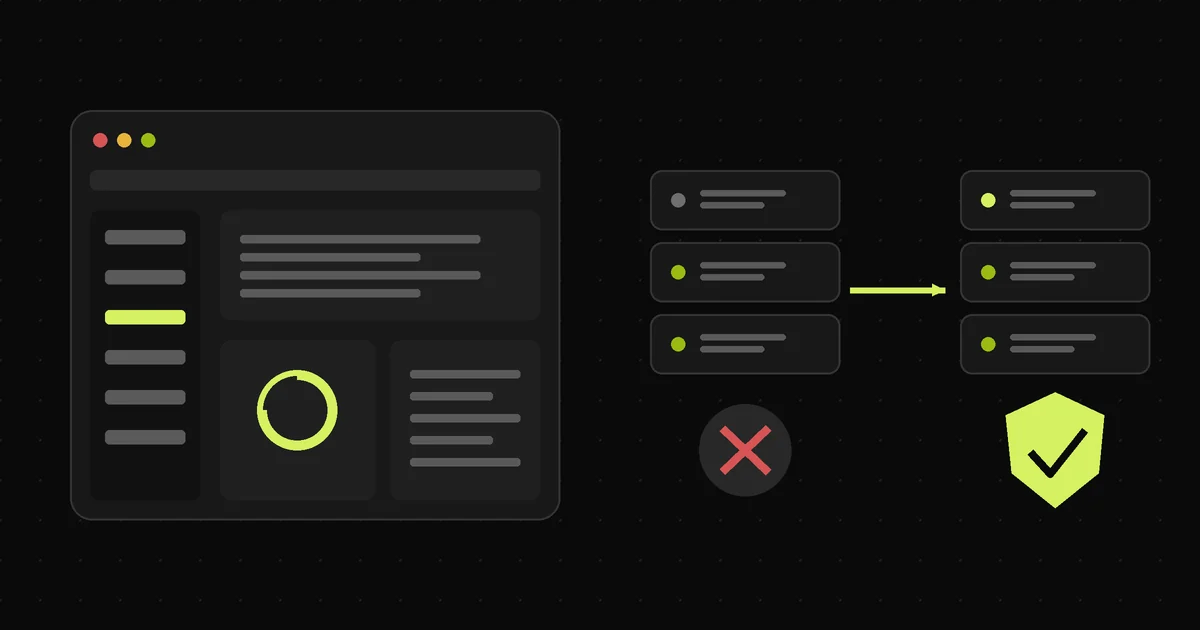
In 250+ WordPress and WooCommerce projects over 7+ years, changing the PHP version is the job owners put off longest. That is understandable. The site works, so why touch it? Then a week like this one happens. A critical flaw lands in PHP itself, the fix exists only on newer branches, and every site still sitting on an old branch is suddenly a target. This guide is the exact process I follow, including the two checks most tutorials skip.
Why Update PHP Version in WordPress Now?
You should update PHP version in WordPress now because old PHP branches no longer receive security fixes, and the newest critical flaws were only patched on supported branches. According to the WooCommerce developer blog, PHP versions before 8.2 no longer receive security updates from the PHP project. (WooCommerce, 2026) That matters more than usual this month. In addition, the PHP2Shell flaws hit the PHP engine itself, so a fully updated WordPress install can still be exposed. As a result, the fix has to happen one layer down, on the server.
Speed is the second reason. A newer PHP version runs WordPress faster, which helps server response time and, in turn, Core Web Vitals. Compatibility is the third. WooCommerce has already announced that version 11.6 will require PHP 8.1. Plugins follow core, so the longer you wait, the more updates you silently stop receiving. In short, your PHP version is no longer a set-and-forget setting.
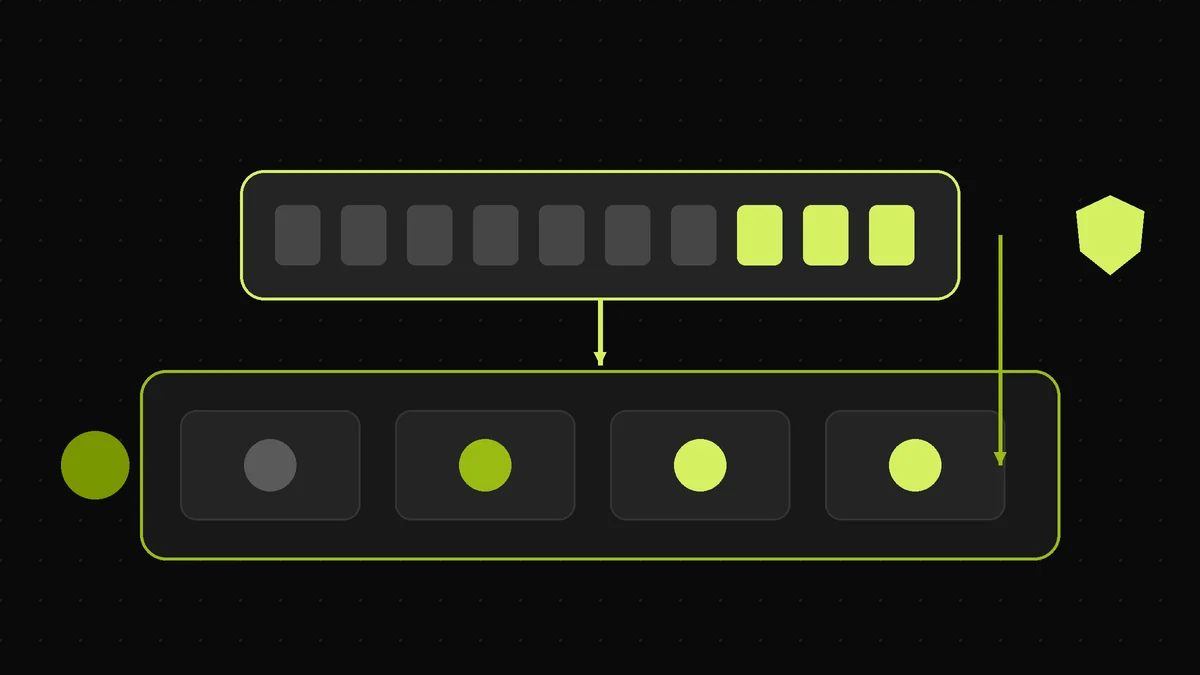
The Two-Layer PHP Check: patch level vs branch
Every PHP version number has two layers. Take 8.3.36. The first part, 8.3, is the branch. The last part, 36, is the patch level. A patch release, such as 8.3.35 to 8.3.36, fixes bugs and security holes without changing how code behaves. Therefore, hosts usually roll patches out quietly. A branch upgrade, such as 8.1 to 8.3, is different. It removes old functions and tightens rules, so plugin code can break.
What most guides get wrong: they treat both as one task called “update PHP”. That confusion causes two failures. Some owners panic and jump three branches overnight on a live store. Others assume the host patched them, while the site actually sits on an end-of-life branch that will never get a fix. So ask two separate questions. Is my patch level current? Is my branch still supported?
Pro tip: If your host shows 8.2.35, 8.3.36, 8.4.27 or 8.5.12 or newer, the October 2026 patch is in. If it shows 8.1 or older, no patch exists for you, and only a branch upgrade closes the hole.
Before you change anything, you need to know exactly which PHP your site runs, and that is less obvious than it sounds.
How Do I Check My WordPress PHP Version?
You can check your WordPress PHP version in the dashboard under Tools, Site Health, Info, then the Server section, where the PHP version line shows the branch and patch level your pages run on. On WooCommerce stores, the same number appears under WooCommerce, Status, in the Server environment table. Your host panel shows the PHP version too. For example, Hostinger hPanel lists it under the PHP Configuration screen, and most cPanel hosts show it in MultiPHP Manager or Select PHP Version. Write the full PHP version down, including the patch digits. Next, compare it with the branch support dates in the next section.
However, one number is not always the whole picture. A WordPress site can run on more than one PHP binary at once. Your pages use one, while scheduled tasks and command line tools can quietly use another. That second runtime is where I most often find an old, unpatched branch hiding after an owner believes the upgrade is finished.
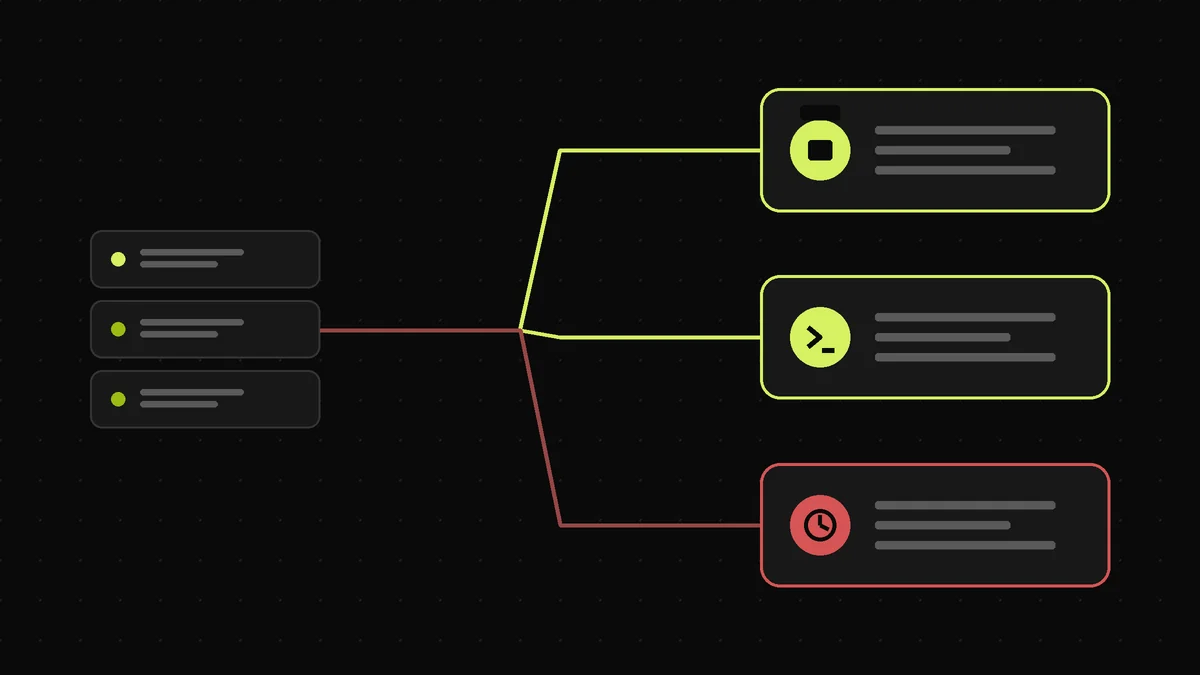
The runtime map: web, cron and command line
Site Health reports the PHP that serves web requests. That is the most important one. Still, it is not the only one. If your host runs a real server cron job, the job line often calls a fixed binary such as /usr/bin/php or /usr/local/bin/php. Similarly, WP-CLI uses whatever PHP the shell finds first. Consequently, switching the PHP version in the panel can leave cron on the old branch.
Here is a pattern I see after host-level upgrades. Pages run on 8.3, but WooCommerce scheduled actions, backups and email queues still run on 8.0. Everything looks fine in the browser. Meanwhile, renewals and abandoned-cart emails fail at 3 a.m. To catch this, open your cron job list in the host panel and read the binary path on each line. Then run php -v over SSH, if you have it. Finally, check that both PHP version numbers match Site Health.
Once you know every runtime you have, you can pick the right target version.
Not sure which PHP version your site really runs?
I audit web, cron and CLI runtimes and tell you exactly what needs changing. See the WordPress PHP developer service.
Which PHP Version Should WordPress Use?
WordPress should use PHP 8.3 or 8.4 in most cases, because both branches are supported well into 2027 or 2028 and both run WordPress 7.1 and current WooCommerce without special handling. According to the WordPress core handbook, WordPress 7.1 supports PHP 7.4 through 8.5, while WordPress 7.0 dropped PHP 7.2 and 7.3. (WordPress.org, 2026)
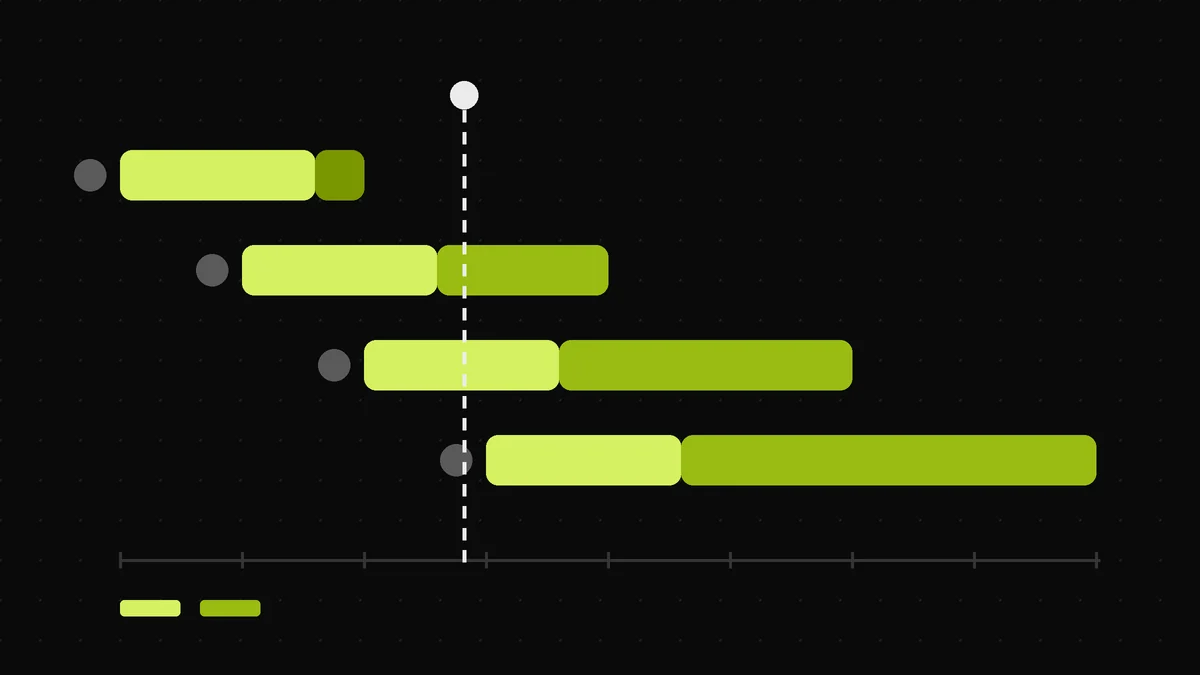
Supported by WordPress, though, is not the same as safe. PHP 7.4, 8.0 and 8.1 are end of life, so they get no security releases at all. Meanwhile, PHP 8.2 still receives fixes, but only until 31 December 2026. That leaves roughly two months. Moving to 8.2 today is therefore a short-term patch, not a plan. PHP 8.5 is fine for simple sites. However, it is the newest branch, so some premium plugins lag behind it. For a store, PHP version 8.3 is the calm default and 8.4 is a good second choice.
| PHP branch | Security support until | Fixed release (Oct 2026) | Verdict for WordPress |
|---|---|---|---|
| 8.5 | 31 Dec 2029 | 8.5.12 | Good for lean sites, test premium plugins first |
| 8.4 | 31 Dec 2028 | 8.4.27 | Strong choice for most sites |
| 8.3 | 31 Dec 2027 | 8.3.36 | Safest default for WooCommerce stores |
| 8.2 | 31 Dec 2026 | 8.2.35 | Patched, but plan your next move now |
| 8.1 and older | Ended | None | Upgrade the branch as soon as possible |
Support dates come from the official PHP supported versions page, and WordPress compatibility comes from the WordPress PHP compatibility table.
The WooCommerce deadline: PHP 8.1 from WooCommerce 11.6
WooCommerce has set a hard date. According to the WooCommerce developer blog, WooCommerce 11.6, planned for February 2027, will require PHP 8.1 or newer, and version 11.3 adds an admin notice for stores on PHP 7.4 or 8.0. (WooCommerce, 2026) Stores on old PHP can stay on WooCommerce 11.5 for a while. Nevertheless, that freezes your store on an aging release. In practice, aim for a PHP version above the minimum. Since 8.1 is already end of life, a store that upgrades only to 8.1 will have to do this job twice. The WooCommerce PHP 8.1 announcement recommends 8.3 or newer, and that matches what I set on client stores.
Knowing the target is half the job, so check whether your site is ready to make the move.
Is Your Site Ready? Take the 60-Second Check
Your site is ready to update PHP version when you know your current PHP version, have a backup you have actually restored, and can test on a staging copy first. Those three facts decide almost every outcome. A site that has all three can usually switch in an afternoon with no visible change for visitors. A site missing even one tends to fail in a messy way, such as a white screen on checkout or a backup that will not restore.
The fourth factor is your plugin stack. A simple blog with a handful of maintained plugins rarely cares which PHP version runs it. In contrast, a store with old premium add-ons, an expired licence or custom theme code is far more fragile. The check below turns those four factors into a risk score. It then gives you the right next step for your situation, whether that is doing the upgrade yourself or getting help first.
Whatever your score, the process itself stays the same, and it starts with a backup.
How to Update PHP Version in WordPress: 7 Safe Steps
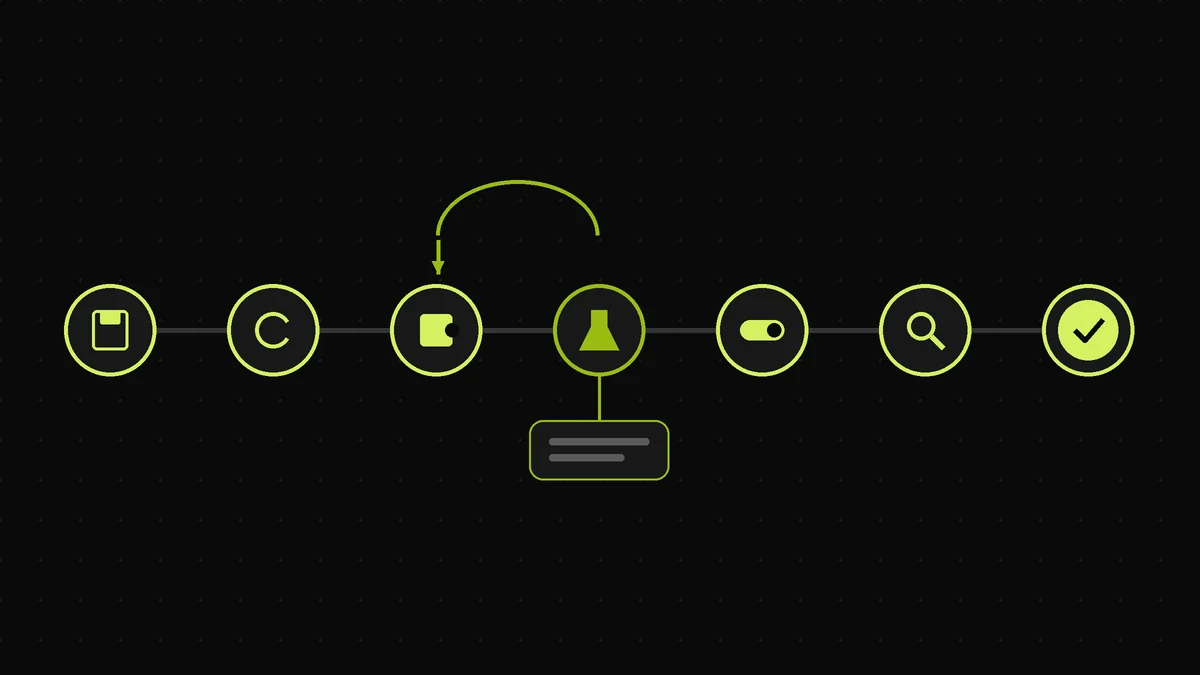
The safe way to update PHP version in WordPress is a seven-step loop: back up, update everything, check compatibility, test on staging, switch the live branch, verify, then monitor for two days. Each step removes one specific failure. The backup protects your data. Updating plugins first removes most known incompatibilities before PHP changes. Staging lets the break happen somewhere harmless. Verification catches the quiet failures, such as cron and payment webhooks, that a homepage check misses.
The whole job takes about an hour on a simple site. A busy WooCommerce store needs a quiet traffic window and more testing time. Do not compress the order. In particular, never switch the live branch before staging passes, even if your host offers a one-click button. That button makes the change easy. It does not make the change safe, and it does nothing to test your plugins.
Step 1: Take a backup you can restore
First, take a full backup of files and the database. Use your host's backup tool or a plugin such as UpdraftPlus. Then download a copy off the server. A backup stored only on the same server fails when you need it most. If you have never restored a backup, restore one to staging now. An untested backup is a hope, not a plan.
Step 2: Update WordPress core, plugins and themes
Next, update WordPress core, every plugin and your theme on the current PHP version. Developers ship PHP 8 fixes in normal updates, so this step quietly solves most problems in advance. Delete plugins you no longer use. Also note any plugin that has not been updated in over a year. Those are your likely breakers, so they deserve extra attention in Step 4.
Step 3: Check plugin and theme compatibility
Then check each plugin's listing for its "Requires PHP" and "Tested up to" details. For premium plugins, read the vendor changelog. Watch for anything encoded with ionCube. Encoded plugins need a loader built for each PHP branch, and some vendors stop shipping one. If a key plugin has no support for your target PHP version, choose a lower one for now.
Step 4: Test the new branch on staging
Now create a staging copy and switch only staging to the new PHP version. Most managed hosts, including Hostinger, SiteGround and Kinsta, offer staging in the panel. Next, enable logging by adding define( 'WP_DEBUG', true );, define( 'WP_DEBUG_LOG', true ); and define( 'WP_DEBUG_DISPLAY', false ); to wp-config.php. Then click through every template, submit every form and run a test order.
Pro tip: Read
wp-content/debug.logafter testing, not just the screen. Deprecation notices never show on the page, yet they tell you exactly which plugin breaks on the next branch.
Step 5: Switch the live PHP version in your host panel
Once staging passes, switch production. In Hostinger hPanel, open PHP Configuration and choose the new PHP version. In cPanel, use MultiPHP Manager or Select PHP Version. On SiteGround, use Site Tools, Devs, PHP Manager. Pick a low-traffic hour. If your panel offers PHP extensions, match the list from the old version. Missing extensions, such as intl, imagick or sodium, cause errors that look like plugin bugs.
Step 6: Verify the site, cron and checkout
Afterwards, reload Site Health and confirm the new PHP version. Then test the paths that earn money. Submit the contact form, place a real low-value order and refund it, and trigger a password reset email. Finally, check the cron runtime from the earlier runtime map. Update the binary path in any server cron job, then purge LiteSpeed Cache or your page cache.
Step 7: Monitor for 48 hours
Finally, keep logging on for two days, with the display setting still off. Some code runs only on schedules, such as renewals, feeds and backups. Check debug.log each morning. When it stays quiet, turn WP_DEBUG off again. The upgrade is done when the scheduled jobs have run cleanly at least once.
If something breaks during any of these steps, the cause is almost always one of a few known PHP 8 changes.
What Breaks After a PHP 8 Upgrade?
After a PHP 8 upgrade, the things that break are almost always old plugins, old themes and custom code that relied on functions or loose rules that newer PHP removed. WordPress core itself is rarely the problem, because the core team tests every release across the full supported range. In the upgrades I handle, the pattern is consistent. One outdated plugin or one theme functions file throws a fatal error, and the whole site shows a critical error message.
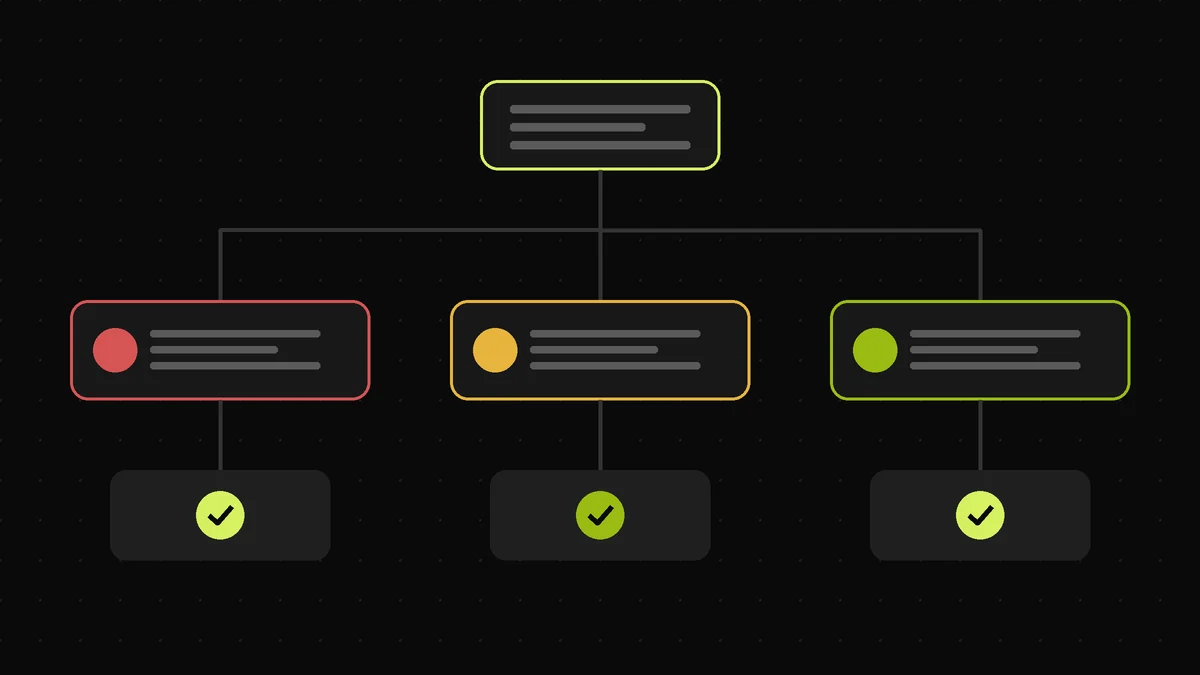
Each branch changes something different. PHP 8.0 removed old functions entirely, such as create_function() and each(). PHP 8.1 started warning when code passes null where text is expected. PHP 8.2 deprecated dynamic properties, which floods logs on older themes. Warnings do not stop a site. Fatal errors do. So the table below separates the two, and tells you what each message looks like in the debug log.
| Error in debug.log | Branch | Severity | Usual fix |
|---|---|---|---|
| Call to undefined function create_function() | 8.0 | Fatal | Update or replace the plugin; rewrite as a closure |
| Uncaught TypeError | 8.0 | Fatal | Fix the argument type in the theme or plugin code |
| Passing null to parameter of type string is deprecated | 8.1 | Warning | Safe for now; update the plugin before 9.0 |
| Creation of dynamic property is deprecated | 8.2 | Warning | Safe for now; ask the developer for a fix |
| Class not found, or ionCube loader error | Any | Fatal | Install the missing extension or loader |
Reader trap: fixing warnings while the fatal error waits
A common mistake is to see hundreds of deprecation lines and start fixing them one by one. Meanwhile, the single fatal error that actually broke the site sits further down the log. So search the log for "Fatal" first. Fix that, and the site usually returns. Then group the deprecations by plugin name. That list becomes your plan for the next branch upgrade. If the fatal error points to your theme, check the Query Monitor plugin for the exact file and line on staging.
Pro tip: WordPress recovery mode emails the admin a special login link when a plugin causes a fatal error. Check that inbox before you reach for FTP. The link lets you deactivate the broken plugin from the dashboard.
When a fatal error cannot be fixed quickly, you need a clean way back, and the right way back has changed.
How to Roll Back a PHP Update Safely
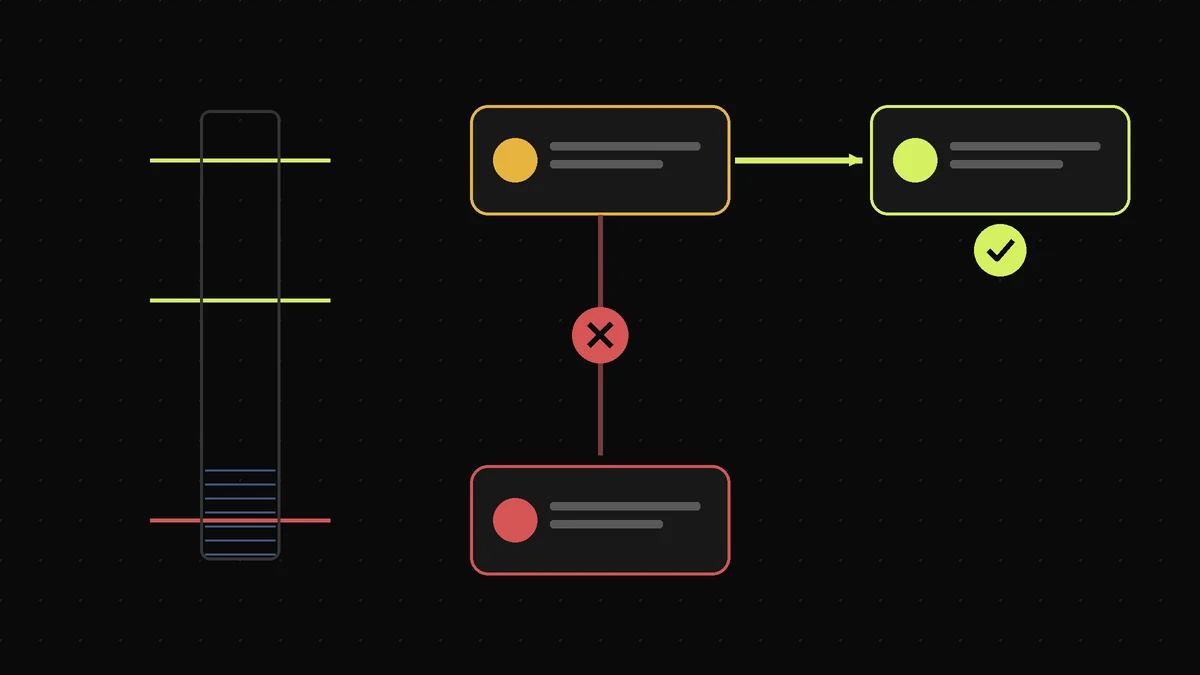
To roll back a PHP update safely, switch back to the newest patched release of an older supported branch, not to the exact version you had before. In October 2026, that distinction matters a lot. Going back to an unpatched release reopens the PHP2Shell flaws, which the US cybersecurity agency CISA added to its Known Exploited Vulnerabilities catalog on 26 October 2026, according to SOCRadar's tracking of the incident. (SOCRadar, 2026)
So if 8.4 breaks your site, step back to 8.3.36, not to your old 8.1. If no supported branch works, restore the backup to staging, fix the code there, and keep production on the safest branch you can. Think of it like a lift between floors. You can step off at any floor that is still maintained. However, the old basement is now flooded, and you should never step back down into it.
When you should not jump straight to the newest PHP
The newest PHP version is not always the best one. Avoid jumping straight to PHP 8.5 if a revenue-critical plugin has not confirmed support, if your theme is a heavily customised premium theme from years ago, or if your store runs during peak season with no staging. In those cases, move to 8.3 now, which is patched and supported until the end of 2027. Then plan the next jump for a quiet month. The WooCommerce PHP security advisory goes further for self-managed servers on unsupported branches. It suggests considering taking the server offline until PHP is updated. That sounds dramatic. Yet for a store holding customer data, it is the honest advice.
If the rollback still leaves you stuck, that is the point where a developer is cheaper than more trial and error.
Still seeing a critical error after the switch?
When the debug log points to theme code or an encoded plugin, DIY usually stalls. I fix the code, upgrade the branch and keep orders flowing, with the site backed up first. Get emergency WordPress support or book a free call.
Frequently Asked Questions
Can I update PHP version from the WordPress dashboard?
No, you cannot update PHP version from the WordPress dashboard itself. PHP runs on the server, so you change it in your hosting panel, such as Hostinger hPanel, cPanel or SiteGround Site Tools. The dashboard only reports your version under Tools, Site Health, Info, Server. If your host has no PHP selector, ask their support team to change it for you.
Will updating PHP break my WordPress site?
Updating PHP can break a site when an outdated plugin, theme or custom code uses functions newer PHP removed. WordPress core rarely causes the problem. You avoid most breakage by updating everything first, testing the new branch on a staging copy, and reading the debug log. If something fails, switch back to a patched older branch while you fix the code.
What PHP version does WordPress 7.1 require?
WordPress 7.1 requires PHP 7.4 or newer and supports up to PHP 8.5, according to the WordPress core compatibility table. However, PHP 7.4, 8.0 and 8.1 no longer get security fixes. For a secure site in late 2026, use PHP 8.3 or 8.4, both patched in October 2026 and supported into 2027 and 2028.
Does updating WordPress also update PHP?
No, updating WordPress never updates PHP. They are separate layers. WordPress core, plugins and themes update from the dashboard, while PHP is installed and upgraded on the server by your host or administrator. That is why the October 2026 PHP2Shell flaws could not be fixed by a WordPress update. Only a patched PHP release closes them.
Is PHP 8.2 still safe to use?
PHP 8.2 is safe only if it shows 8.2.35 or newer, which includes the October 2026 security fixes. Even then, PHP 8.2 security support ends on 31 December 2026, according to php.net. After that date it gets no more patches. Treat 8.2 as a short stop and plan your move to 8.3 or 8.4 before the year ends.
What PHP version does WooCommerce need?
WooCommerce currently runs on PHP 7.4 or newer, but WooCommerce 11.6, planned for February 2027, will require PHP 8.1 or newer. WooCommerce recommends PHP 8.3 or newer for the best performance and compatibility. Stores on PHP 7.4 or 8.0 can stay on WooCommerce 11.5 temporarily, but they stop receiving new features and most fixes.
How long does it take to update PHP version in WordPress?
Switching the PHP version itself takes under five minutes in most hosting panels. The safe process takes longer. Expect about an hour for a simple site, covering backup, updates, staging tests and verification. A WooCommerce store with custom code can take a day, because checkout, payment webhooks, scheduled actions and emails all need testing on the new branch.
Is my site protected from PHP2Shell if my host manages PHP?
Your site is protected from PHP2Shell only if the PHP serving it shows 8.5.12, 8.4.27, 8.3.36, 8.2.35 or newer, or your host confirms a backported patch. Many managed hosts patched quickly. However, sites on PHP 8.1 or older got no official release. Check Site Health today, and ask your host directly if the number looks old.
Is my WordPress site ready for a PHP update?
Your WordPress site is ready for a PHP update when you know your current version, have a backup you have restored before, can test on a staging copy, and run plugins that list support for your target branch. If any of those is missing, fix it first. The readiness check above scores your site in four questions.
When should I hire a professional to update PHP?
Hire a professional when your site runs PHP 8.0 or older, has no tested backup, uses abandoned or encoded plugins, or earns revenue you cannot pause. Those sites rarely survive a blind switch. A WordPress PHP developer can upgrade on staging, fix broken code and switch production without losing orders.
Conclusion
To update PHP version in WordPress safely, treat it as a server change with a test plan, not a button. Three points matter most. First, a patch and a branch upgrade are different jobs, so confirm both. Second, check every runtime, because cron and the command line can lag behind your pages. Third, roll back sideways to a patched branch, never down to an unpatched one. Today, open Site Health and read your PHP version. Then set a date for the move, before PHP 8.2 support ends in December 2026 and WooCommerce raises its minimum in February 2027.
Want this done safely this week?
I back up your site, upgrade PHP on staging, fix any broken plugin or theme code, then switch live with orders and cron verified. Most sites are done in one to two days. Get your PHP upgrade handled now.
This article was last reviewed and updated in October 2026 to reflect the latest PHP security releases and WordPress compatibility changes.