

- A slow WooCommerce store is almost always caused by weak hosting and missing caching, not by one bad plugin.
- Fix in order of impact: hosting and Time to First Byte first, then object caching, then images, plugins, and code.
- WooCommerce runs dynamic queries on every page, so Redis object caching matters more than it does on a normal blog.
- Never fully cache cart, checkout, and account pages. Exclude them from page cache instead of skipping caching entirely.
- Measure real-user Core Web Vitals, not a synthetic score, since that is what Google actually ranks on.
A slow WooCommerce store usually comes down to a handful of fixable causes, and knowing them is half the battle: underpowered hosting, missing or misconfigured caching, unoptimized images, and plugin bloat. The fastest path to fix a slow WooCommerce store is to diagnose first, then fix in order of impact, starting with hosting and caching, which alone can cut load time in half. This guide walks you through both the diagnosis and the fixes.
After fixing slow WooCommerce stores for clients in 15+ countries, here is the pattern I see on almost every one. The owner has installed three caching plugins, compressed a few images, and the store is still slow, because the real bottleneck was never touched. Curing a slow WooCommerce store is not about stacking plugins. Making a slow WooCommerce store fast is about fixing the right thing in the right order. Let me show you what that order is.
Why Your WooCommerce Store Is Slow
A slow WooCommerce store is usually slow for structural reasons, not mysterious ones, and each one is fixable. WooCommerce adds real overhead to WordPress: it registers extra database tables, loads its own scripts on every page, and runs dozens of database queries per page load. On weak hosting with no caching, that overhead is what turns a normal site into a slow WooCommerce store.
The usual culprits, and they tend to appear together:
- Underpowered hosting. Cheap shared hosting often has a Time to First Byte over 800 milliseconds, meaning the server is slow before a single byte reaches the browser.
- No caching, or the wrong caching. Without a page cache and a persistent object cache, WooCommerce rebuilds every page from scratch on every visit.
- Heavy, unoptimized images. Full-size product photos that were never compressed or served as modern formats.
- Plugin bloat. The average store runs around thirty plugins, each adding scripts, styles, and queries.
- A bloated theme. Page-builder-heavy themes that load far more code than the page needs.
Pro tip: Time to First Byte is the number that tells the truth. If your server takes over 600 milliseconds to start responding, no amount of frontend optimization will save you. Fix the server first, then everything else works better.
Before you change anything, though, you need to know which of these is actually hurting you.
Diagnose Before You Fix
Diagnosing a slow WooCommerce store before you fix it is essential, because fixing without measuring is guesswork, and guesswork is how people end up with three conflicting caching plugins. Spend ten minutes measuring, and you will know exactly where the time goes.
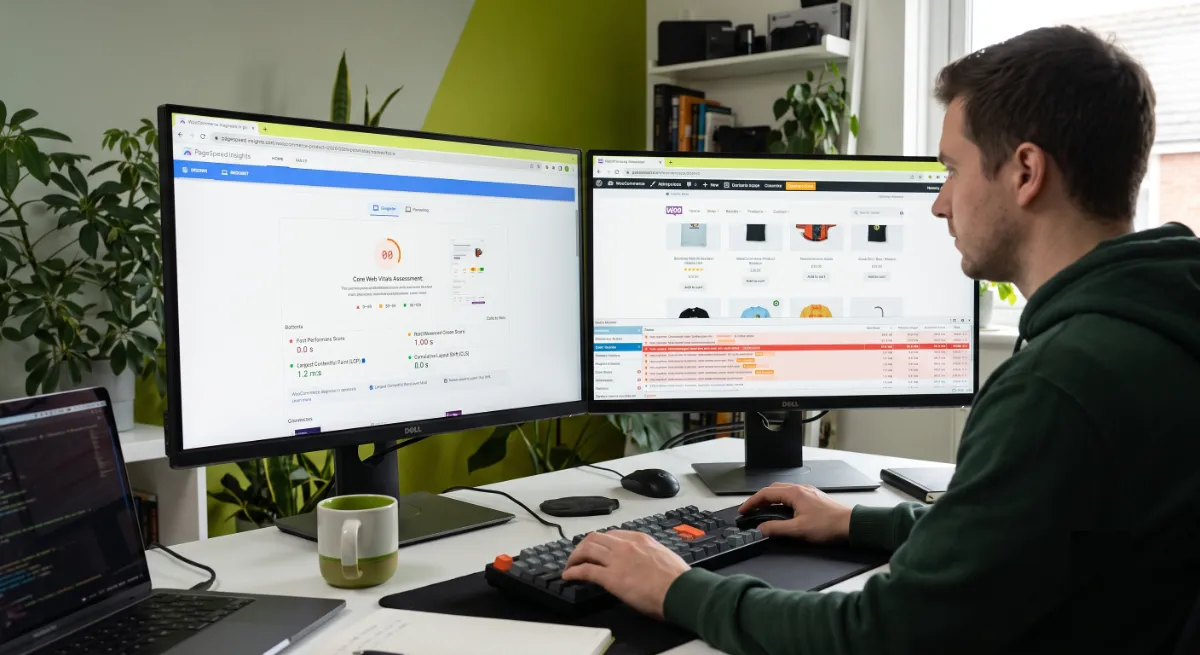
A quick diagnostic routine:
- Run PageSpeed Insights on your homepage and a product page. Look at the real-user data at the top, not just the lab score.
- Check your Core Web Vitals. The three that matter are Largest Contentful Paint, Interaction to Next Paint, and Cumulative Layout Shift. Note which are failing.
- Read your Time to First Byte. A high TTFB points at hosting or missing caching. A good TTFB with slow rendering points at images and code.
- Audit plugins and queries. A tool like Query Monitor shows which plugins add the most queries and slowest code on a page load.
The goal that matters: per Google’s Core Web Vitals thresholds, aim for LCP under 2.5 seconds, INP under 200 milliseconds, and CLS under 0.1, measured on real visitors at the 75th percentile. That is the bar Google ranks on, not a synthetic score.
Once you know why your WooCommerce store is slow, you fix it in a specific order.
The Fixes, in Order of Impact
The way to fix a slow WooCommerce store is to work in order of impact, because with a slow WooCommerce store the first two changes deliver most of the result. Doing them in sequence stops you from optimizing images on a server that was the real problem all along.
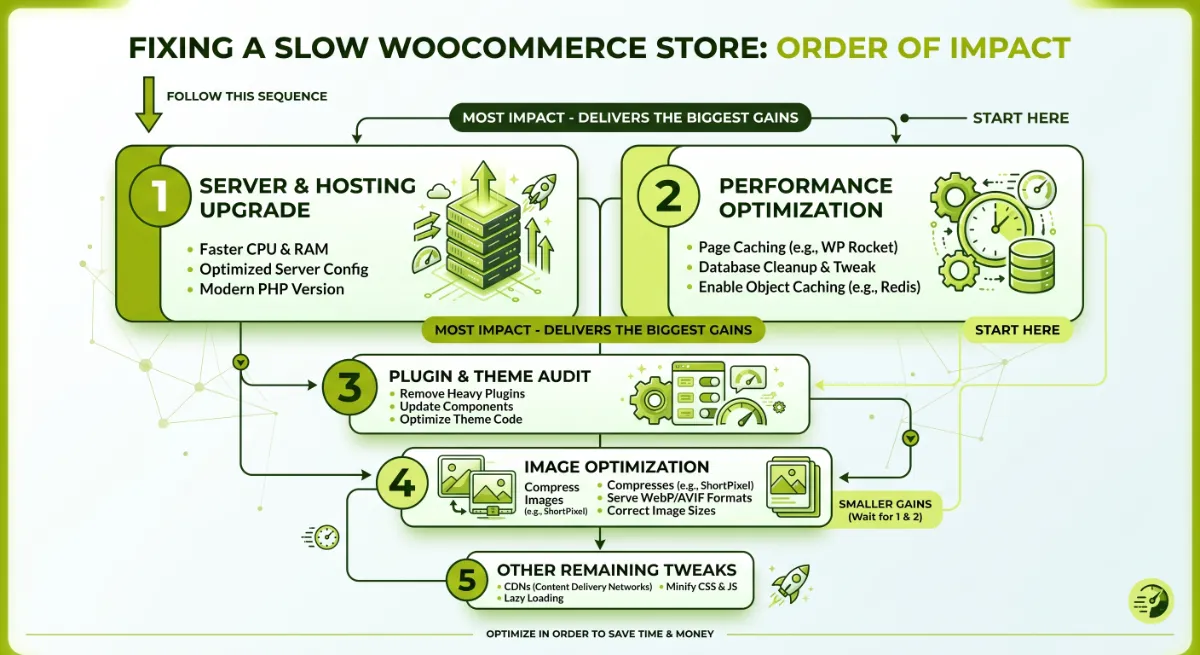
| Priority | Fix | Why it matters |
|---|---|---|
| 1 | Better hosting | Cuts TTFB the most. Move off cheap shared hosting to a quality WooCommerce-ready host. |
| 2 | Page and object caching | Redis object caching speeds the dynamic queries WooCommerce runs on every page. |
| 3 | Image optimization | Compress, resize, serve WebP or AVIF, and lazy load. Product images are usually the heaviest asset. |
| 4 | Plugin audit | Remove or replace heavy plugins. Fewer scripts and queries per page. |
| 5 | Reduce and defer code | Defer non-critical JavaScript and CSS to improve INP and rendering. |
| 6 | Database cleanup | Clear expired transients, old revisions, and trim autoloaded data. |
| 7 | Add a CDN | Serve static assets from edge locations closer to your shoppers. |
Pro tip: Enable a persistent object cache with Redis. WordPress ships with an object cache that resets on every page load, so it barely helps. A persistent Redis cache keeps WooCommerce’s expensive query results between requests, which is where a lot of dynamic-page slowness lives.
Those fixes apply to any WordPress site. But WooCommerce has its own specific traps.
WooCommerce-Specific Speed Killers
A slow WooCommerce store often has problems a normal WordPress site never faces at all, because of how WooCommerce handles carts, sessions, and dynamic pages. These are the WooCommerce-specific issues behind a slow WooCommerce store that generic speed guides miss.

- Cart fragments firing everywhere. WooCommerce’s cart-fragments script makes an uncached AJAX request on every page to update the cart count, even on your blog. On a busy store this floods the server. Disable it on non-cart, non-checkout pages.
- Caching the pages you must not cache. Cart, checkout, and My Account must stay dynamic. The fix is to exclude them from your page cache, not to give up on page caching for the whole site.
- No object cache for dynamic queries. Because product, cart, and account pages cannot be fully page-cached, Redis object caching is what keeps them fast, by caching their query results rather than the whole page.
- Session and database bloat. WooCommerce sessions, expired transients, and abandoned cart data pile up in the database and slow queries over time.
Get these right and a slow WooCommerce store transforms. Which brings us to the mistakes that keep stores slow.
Store still slow after trying the obvious fixes?
I diagnose and fix slow WooCommerce stores properly, hosting, caching, images, and the WooCommerce-specific issues. See my WordPress development service.
What Most People Get Wrong
The biggest mistake with a slow WooCommerce store is reaching for a plugin before fixing the foundation underneath it. People install a caching plugin on cheap shared hosting and wonder why the store is still slow. Caching helps, but if your server takes over a second to respond on a slow WooCommerce store, you are optimizing the top of a broken stack. Hosting comes first, always.
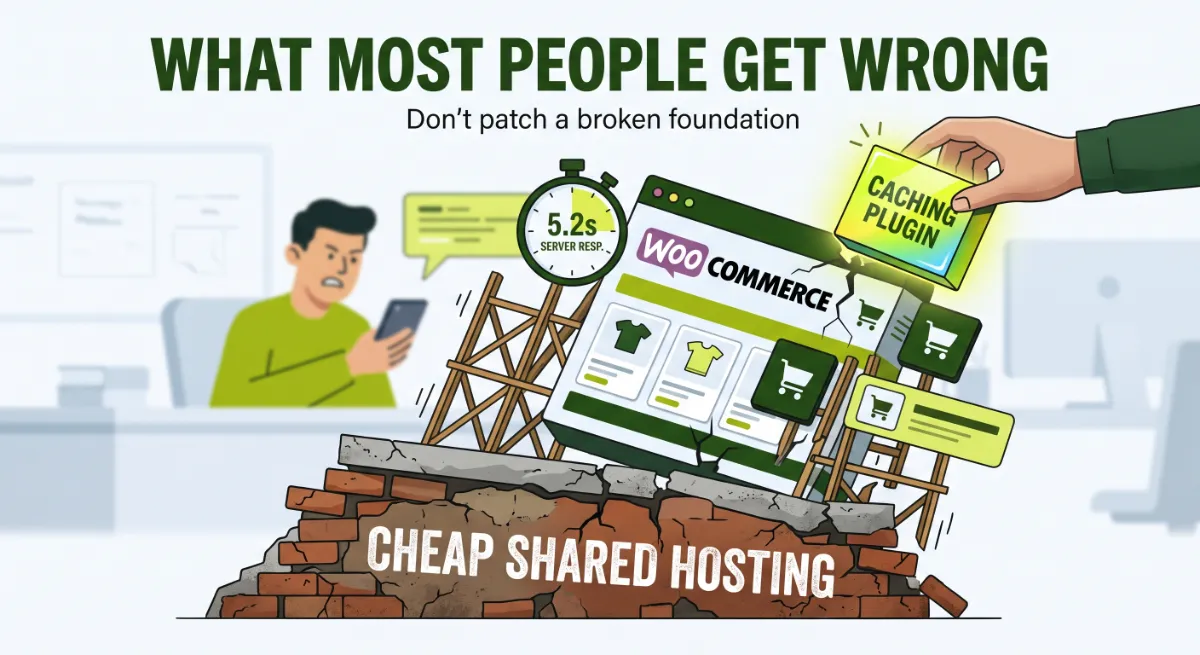
Here is the observation from client work. Most slow WooCommerce store tickets come down to two things: poor hosting and no object caching for the dynamic queries WooCommerce runs constantly. Fix those two and a slow WooCommerce store transforms, often from four seconds to under two, before anyone touches an image. On a slow WooCommerce store, everything after those two fixes is polish. The owners who struggle are the ones polishing first, compressing images and tweaking a theme while the server quietly chokes underneath.
The second trap is stacking caching plugins. More is not better here. Two caching plugins will fight each other, double-serve assets, and sometimes make the site slower than no caching at all. Pick one page cache that understands WooCommerce, configure it properly with the right exclusions, and stop. And do not chase a perfect PageSpeed score. Google ranks on real-user Core Web Vitals, so a store that feels fast to a shopper with a full cart matters far more than a green number in a testing tool.
When you have a slow WooCommerce store and the fixes above feel risky to do on a live, revenue-generating site, that is exactly where an experienced developer earns their fee.
Want your store fast without risking downtime?
I speed up live WooCommerce stores safely, diagnosing the real bottleneck and fixing it in the right order. See my WordPress development service or book a free call.
Frequently Asked Questions
Why is my WooCommerce store so slow?
Usually a combination of underpowered hosting, missing or misconfigured caching, heavy unoptimized images, and plugin bloat. WooCommerce also adds real overhead with extra database queries and site-wide scripts. The single most common root cause is cheap shared hosting with a high Time to First Byte, followed closely by the lack of a persistent object cache.
What is the fastest way to speed up a WooCommerce store?
Fix hosting and caching first, since together they typically cut load time roughly in half. Move to a quality WooCommerce-ready host to lower Time to First Byte, then add page caching plus a Redis object cache. Only after that should you optimize images, audit plugins, and defer code, in that order of impact.
Can I cache the WooCommerce cart and checkout?
No, those pages must stay dynamic, along with My Account. Fully caching them serves stale cart data and breaks the checkout. The correct approach is to page-cache the rest of the site and exclude cart, checkout, and account pages, while using a Redis object cache to keep those dynamic pages fast.
Do cart fragments slow down WooCommerce?
They can, significantly. The cart-fragments script fires an uncached AJAX request on every page to update the cart count, even where it is not needed. On busy stores this floods the server. Disable it on non-cart and non-checkout pages, or use fragment caching to keep the live cart count without the site-wide load.
What are good Core Web Vitals for a WooCommerce store?
Aim for Largest Contentful Paint under 2.5 seconds, Interaction to Next Paint under 200 milliseconds, and Cumulative Layout Shift under 0.1, measured on real visitors at the 75th percentile. Heavy WooCommerce JavaScript is the usual cause of poor INP, so deferring non-critical scripts is often the highest-impact fix.
Will a caching plugin alone fix my slow store?
Not if the root cause is your hosting. A caching plugin on a slow server optimizes the top of a broken stack, and the store stays slow. Fix Time to First Byte with better hosting first, then let caching do its job. And never run more than one caching plugin, since they conflict and can slow the site further.
Does a slow store really hurt my sales and rankings?
Yes, on both. Core Web Vitals are a confirmed Google ranking signal, so a slow store ranks lower before a shopper even arrives. And slow pages directly increase cart abandonment, since shoppers leave stalling checkouts. Speed is one of the few fixes that improves rankings and conversions at the same time.
Should I hire someone to speed up my WooCommerce store?
Consider it when the store is on a live, revenue-generating site where mistakes are costly, or when the obvious fixes have not worked. Diagnosing the real bottleneck and configuring caching safely is technical work. My WordPress development service covers full WooCommerce speed optimization.
Conclusion
A slow WooCommerce store is one of the most fixable problems in ecommerce, provided you work in the right order. Diagnose first with real-user Core Web Vitals data, then fix hosting and caching before anything else, since those two changes carry most of the result. Optimize images, audit plugins, and defer code next, and handle the WooCommerce-specific traps: cart fragments, cache exclusions for cart and checkout, and a persistent object cache for the dynamic queries. Resist the urge to stack caching plugins or chase a perfect synthetic score. Start today by running your homepage and a product page through a speed test, read the Time to First Byte, and you will know exactly where to begin fixing your slow WooCommerce store.
Ready for a store that loads in under two seconds?
I turn slow WooCommerce stores into fast, high-converting ones, safely and in the right order. Book a free call or browse my recent project portfolio.
This article was last reviewed and updated in June 2026 to reflect current WooCommerce performance practices and Core Web Vitals thresholds.