
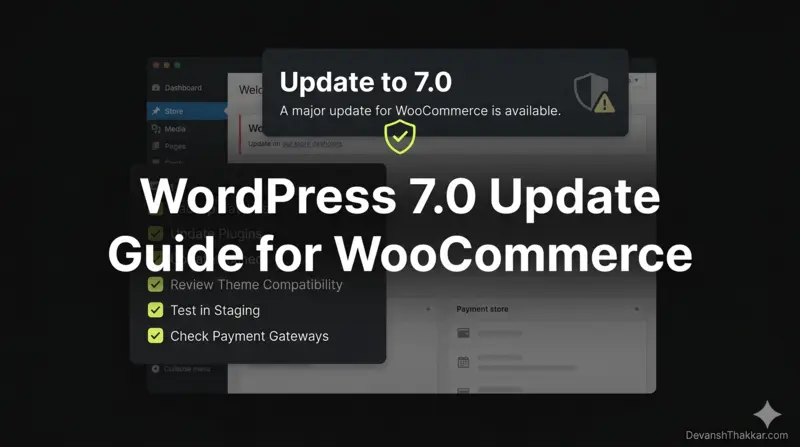
This WordPress 7.0 update guide for WooCommerce stores exists because updating a live store is not the same as updating a blog. When a blog update goes wrong, you get a broken layout. When a WooCommerce update goes wrong, your checkout stops processing payments. Orders disappear from the admin. Customers see error messages instead of products. Revenue stops.
WordPress 7.0 is the biggest core release since the block editor was introduced. It drops PHP 7.2/7.3, replaces the admin list tables your WooCommerce orders screen depends on, adds native AI infrastructure, and introduces real-time collaboration. The release was delayed from its April 9 target to address database architecture issues in the collaboration feature, with a revised schedule expected by April 22. WooCommerce developer Devansh Thakkar has updated stores through every major WordPress release since 5.0 and has developed this 11-step checklist specifically for WooCommerce stores preparing for 7.0.
What Changed in WordPress 7.0 That Affects WooCommerce Stores
WordPress 7.0 is not a minor update. For WooCommerce stores specifically, there are five changes that matter. Understanding these before you touch the update button is the first step in this WordPress 7.0 update guide for WooCommerce:
| Change | What It Does | WooCommerce Impact |
|---|---|---|
| PHP 7.2/7.3 dropped | Minimum PHP version raised to 7.4, PHP 8.2+ recommended | Stores on old PHP will NOT receive the update and stay stuck on 6.9 |
| DataViews replaces WP List Tables | New admin interface for Posts, Pages, Users, Media, and Orders | Plugins adding custom columns/filters to orders screen may break |
| Iframed block editor | Editor content now renders inside an iframe | Product editor CSS and custom blocks may render differently |
| AI Connectors API | Native AI provider connections (OpenAI, Claude, Gemini) | No automatic impact. Opt-in only. Safe to ignore initially. |
| Real-time collaboration | Multiple users edit the same content simultaneously | Irrelevant for single-operator stores. Opt-in for teams. |
Pro Tip: The two changes that will actually break things on WooCommerce stores are the PHP version requirement and the DataViews admin overhaul. The AI features and real-time collaboration are opt-in and do not activate automatically. Focus your testing on checkout, payment gateways, and the admin orders screen. Everything else is cosmetic. – Devansh Thakkar, WordPress Developer
The 11-Step WordPress 7.0 Update Guide for WooCommerce Stores
Follow these steps in order. Do not skip any step. Every step in this WordPress 7.0 update guide for WooCommerce is here because WordPress developer Devansh Thakkar has seen the corresponding failure mode cause real revenue loss on client stores during previous major updates.
Step 1: Check Your PHP Version
WordPress 7.0 requires PHP 7.4 minimum. If your store runs PHP 7.2 or 7.3, you will not receive the WordPress 7.0 update at all. Your site stays on WordPress 6.9, which will only get security patches going forward.
Check your PHP version: go to WooCommerce > Status > System Status. The PHP version is listed near the top. If it shows 7.2 or 7.3, contact your hosting provider and request an upgrade to PHP 8.2 (recommended) or at minimum PHP 7.4.
Important: Do not jump from PHP 7.2 straight to 8.2 on production. Some WooCommerce plugins are not PHP 8.x compatible. Upgrade PHP on your staging site first, test the entire store, then upgrade production.
Step 2: Update WooCommerce to 10.6.2+ First
WooCommerce 10.6.2 includes admin style fixes specifically built for WordPress 7.0. These fixes address label alignment, card padding, and order list display issues that appear when DataViews replaces the classic list tables.
Always update WooCommerce BEFORE updating WordPress core. This ensures the WooCommerce compatibility layer is in place when WordPress changes land. Go to Plugins > Installed Plugins > WooCommerce and update to the latest version. If you are on WooCommerce 10.4 or earlier, update incrementally (10.4 > 10.5 > 10.6) rather than jumping multiple major versions.
Step 3: Create a Full Backup
Before touching anything else, create a complete backup of your site: files, database, and media. Use UpdraftPlus (free) or your hosting provider’s snapshot tool (SiteGround, Cloudways, and Hostinger all offer one-click backups).
Verify the backup by downloading it and confirming the file sizes are reasonable. A WooCommerce store with 1,000+ orders typically produces a database backup of 50-200MB. If yours is 1MB, the backup is incomplete.
Step 4: Set Up a Staging Site
Never test a major WordPress update on your live store. Create a staging copy:
- SiteGround: Site Tools > WordPress > Staging
- Cloudways: Applications > Staging Management
- Hostinger: hPanel > WordPress > Staging
- Manual: Clone the site using UpdraftPlus or WP-CLI to a subdomain like
staging.yourdomain.com
All testing in Steps 5-10 happens on staging. Production stays untouched until every test passes.
Step 5: Update All Plugins and Theme on Staging
On your staging site, update every plugin and your theme to the latest version BEFORE updating WordPress. The update order matters:
- WooCommerce (already done in Step 2)
- Payment gateway plugins (Stripe, PayPal Payments, Square)
- WooCommerce extensions (Subscriptions, Memberships, Bookings, Product Add-Ons)
- SEO plugin (Rank Math, Yoast)
- Caching plugin (LiteSpeed Cache, WP Rocket)
- Page builder (Elementor, Divi, Bricks)
- All remaining plugins
- Theme
Step 6: Update WordPress to 7.0 on Staging
With all plugins and theme updated, now update WordPress core to 7.0 on staging. Go to Dashboard > Updates and click the update button. After the update completes, immediately check Tools > Site Health for new warnings and review wp-content/debug.log for PHP errors or deprecation notices.
Step 7: Test Payment Gateways
This is the most critical test in the entire WordPress 7.0 update guide for WooCommerce. Payment gateway plugins load JavaScript on the checkout page that interacts with WordPress core scripts. When core scripts change (as they do in every major release), gateway JavaScript can break.
Test each active payment gateway on staging:
- Add a product to cart
- Proceed to checkout
- Verify all payment method options appear (Stripe card form, PayPal button, Apple Pay / Google Pay if enabled)
- Complete a test purchase using Stripe test card
4242 4242 4242 4242or PayPal sandbox - Verify the order appears in WooCommerce > Orders with “Processing” or “Completed” status
- Verify the customer receives the order confirmation email
- Test a refund from the order screen to verify refund API works
If any gateway fails, check the gateway plugin’s changelog or support forum for a WordPress 7.0 compatibility update. Most major gateways (Stripe, PayPal Payments) release patches within 48-72 hours of a major WordPress release.
Pro Tip: Stripe and PayPal both load heavy JavaScript SDKs on checkout. WordPress 7.0’s iframed editor should not affect frontend scripts, but the DataViews admin changes can break the order management screens if your gateway adds custom columns to the orders list. Test both the customer-facing checkout AND the admin order management after updating. – Devansh Thakkar, WordPress Developer
Step 8: Test the WooCommerce Admin
WordPress 7.0’s DataViews replaces the classic WP List Tables that power the WooCommerce orders, products, and coupons screens. This is the change most likely to cause visible issues for store operators.
On staging, check these admin screens after the update:
- WooCommerce > Orders – Verify all columns display correctly (order number, date, status, total, customer, actions)
- WooCommerce > Products – Verify product listing, filtering, and bulk actions work
- WooCommerce > Analytics – Verify revenue, orders, and products reports load without errors
- WooCommerce > Settings – Navigate through all tabs (General, Products, Shipping, Payments, Accounts, Emails, Advanced) and verify layout is intact
If you use plugins that add custom columns to the orders screen (like shipment tracking, custom order statuses, or delivery date plugins), test those specifically. They are the highest risk for DataViews incompatibility.
Step 9: Test Checkout Blocks vs. Shortcode Checkout
WooCommerce now supports two checkout implementations: the older [woocommerce_checkout] shortcode and the newer block-based Checkout block. WordPress 7.0’s editor changes primarily affect the block-based version.
On staging, test whichever checkout your store uses:
- Complete a full purchase from start to finish
- Test coupon application
- Test shipping method selection (if you have multiple options)
- Test guest checkout and logged-in checkout
- Test on mobile (real device, not just browser resize)
If your checkout uses the shortcode method and works fine, there is no urgency to switch to blocks. The shortcode checkout is stable and will continue to work in WordPress 7.0.
Step 10: Test Critical Integrations
WooCommerce stores rarely run in isolation. Test every integration that touches order data or customer data:
- Email marketing: Mailchimp, Klaviyo, ActiveCampaign – verify new orders sync
- Shipping: ShipStation, EasyPost, Royal Mail – verify label generation works
- Accounting: QuickBooks, Xero, FreshBooks – verify order data pushes correctly
- CRM: HubSpot, Salesforce – verify customer data syncs
- Google Analytics / GTM: Verify e-commerce tracking events fire on purchase
- Product feeds: Google Shopping, Meta catalog – verify feed still generates
Step 11: Update Production (72 Hours After Release)
Once all staging tests pass, wait 72 hours after WordPress 7.0’s official release before updating production. This gives plugin developers time to release any last-minute compatibility patches and gives the WordPress community time to surface edge-case bugs.
When you update production:
- Pick a low-traffic period (early morning, not Friday afternoon)
- Create a fresh backup immediately before updating
- Update in the same order you used on staging: plugins first, then WordPress core
- Run a real test order on production after the update completes
- Monitor your store for 24 hours: check orders, check email notifications, check payment gateway logs
WordPress 7.0 Features WooCommerce Store Owners Can Ignore (For Now)
Not everything in WordPress 7.0 requires your attention. Here is what you can safely skip during the update, based on what Devansh Thakkar has assessed across client WooCommerce stores:
| Feature | Why You Can Ignore It |
|---|---|
| Real-time collaboration | Designed for multi-editor content teams. Single-operator stores see zero difference. Opt-in only. |
| AI Connectors API | No AI features activate automatically. Requires installing a provider plugin and adding API keys. |
| AI Experiments plugin | Separate plugin for testing AI features like auto alt text. Not bundled with core. |
| New Accordion block | Nice for content pages. Does not affect products, checkout, or store functionality. |
| Font Library for classic themes | Useful for design tweaks. Not a priority during the update process. |
What Happens If You Do Not Update to WordPress 7.0
If you choose not to update, your store stays on WordPress 6.9. This is fine in the short term. WordPress 6.9 will continue to receive security patches. But over time:
- Plugin developers will start requiring WordPress 7.0+ as a minimum version
- New WooCommerce versions will eventually drop 6.9 compatibility
- Security patches for 6.9 will stop (typically 12-18 months after the next major release)
- If you are on PHP 7.2/7.3, you are already behind on PHP security patches, which stopped years ago
The update is not optional forever. It is a question of when, not if. Doing it methodically with this WordPress 7.0 update guide for WooCommerce is significantly less stressful than doing it reactively when a critical plugin drops 6.9 support.
Pro Tip: If your WooCommerce store runs on PHP 7.2, the update path is PHP upgrade first, then WordPress 7.0. Do not try to do both at the same time. Upgrade PHP on staging, test everything, push PHP upgrade to production. Wait a week. Then update WordPress 7.0 on staging, test everything, push to production. Two separate update cycles, two separate test rounds. This is exactly how I handle it for client stores and it eliminates the “was it the PHP upgrade or the WordPress update that broke checkout?” debugging nightmare. – Devansh Thakkar, WordPress Developer
Need Help Updating Your WooCommerce Store to WordPress 7.0?
If your WooCommerce store processes real orders and real revenue, the WordPress 7.0 update is not something to rush or wing. A misconfigured update that breaks checkout for even 4 hours can cost hundreds or thousands in lost sales.
Devansh Thakkar offers WooCommerce update services that follow this exact 11-step process. From PHP upgrades to staging tests to production deployment, everything is tested before your live store is touched. After handling WordPress core updates across 250+ projects, the process is repeatable, documented, and zero-downtime.
If you also need speed optimization, bug fixes, or ongoing maintenance alongside the update, those are scoped into the same engagement.
Book a call or send a message with your WooCommerce version, PHP version, and hosting provider, and I will give you a fixed-price quote for the full update process.
Frequently Asked Questions
Is WordPress 7.0 safe for WooCommerce stores?
Yes, when updated correctly. WooCommerce 10.6.2+ includes specific compatibility fixes for WordPress 7.0 admin style changes. The key is to update WooCommerce first, test payment gateways and checkout on staging, and wait 72 hours after release before updating production.
What PHP version does WordPress 7.0 require for WooCommerce?
WordPress 7.0 requires PHP 7.4 minimum. Sites running PHP 7.2 or 7.3 will not receive the update. For WooCommerce stores, PHP 8.2 is recommended for best performance and compatibility. Check your PHP version at WooCommerce > Status > System Status.
Should I update my WooCommerce store to WordPress 7.0 on release day?
No. Wait 72 hours after the official release. This gives plugin developers time to release compatibility patches for any edge-case issues. During those 72 hours, test the update on a staging site. Only update production after all staging tests pass.
Will WordPress 7.0 break my WooCommerce checkout?
It should not if you follow this WordPress 7.0 update guide for WooCommerce. The most common checkout issue after a major WordPress update is a payment gateway plugin that has not been updated for compatibility. Update all gateway plugins before updating WordPress, and test checkout on staging.
What is DataViews and does it affect WooCommerce?
DataViews is WordPress 7.0’s replacement for the classic WP List Tables that power the admin screens for posts, pages, users, and orders. For WooCommerce, it changes how the orders list and products list render in wp-admin. Plugins that add custom columns or filters to these screens may need updates for DataViews compatibility.
Does WordPress 7.0’s AI integration affect my WooCommerce store?
No, not automatically. The AI Connectors API, AI Client, and Abilities API are infrastructure only. No AI features activate unless you install a provider plugin and configure API keys. Your WooCommerce store will not behave differently after the update unless you explicitly opt into AI features.
What is the correct update order for a WooCommerce store?
Update WooCommerce first (to 10.6.2+), then update payment gateway plugins, then all other plugins, then your theme, and finally update WordPress core. This order ensures each layer has its compatibility fixes in place before the next layer changes.
How long does the WordPress 7.0 update take for a WooCommerce store?
The actual WordPress core update takes 1-2 minutes. The full process, including backups, staging setup, plugin updates, testing, and production deployment, takes 2-4 hours for a standard WooCommerce store. Complex stores with many integrations may need a full day.
Can Devansh Thakkar handle the WordPress 7.0 update for my WooCommerce store?
Yes. Devansh Thakkar follows the 11-step process in this WordPress 7.0 update guide for WooCommerce on every client store. The service includes PHP upgrade (if needed), full staging test, payment gateway verification, checkout testing, and monitored production deployment. Visit DevanshThakkar.com to book a call.
What happens if I do not update my WooCommerce store to WordPress 7.0?
Your store stays on WordPress 6.9, which will receive security patches for 12-18 months. However, plugin developers will eventually require 7.0+, new WooCommerce versions will drop 6.9 support, and if you are on PHP 7.2/7.3, you are already running an unsupported PHP version with known security vulnerabilities.