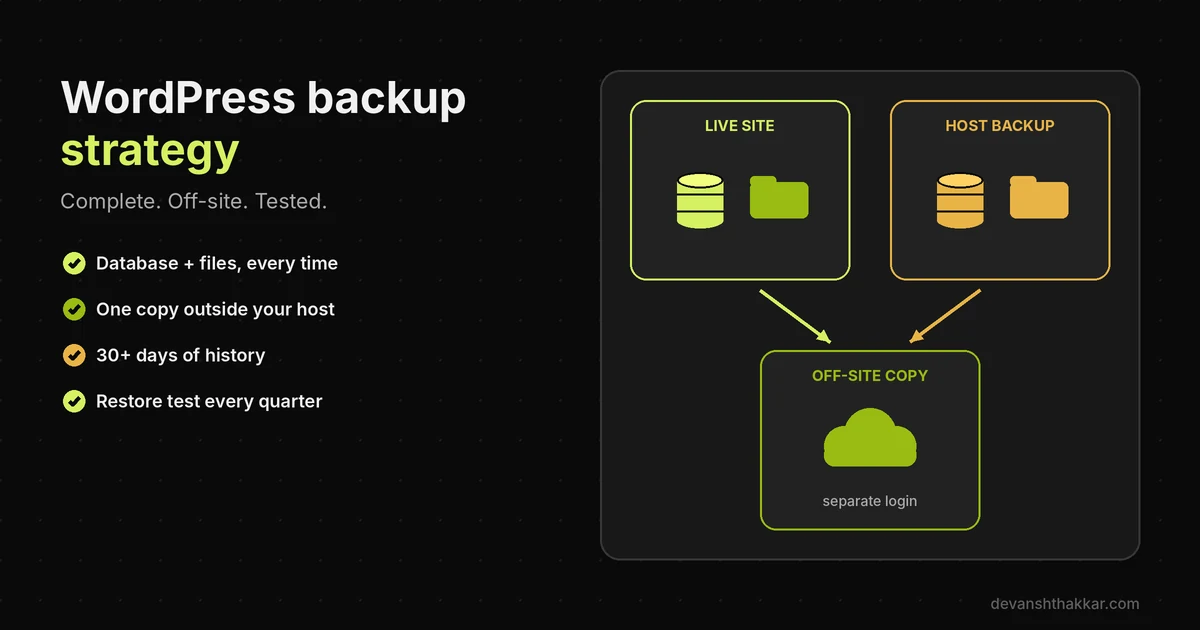
- A WordPress backup strategy needs both the database and the files, stored in at least one place your host cannot touch.
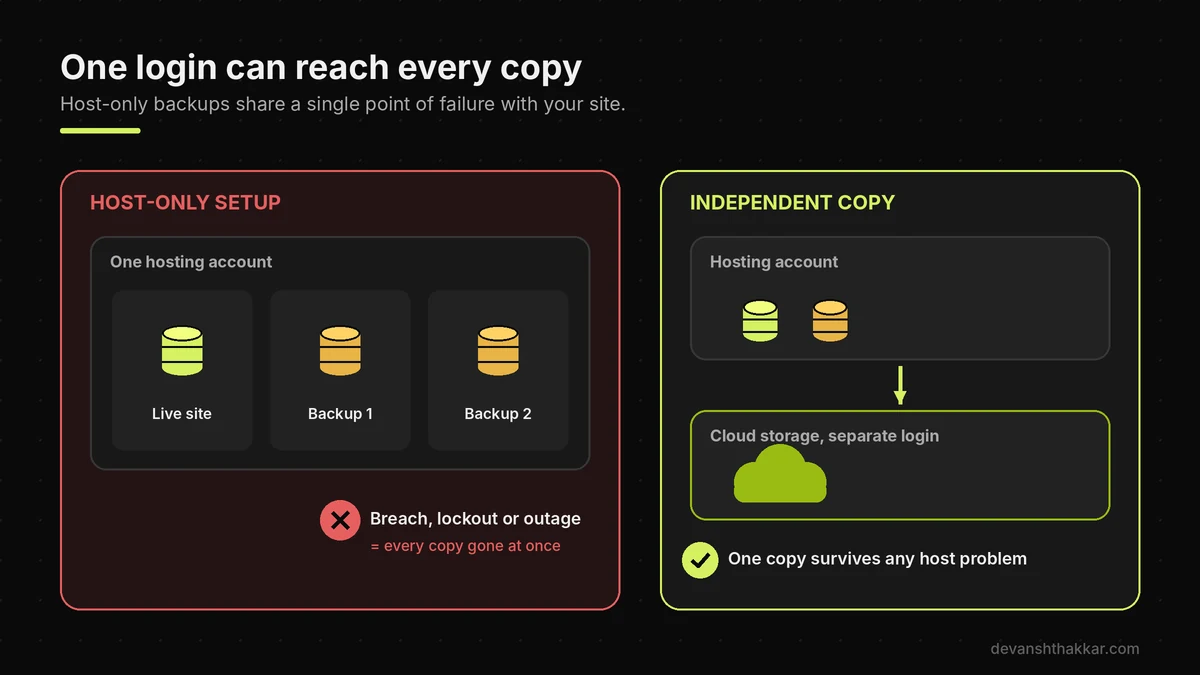
- Host backups are useful, but they share one account, one company and one failure with your live site.
- In November 2026, a hosting firm’s cloud data was wiped and its VPS binary backups were destroyed.
- Keep backups longer than an attacker could stay hidden, so at least one copy predates any infection.
- A backup you have never restored is a guess. Test a restore on staging every quarter.
A good WordPress backup strategy keeps complete copies of your database and files, made automatically, stored in at least two places, one of them outside your hosting account, and kept long enough to roll back past a hidden hack. It also includes a restore test, because a WordPress backup only counts once you have restored it.
Across 250+ WordPress projects over 7+ years, I have taken over plenty of sites whose owners were sure they had backups. Often they did. They just could not restore them. The archive was missing the database, or it sat on the same server that had just failed, or the newest clean copy was older than anyone wanted to admit. Most owners only find out on the worst day of their site’s life. Most try to sort it out alone at that point, and that’s where the real cost begins.
What Is a Good WordPress Backup Strategy?
A good WordPress backup strategy is a routine that can bring your whole site back, from any likely disaster, to a point before the damage started. That means three things working together. First, completeness: every WordPress backup holds the database and the files, because the official guidance says you “need both to be able to fully restore a typical WordPress site.” Second, separation: copies live in more than one place, so one failure cannot destroy them all. Third, time: you keep enough history to go back past a hack you did not notice straight away. A single plugin ticking along on default settings rarely covers all three.
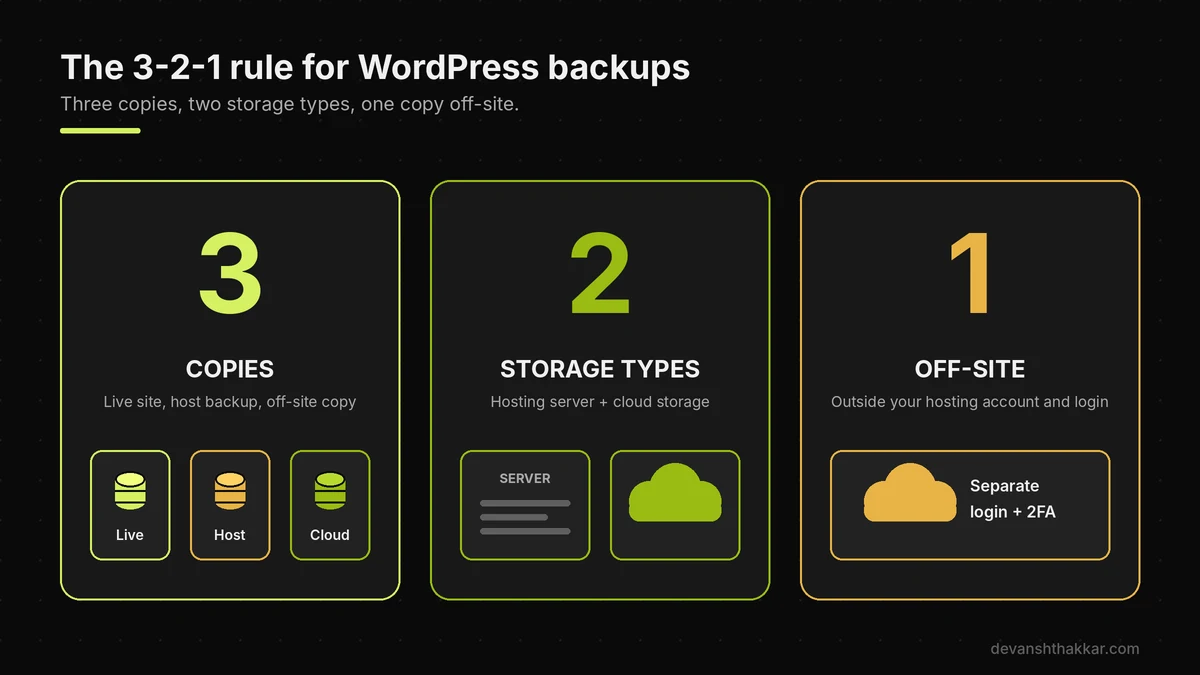
The common shorthand for WordPress backups is the 3-2-1 rule. Keep three copies of your data, on two different kinds of storage, with one copy off-site. For a WordPress site, that usually means the live site, your host’s backup and a copy in separate cloud storage that your hosting login cannot reach.
What a complete backup contains
The database holds your posts, pages, orders, form entries, users and settings. The files hold wp-content, which means your theme, plugins and every uploaded image, plus wp-config.php. WordPress core files can be downloaded again, so they matter less. However, many plugins exclude large folders from a WordPress backup by default to keep archives small. Open your plugin’s settings and confirm that uploads are included, because a backup without them restores a site with no images.
Pro tip: Check the size of your latest archive. If your uploads folder is 2 GB and the backup is 40 MB, something is being left out.
Knowing what goes into a backup is half of it. Where it lives matters just as much.
Why Host Backups Alone Are Not Enough
Host backups alone are not enough because they share the same company, often the same infrastructure and always the same login as the site they protect. They are excellent for everyday mistakes, such as a bad plugin update. However, they are weakest in the exact situations where you need a backup most: a host-side breach, a billing dispute that locks your account, or an attack on the provider itself. This month showed both sides. Hostinger restored affected sites from backups taken before its incident and found no evidence its backup system was touched. Beget, by contrast, said that “it is impossible to recover all data” after attackers wiped its cloud platform.
Neither story means your host is unsafe. Instead, both mean your host should not hold the only WordPress backup. The fix is cheap: one extra copy in storage you control, under a separate login.
What I find when I take over a site
Before I migrate or update any client site, I restore its latest WordPress backup to a staging copy first. The failure I find most often is not a missing plugin. It is a remote storage connection, usually Google Drive or Dropbox, that quietly disconnected months earlier. The plugin kept running and kept saying “backup complete.” In reality it was writing every archive into a folder inside wp-content on the same server. So the owner had dozens of WordPress backups, all in the one place a server failure or a compromised account would reach first.
What most guides get wrong: they treat “install a backup plugin” as the finish line. The plugin is the start. Check that the remote destination is still connected, and that the latest archive actually appears there with today’s date.
The quick check below shows where your setup stands.
Check It: Would Your WordPress Backup Survive?
You can check whether your WordPress backup would survive a real disaster by answering up to three questions about where it lives, whether you have restored it, and how much history you keep. The first question finds out whether your copies sit with your host, on the same server, off-site, or nowhere you know of. The next question depends on your answer, because a host-only setup and an off-site plugin fail in different ways. Each path ends with the most likely gap, a concrete next step, and a way to get it fixed if you would rather not do it yourself.
It takes under a minute. It will not replace a restore test, but it tells you which gap to close first.
Whatever your result, the seven rules below close every gap in the checker.
7 Rules for a WordPress Backup That Restores
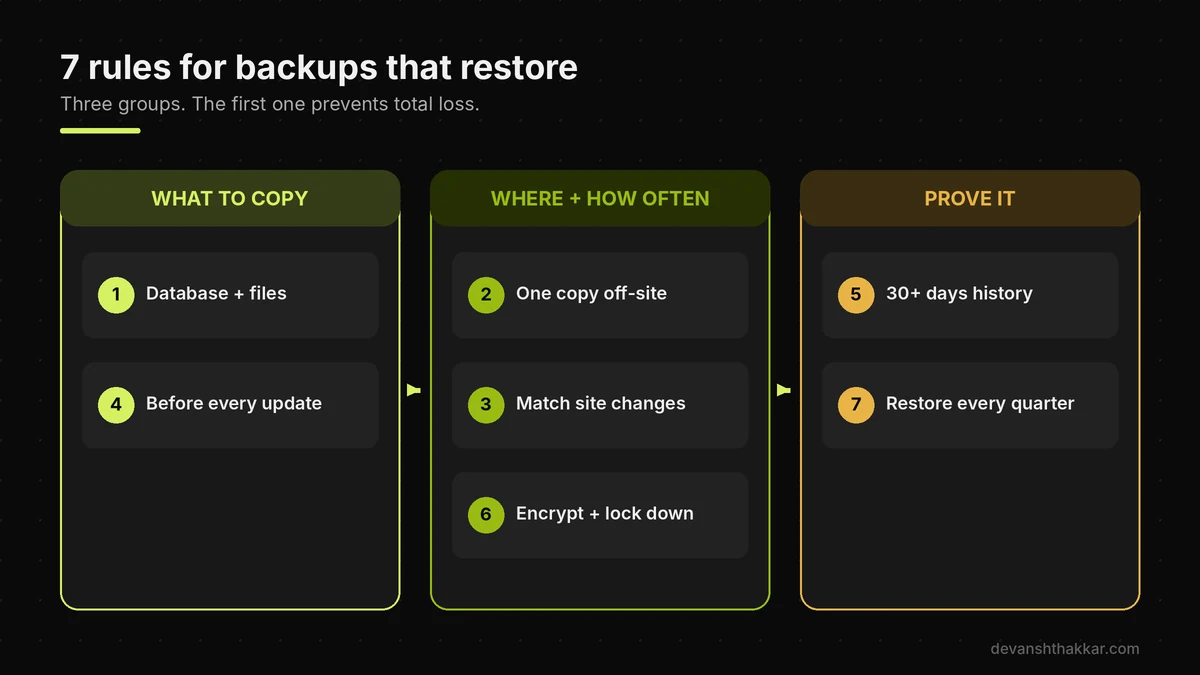
The seven rules for a WordPress backup that restores cover what to copy, where to keep it, how often to run it, how long to keep it and how to prove it works. Follow them in order. The early rules stop total loss, and the later rules make recovery fast and clean. None of them needs expensive tools. A reputable backup plugin such as UpdraftPlus, BlogVault, Jetpack VaultPress Backup or BackWPup, plus a cloud storage account under a separate login, covers almost every small business site. Larger stores and busy membership sites may also need real-time database backups. Keep a short note of your setup, because whoever restores the site, you or a developer, will need it fast.
1. Back up the database and the files together
A full WordPress backup includes the database and all of wp-content, plus wp-config.php. Database-only backups protect content but lose your theme, plugins and images. Files-only backups lose every post, order and setting. Set your plugin to "full backup," and check that no folders are excluded unless you excluded them on purpose.
2. Keep one copy outside your hosting account
Send WordPress backups to cloud storage such as Amazon S3, Backblaze B2, Google Drive or Dropbox, under a login that is not your hosting login. This is the copy that survives a host breach, a locked account or a provider outage. Next, turn on two-factor authentication for that storage account too.
3. Match frequency to how often the site changes
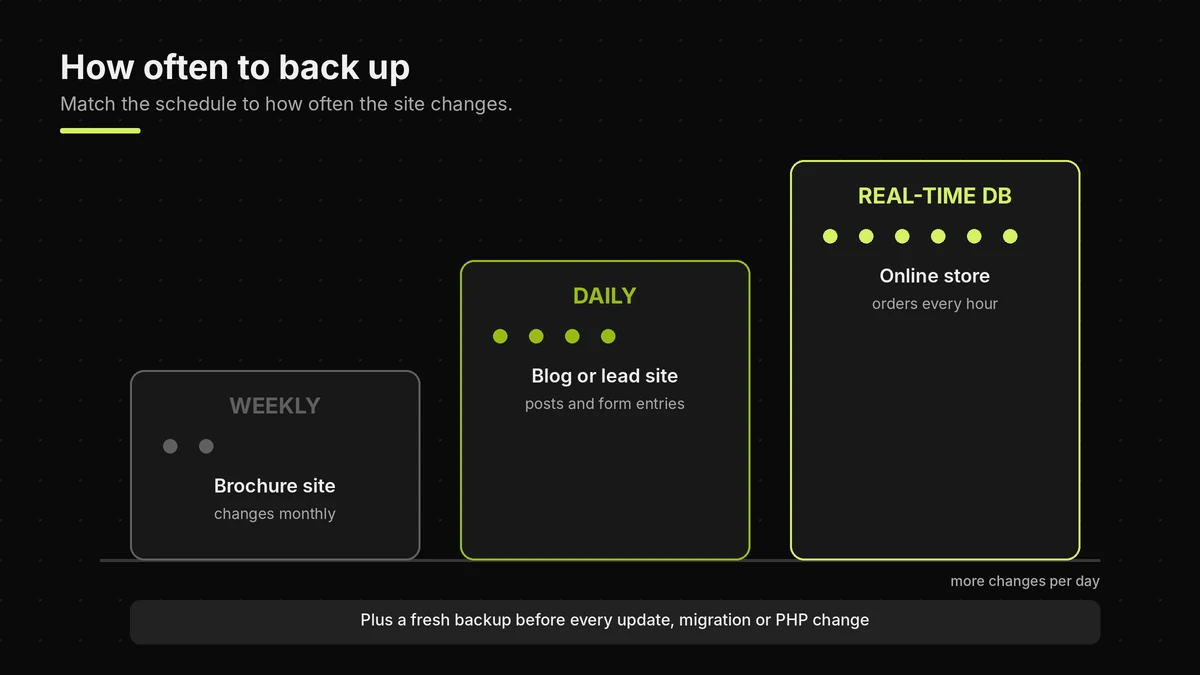
WordPress's own guidance suggests a weekly WordPress backup for smaller sites and daily backups for busy ones. A brochure site that changes monthly can run weekly. A blog, a booking site or anything with form entries should run daily. A WooCommerce store with orders every hour needs at least daily database backups, and ideally real-time ones.
4. Always back up before updates and changes
Take a fresh WordPress backup before core updates, plugin updates, theme changes, PHP upgrades and migrations. Most plugins have a "backup before update" option, so turn it on. Then, if an update breaks the site, you roll back to minutes ago instead of last night.
Not sure your setup follows rules 1 to 4?
Most broken backup setups fail on one of these four, and it takes a developer under an hour to fix. Get off-site backups set up properly.
5. Keep enough history to roll back past a hack
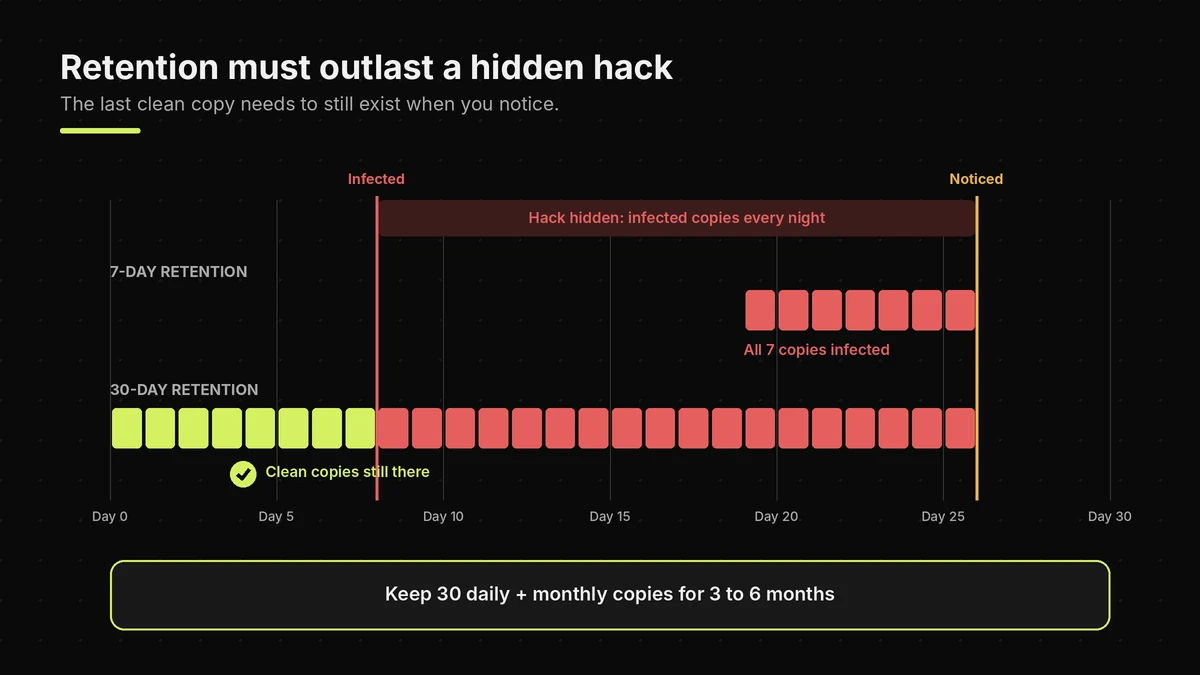
Retention decides how far back you can go. So keep at least 30 days of daily WordPress backups, plus monthly copies for three months or more. Short retention is the most common reason a hacked site cannot be cleanly restored. The next section explains why.
6. Protect the backups themselves
Encrypt archives where your plugin allows it, because a WordPress backup contains your database and wp-config.php, including passwords and keys. Also use separate credentials for the storage, and limit who can delete backups. If an attacker can delete your backups, they can also take away your way back.
7. Test a restore every quarter
Restore your latest WordPress backup to a staging site at least every three months, and after any change to your backup setup. WordPress's own handbook recommends checking automatic backups now and then "to guarantee that the process is working." A test turns a hopeful setting into a proven recovery plan.
Rule five is the one most owners get wrong, so it is worth a closer look.
How Long Should You Keep WordPress Backups?
You should keep WordPress backups for at least 30 days of daily copies, plus one monthly copy for three to six months. The reason is detection time. Hacks rarely announce themselves. Spam links, hidden admin users and injected scripts can sit unnoticed for weeks, while your backup plugin faithfully copies the infected site every night. With only seven days of retention, every backup you hold can contain the same infection by the time anyone notices. Hostinger's incident shows the timing in miniature: the attacker got in on 5 November and was detected on 8 November. Sites were restored from backups taken before the attack.
Longer retention costs very little, because cloud storage is cheap and most plugins only store the changes between copies. So the cost of keeping more history is a few extra dollars a year. The cost of keeping too little is a rebuild.
A simple retention plan most sites can use
Keep 30 daily WordPress backups, 12 weekly copies and 6 monthly copies. For stores, add hourly or real-time database backups for the last few days. Also, before any big change, such as a redesign or a migration, label a WordPress backup and keep it until the new site has run cleanly for a month. Finally, after a hack is cleaned up, keep the last clean pre-infection copy separately, in case the problem returns.
wp-config.php, because an attacker who read credentials can simply walk back in.Once retention is right, the last step is proving the backup restores.
How to Test a WordPress Backup Restore
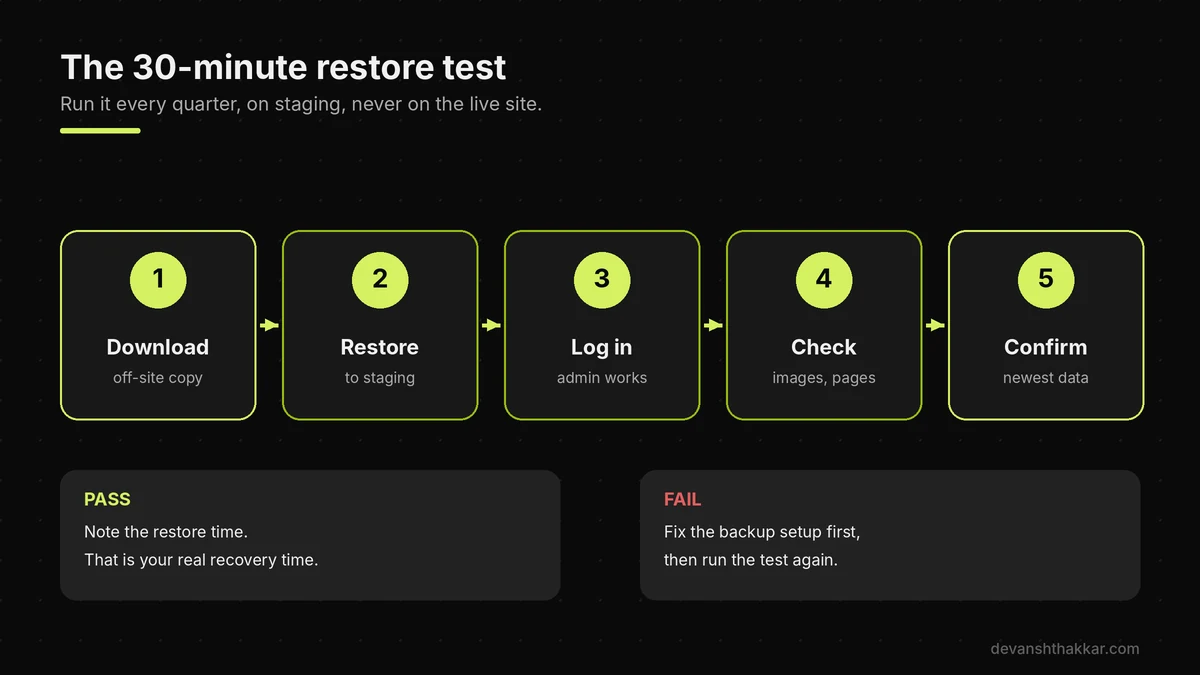
You test a WordPress backup restore by loading the latest archive onto a staging site, not your live site, and checking that everything works. Most hosts, including Hostinger, SiteGround and Cloudways, offer one-click staging. Alternatively, a subdomain with a fresh WordPress install works fine. Restore both the database and the files from your off-site copy, not from the copy on the server, because the off-site copy is the one you would rely on in a real disaster. Then log in, open the key pages, check recent content, and submit a form. The whole test takes about 30 minutes for a typical small business site.
Meanwhile, block search engines on the staging copy and keep it password protected. A public staging site with your full content can create duplicate content problems. Then, if anything fails, fix the WordPress backup setup first and test again.
What to check after the restore
First, confirm the newest post, order or form entry is in the restored WordPress backup, which proves the database is recent. Next, open pages with images, because that proves uploads were included. Then check that the theme, menus and plugins look right. Finally, note how long the restore took. That number is your real recovery time, and it is worth knowing before a crisis, not during one.
Pro tip: Write the restore steps down the first time you test. In a real emergency, a one-page note beats searching through plugin documentation while your site is down.
If testing every quarter sounds like one more job you will never get to, that is a decision worth making on purpose.
When Should Someone Else Run Your Backups?
Someone else should run your WordPress backups when the site earns money or leads every day, when nobody on your team has tested a restore, or when your current setup depends on someone remembering to do it. Backups fail quietly. A storage connection expires, a plugin update changes a setting, or a full disk stops archives without warning, and nobody notices until the day they need one. The right person for this job will restore a backup to staging before trusting it. They will keep at least one copy outside your host, set retention longer than a typical hidden hack, and show you the latest archive date on request.
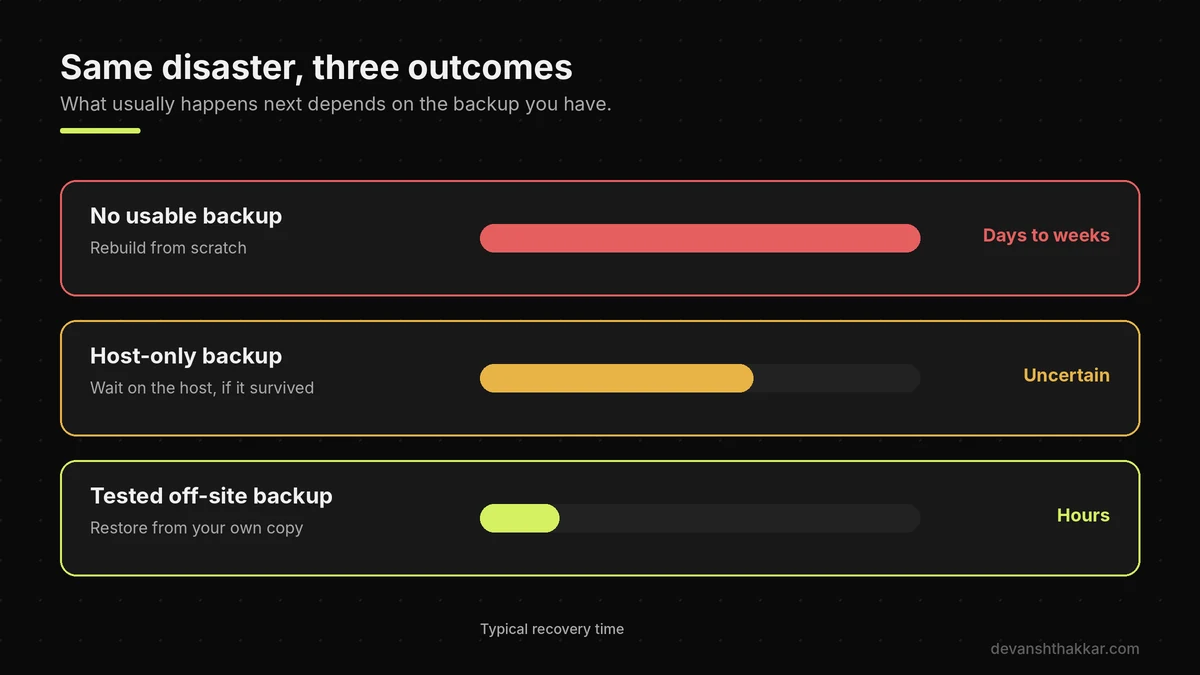
Businesses that move to tested, off-site WordPress backups typically turn a potential multi-day rebuild into a restore measured in hours. If your site is already down or hacked right now, go straight to emergency WordPress support instead.
Not sure your backups would actually restore?
I check where they live, restore one to staging, and fix whatever fails, then set up off-site copies with proper retention. Get a free website audit or book a free call.
Frequently Asked Questions
What is the best way to back up a WordPress site?
With so many plugins and host tools, it is easy to feel unsure. The best way is an automatic full backup, database and files, sent to cloud storage outside your host, plus your host's own backups as a second layer. What makes the difference is the off-site copy and a restore test, not the brand of plugin.
Are my host's backups enough?
It is reasonable to trust your host, and their backups are useful. However, they share your account and your provider, so one breach, outage or locked account can reach both the site and the backups. What makes the difference is one extra copy in storage your host cannot touch, under a separate login.
How often should I back up my WordPress site?
Many owners guess and pick weekly. Match the schedule to how often the site changes: weekly for a site that rarely changes, daily for blogs and lead sites, and hourly or real-time database backups for busy stores. What makes the difference is also taking a fresh backup before every update.
How long should I keep WordPress backups?
Most plugins default to a short history, which feels safe until a hack is found. Keep at least 30 days of daily backups plus monthly copies for three to six months. What makes the difference is keeping history longer than a hack could stay hidden, so one copy always predates the infection.
Where should I store WordPress backups?
It is tempting to keep them wherever the plugin puts them by default. Store at least one copy in cloud storage such as Amazon S3, Backblaze B2, Google Drive or Dropbox, separate from your hosting account. What makes the difference is a different login with two-factor authentication, so one compromised account cannot delete everything.
What should a WordPress backup include?
This catches many owners out, because partial backups look complete. A full backup includes the database and the files, meaning all of wp-content plus wp-config.php. What makes the difference is checking that uploads are not excluded, because a backup without them restores a site with no images.
How do I know my WordPress backup actually works?
A green "backup complete" message is reassuring, but it proves very little. Restore the latest off-site backup to a staging site, log in, and check recent content, images and forms. What makes the difference is repeating that test every quarter and after any change to your backup setup.
Do backups slow down a WordPress site?
It is a fair worry, especially on shared hosting. A full backup does use server resources while it runs, which can briefly slow a busy site. What makes the difference is scheduling backups at quiet hours and using a plugin that only copies the changes after the first full backup.
What should I do if my host has a security breach?
That news is unsettling, even when your site looks fine. Follow your host's notice, then change your hosting, database and WordPress passwords, and replace the security keys in wp-config.php. What makes the difference is having an off-site backup from before the breach, so you can restore without relying on the affected host.
Would your backup survive a host or server failure?
Most owners only find out when it is too late. It survives if at least one complete, tested copy sits outside your hosting account, with enough history to predate the problem. What makes the difference is checking that today. The quick checker in this guide shows your biggest gap in three questions.
Conclusion
A WordPress backup strategy only works if it can bring the whole site back, from outside your host, to a point before the damage started. Three points matter most. First, back up the database and files together, with one copy off-site under a separate login. Second, keep at least 30 days of history, so a hidden hack cannot outrun your oldest clean copy. Third, test a WordPress backup restore on staging every quarter.
If protecting the site is now a real priority, the fastest path forward is working with someone who restores your backups before trusting them, not starting from scratch after the next bad day.
Make sure your site can come back from anything.
I set up automatic off-site backups with proper retention, encrypt and lock them down, then prove they restore on staging. Rates start at $20 an hour, quoted up front. Get your backups set up properly.
This article was last reviewed and updated in November 2026 to reflect the latest hosting incidents and backup guidance.