

- WordPress critical CSS inlines above-the-fold styles in the page head, cutting LCP by 30 to 60 percent on heavy stacks.
- Three working methods in 2026: LiteSpeed Cache (free, LiteSpeed hosts), WP Rocket (paid, universal), and manual extraction via Penthouse.
- Keep critical CSS under 14KB after gzip to fit inside the first TCP packet and avoid an extra network round trip.
- Regenerate critical CSS after every theme update, page builder update, or above-the-fold layout change to prevent FOUC bugs.
- Skip critical CSS if your site already passes Core Web Vitals or runs a block theme under 50KB of total CSS.
WordPress critical CSS extracts the minimum styles needed to render above-the-fold content and inlines them in the page head, allowing the browser to paint visible content before loading the full stylesheet. Done right, it cuts Largest Contentful Paint by 30 to 60 percent on WordPress sites.
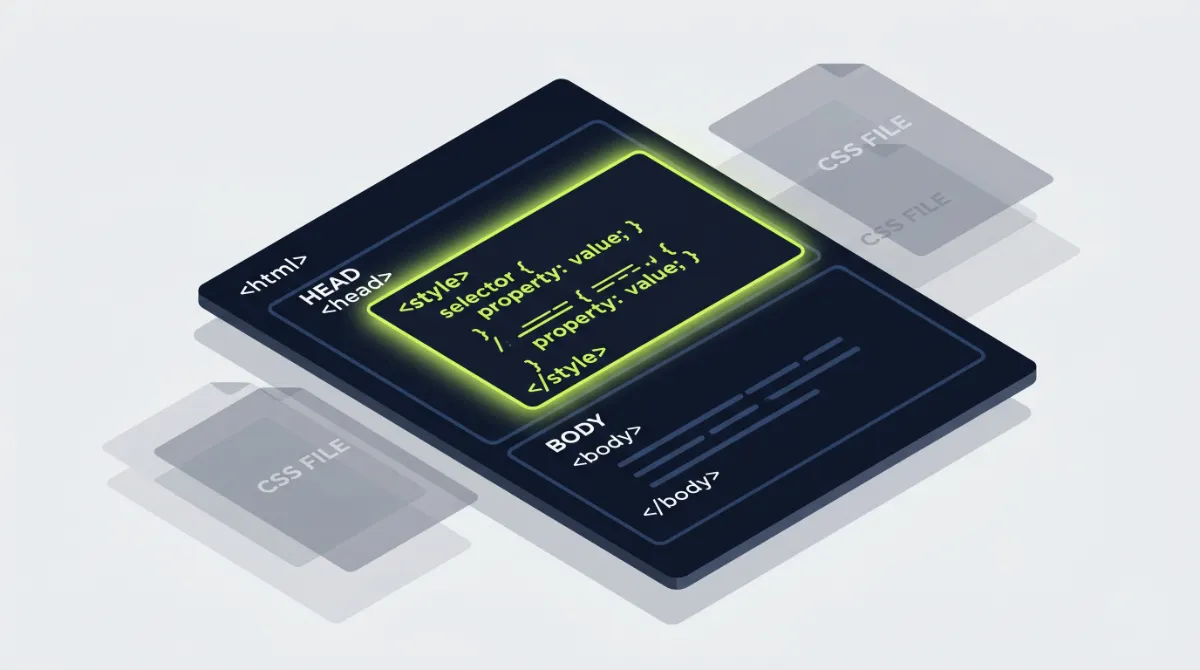
In 250+ client speed projects, the single biggest LCP win on heavy WordPress sites came from getting critical CSS right. Elementor sites loading 380KB of CSS dropped to a 12KB inline payload and rendered visible content 2.4 seconds faster. The technique is not new, but most WordPress tutorials skip the parts that actually break sites. This guide covers what works in 2026.
What is WordPress critical CSS?
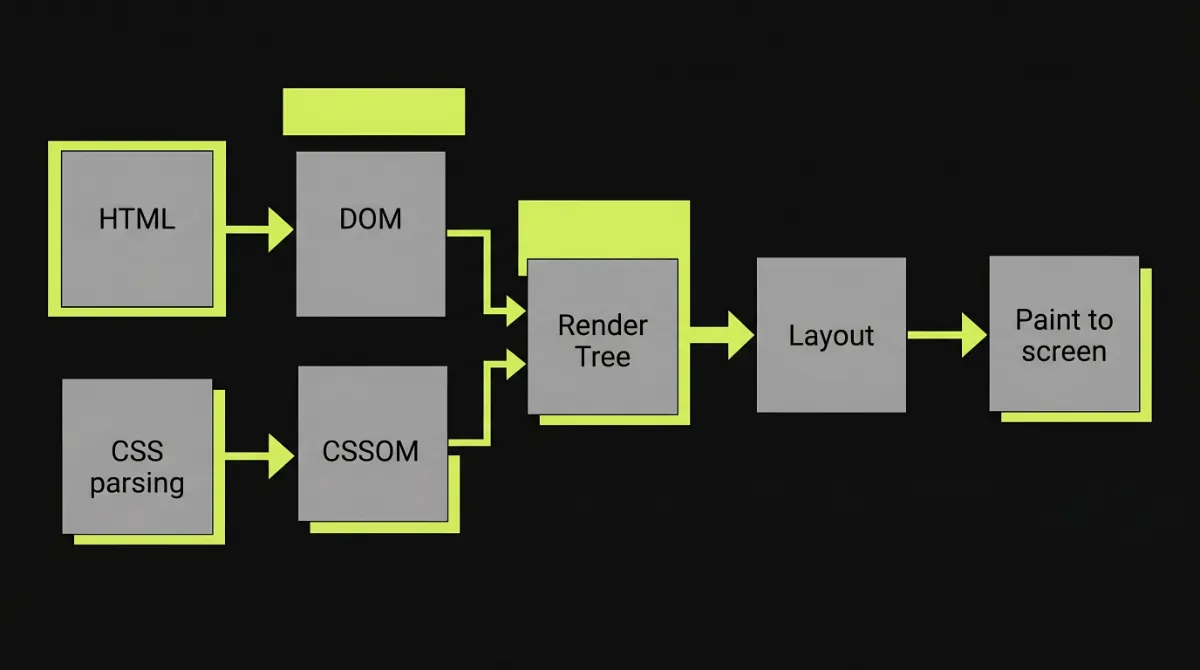
WordPress critical CSS is the minimum subset of stylesheet code required to render the visible portion of a page before the user scrolls. By inlining this code inside a <style> block in the page head and deferring the rest of the stylesheet, the browser can construct the CSS Object Model and paint pixels almost immediately, instead of pausing the render until every external CSS file downloads.
The technique exploits a behaviour explained in the web.dev critical rendering path documentation: CSS is a render-blocking resource. Until the CSSOM finishes building, the browser will not paint any content. If your WordPress theme and plugins enqueue ten stylesheets at 40KB each, your visitors stare at a white screen for hundreds of extra milliseconds. Critical CSS solves this by giving the browser everything it needs to paint the first viewport, right inside the HTML response.
The trade-off is complexity. Critical CSS is extracted per template, must stay tiny, and must be regenerated after every layout change. Get those rules wrong and you ship Flash of Unstyled Content to every visitor.
Why critical CSS matters for LCP and Core Web Vitals
Largest Contentful Paint is the headline Core Web Vitals metric Google uses as a ranking signal. LCP measures when the largest visible element finishes rendering, usually a hero image, hero heading, or hero block of text. On WordPress sites built with page builders, the LCP element waits for two things: the asset itself and the CSS that styles it.
Render-blocking CSS adds straight time to LCP. A 280KB Elementor stylesheet downloaded over 3G can add 800 to 1200 milliseconds before the browser even starts rendering. WordPress critical CSS removes that delay for the first paint by giving the browser exactly what it needs to style the hero element, then loading the rest asynchronously.
The performance impact compounds. Faster LCP correlates with lower bounce rates, higher conversion rates, and stronger organic rankings. A 1-second LCP improvement on a WooCommerce checkout page typically lifts conversion by 5 to 8 percent in my client data.
Pro tip: Before implementing critical CSS, profile your LCP element in Chrome DevTools Performance tab. If your hero image is the LCP element and it takes 3 seconds to download, fixing image delivery beats critical CSS every time. Critical CSS is most effective when the LCP element is text or a CSS-rendered background, not a large image.
How WordPress critical CSS works under the hood
The technique relies on three coordinated moves. First, a generator visits each template type (homepage, blog post, product page, archive) at common viewport sizes and identifies which CSS rules style elements inside the first viewport. Second, those rules are minified and injected into a <style> block in the page <head>. Third, the original stylesheet links are converted to non-blocking loads using media="print" with an onload swap trick.
The non-blocking load pattern looks like this in raw HTML:
<link rel="stylesheet" href="/wp-content/themes/your-theme/style.css" media="print" onload="this.media='all'">
<noscript><link rel="stylesheet" href="/wp-content/themes/your-theme/style.css"></noscript>
The browser treats media="print" stylesheets as non-render-blocking and downloads them with lower priority. The onload handler then switches the media attribute back to all, applying the full styles. The <noscript> fallback ensures visitors with JavaScript disabled still get the styles.
According to MDN’s critical rendering path guide, the browser blocks page rendering until it receives and processes all blocking CSS. Marking non-critical stylesheets as media="print" removes them from the blocking set, but the styles still apply once the swap completes.
When you actually need WordPress critical CSS
Not every WordPress site benefits from critical CSS. The technique adds complexity, and on lean sites the gain is negligible while the maintenance burden stays the same. Implement WordPress critical CSS when at least three of these conditions apply to your site.
First, your PageSpeed Insights mobile LCP score is above 2.5 seconds. Second, Lighthouse flags “Eliminate render-blocking resources” with CSS files in the list. Third, your total CSS payload exceeds 100KB, typical for any Elementor, Divi, or WPBakery site. Fourth, your above-the-fold layout is roughly consistent across templates, so generated critical CSS stays small. Fifth, you have admin access to your theme or a cache plugin that supports inline CSS injection.
If your site already passes Core Web Vitals on mobile, critical CSS is a low-leverage fix. Focus on image delivery, font loading, and third-party scripts first. If your above-the-fold layout varies wildly per page (heavy use of custom Elementor templates per post), generating accurate critical CSS becomes a maintenance treadmill that erases the gain.
Should you implement WordPress critical CSS right now?
Use the interactive diagnostic below to find out whether critical CSS is the right next move for your site, or whether a simpler optimization will deliver more value with less risk.
Method 1: Generate WordPress critical CSS manually (advanced)
Manual extraction gives the smallest and cleanest critical CSS, but it takes the most work. The approach uses a Node-based tool (Penthouse or critical) to crawl each template type at common viewport sizes and output the minified inline-ready CSS.
The workflow on a real client project looks like this. Install Node and the critical npm package locally. Point it at your staging URL with target widths for mobile and desktop. The tool returns a string of CSS that styles only above-the-fold elements. Paste that string into a functions.php hook that echoes it inside a <style> block in the page head. Convert your enqueued stylesheets to deferred loads using the style_loader_tag filter.
A minimal functions.php implementation looks like this:
function dt_inject_critical_css() {
  if ( is_admin() ) return;
  $css = get_theme_file_contents( '/critical/' . dt_get_template_type() . '.css' );
  echo '<style id="critical-css">' . $css . '</style>';
}
add_action( 'wp_head', 'dt_inject_critical_css', 1 );

function dt_defer_stylesheets( $tag, $handle ) {
  if ( is_admin() ) return $tag;
  $defer_handles = array( 'theme-style', 'elementor-frontend' );
  if ( in_array( $handle, $defer_handles, true ) ) {
    $tag = str_replace( "rel='stylesheet'", "rel='stylesheet' media='print' onload=\"this.media='all'\"", $tag );
  }
  return $tag;
}
add_filter( 'style_loader_tag', 'dt_defer_stylesheets', 10, 2 );
The advantage is full control. The disadvantage is regeneration. Every time you change your theme, update Elementor, or rebuild a hero section, you must re-extract critical CSS for every template type. On a 20-template site, this becomes a 30-minute task per release. Manual extraction makes sense for custom themes and headless stacks, not for typical client sites.
Pro tip: When extracting critical CSS manually, run the generator at three viewports: 375px, 768px, and 1280px. Merge the output and dedupe. Single-viewport extraction misses styles for responsive breakpoints and ships FOUC to anyone outside that one viewport. I learned this the painful way on a Bricks Builder client site that broke on tablet only.
Stuck on LCP and not sure where the bottleneck is?
I run free 10-point WordPress speed audits for businesses. You get a Loom walkthrough showing exactly what is slowing you down. See my WordPress speed optimization service for details.
Method 2: LiteSpeed Cache critical CSS (recommended for LiteSpeed hosts)
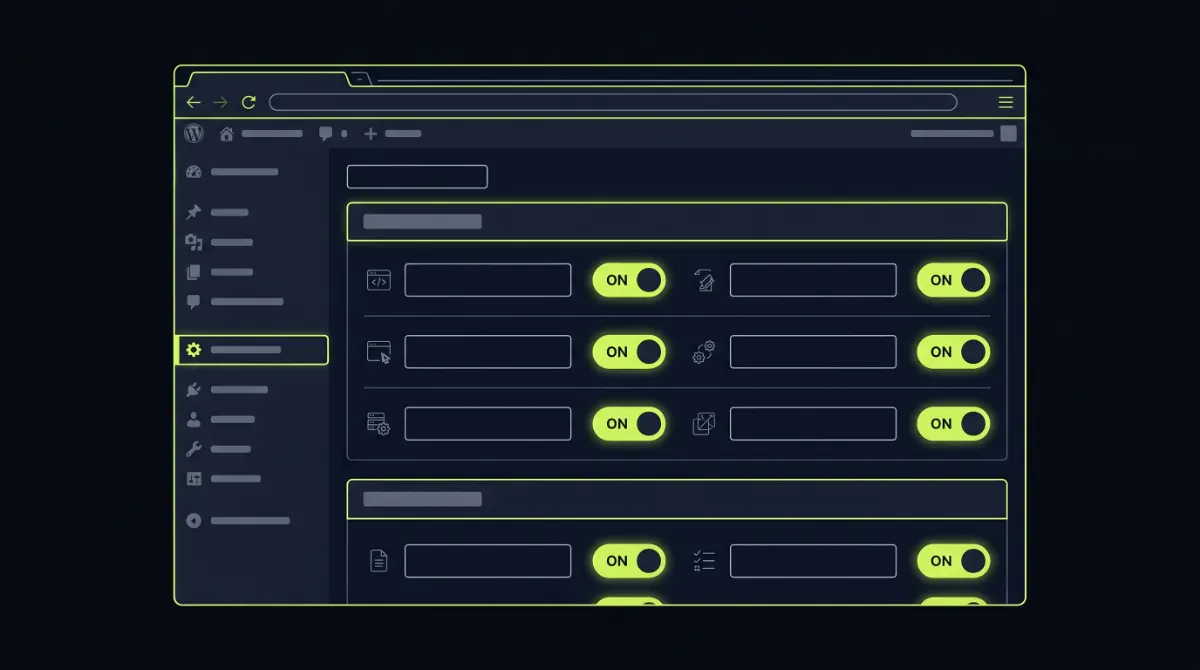
If your host runs LiteSpeed (Hostinger, NameHero, Chemicloud, A2 Hosting, ScalaHosting, and many others), this is the cleanest setup. LiteSpeed Cache integrates with QUIC.cloud to generate critical CSS on QUIC.cloud servers, so the generation never loads your origin server.
The setup runs in five steps. First, install and activate the LiteSpeed Cache plugin from the WordPress repository. Second, navigate to LiteSpeed Cache, then General, and request a QUIC.cloud domain key. Wait two minutes, then refresh until the key appears. Third, go to Page Optimization, then CSS Settings. Enable "Generate Critical CSS" and "Generate Critical CSS In Background." Fourth, enable "Load CSS Asynchronously." Fifth, click "Save Changes" and purge your cache.
The first request to each template type triggers a background job on QUIC.cloud. The job typically completes within 60 to 180 seconds. Your second visit to that template will show inlined critical CSS in the page head. Inspect the source to confirm the <style id="litespeed-optm-css-rules"> block is present.
Common LiteSpeed critical CSS issues and their fixes. If you see Flash of Unstyled Content, enable "CCSS Per URL" to generate per-page critical CSS instead of per-template. If the inline block is empty after 5 minutes, check that your QUIC.cloud account has credits and that your origin server is reachable from QUIC.cloud's IPs (sometimes firewalls block them). If layouts break only on certain pages, add those URLs to the "CCSS Excludes" list and they will load CSS the standard way.
Method 3: WP Rocket critical CSS (recommended for non-LiteSpeed hosts)
On Apache or Nginx hosting (Cloudways, SiteGround, Kinsta, WP Engine, GoDaddy managed WordPress), WP Rocket is the reliable choice. The plugin handles critical CSS automatically via its cloud-based generation service. Cost in 2026 is roughly $59 per year for a single site license.
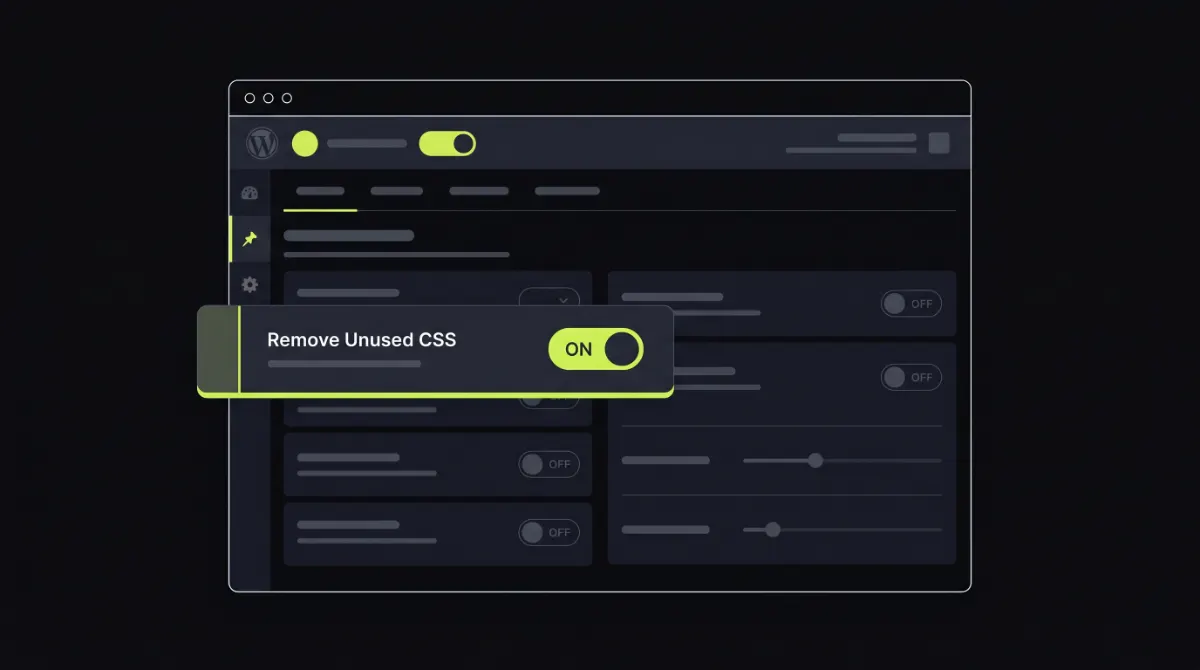
Configuration is short. Install and activate WP Rocket. Go to Settings, then WP Rocket, then File Optimization. Under CSS Files, enable "Optimize CSS delivery" and choose "Remove Unused CSS" (preferred over "Load CSS asynchronously" because it generates a clean used-CSS file rather than just inlining critical CSS). Save changes. WP Rocket queues a generation job for each URL the next time it is visited.
Why pick "Remove Unused CSS" over "Load CSS asynchronously" inside WP Rocket. "Remove Unused CSS" builds a single combined stylesheet with only the rules actually used on each page, then inlines critical CSS and links the rest. "Load CSS asynchronously" only inlines critical CSS and defers the full stylesheet, which means the browser still downloads code it never needs. On Elementor sites with 280KB of theme CSS, "Remove Unused CSS" typically cuts total CSS to 40 to 60KB while delivering the same critical CSS gain.
WP Rocket also handles cache invalidation when you update content. The Remove Unused CSS file regenerates on the next visit after a post update. Clean and reliable.
Method 4: Free online critical CSS generators
If you cannot afford WP Rocket and you are not on LiteSpeed, free online generators are the fallback. The tradeoff is manual regeneration after every layout change.
Three generators that still work well in 2026. CriticalCSSGenerator.com produces clean output and lets you exclude specific stylesheets. The official Pegasaas Critical Path CSS Generator returns per-viewport output. Sitelocity Critical CSS Generator handles JavaScript-rendered above-the-fold content (useful for sites with hero sliders).
The workflow is the same across all three. Paste your URL, wait 30 to 90 seconds, copy the output. Paste the CSS into your WordPress site via the Autoptimize plugin (free), the Above The Fold Optimization plugin (free), or directly via a wp_head action hook in functions.php. Test the page in an incognito window, confirm no FOUC, then move on to the next template type.
Free generators are good enough for small business sites with three to five distinct templates. Beyond that, the manual regeneration cost erases the savings versus WP Rocket.
Common WordPress critical CSS mistakes that break sites
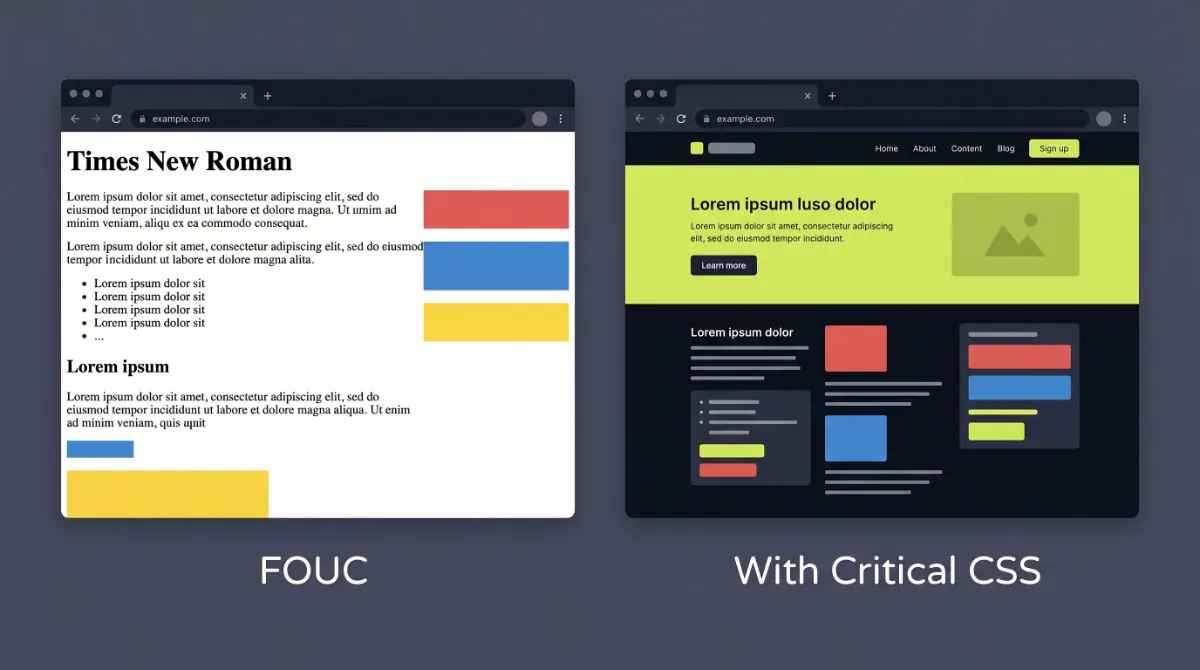
Six failure modes show up repeatedly in WordPress critical CSS audits. Each is fixable, but most break sites silently and the owner does not notice until conversion rates drop.
One. Stale critical CSS after a theme update. The most common failure. You enable critical CSS, life is good, then you update Elementor and the hero section breaks because the inlined CSS no longer matches the new markup. Set a calendar reminder to regenerate critical CSS after any major theme or plugin update.
Two. FOUC because of JavaScript-rendered above-the-fold content. If your hero is built with a JavaScript slider library, the elements do not exist in the DOM when the critical CSS generator visits. The generator extracts styles for the static fallback, not the rendered slider, and your live page flashes unstyled. Either use a generator that supports JavaScript rendering (Sitelocity does) or replace the JS slider with a CSS-only one above the fold.
Three. Critical CSS over 14KB. The 14KB number comes from the TCP slow start window. The first response packet from the server is roughly 14KB. Inlining critical CSS that fits inside this window means no extra round trip is needed before paint. If your critical CSS balloons to 30KB, you lose part of the benefit. Trim aggressively. Most well-optimized WordPress sites land between 8 and 12KB.
Four. Inlining critical CSS on every page when only key templates need it. Critical CSS on a low-traffic legal page wastes bytes that could be cached as a normal stylesheet. Limit critical CSS to your homepage, key product pages, blog post template, and high-traffic landing pages.
Five. Forgetting the noscript fallback. The media="print" swap trick relies on JavaScript executing the onload attribute. Visitors with JavaScript disabled never load the full stylesheet. Always include the <noscript><link rel="stylesheet"></noscript> fallback.
Six. Critical CSS competing with another plugin's CSS optimization. Running WP Rocket's critical CSS and Autoptimize's "Inline All CSS" at the same time causes duplicate inlines, conflicting class rules, and unpredictable layout shifts. Pick one critical CSS source per site. If WP Rocket handles it, disable Autoptimize's CSS features entirely.
How to test your WordPress critical CSS is working
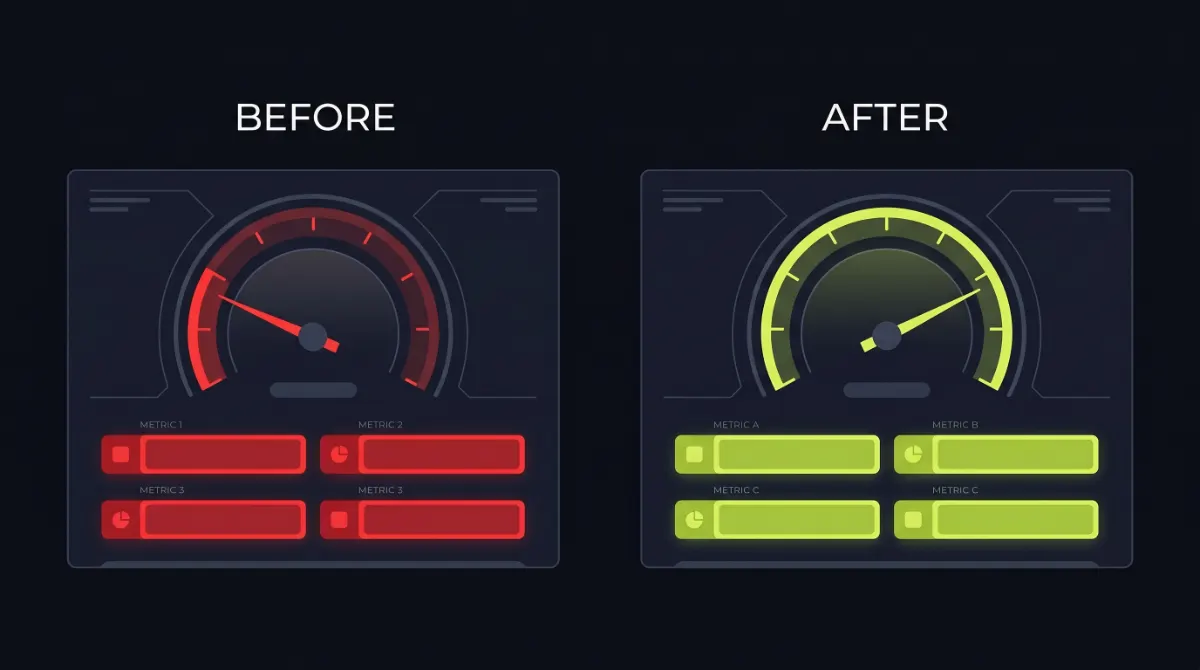
After implementing critical CSS, three tests confirm it works correctly before you trust it on production.
Test one. Open your site in an incognito Chrome window with DevTools open on the Network tab, set throttling to "Slow 4G." Reload the page. Watch the page render. If above-the-fold content appears within 1.5 seconds without unstyled flashing, critical CSS is working. If you see unstyled text snap into styled position, your critical CSS is missing rules.
Test two. View page source (Ctrl+U). Search for "style id" or look for an inline <style> block in the <head>. Confirm the block exists and contains roughly 8 to 14KB of CSS. Confirm that your regular stylesheet links use media="print" or have been replaced by the "Remove Unused CSS" file.
Test three. Run PageSpeed Insights before and after. Compare LCP, First Contentful Paint, and the "Eliminate render-blocking resources" diagnostic. LCP should drop by 30 to 60 percent. The render-blocking diagnostic should disappear or shrink dramatically. If neither metric improves, your critical CSS is either too large or not being inlined correctly.
For ongoing monitoring, set up the Core Web Vitals report inside Google Search Console and watch LCP trends over 28 days. Critical CSS gains stabilize within one to two weeks as Google's field data refreshes.
Pro tip: If PageSpeed Insights still flags "Eliminate render-blocking resources" after you implement critical CSS, the culprit is usually Google Fonts or another third-party stylesheet that is not part of your WordPress enqueue. Self-host fonts via the System Fonts For WordPress plugin or your theme's local font loader, and the warning typically clears.
Still seeing slow LCP after implementing critical CSS?
Critical CSS handles render-blocking, but it does not fix slow servers, fat hero images, or third-party JavaScript bloat. If you have done the obvious fixes and your LCP still sits above 2.5 seconds, the bottleneck is somewhere else in your stack. I diagnose this kind of stuck-LCP problem in a 30-minute call, usually identifying the real cause within the first 10 minutes. Book a free WordPress speed call and I will look at your site personally.
Frequently Asked Questions
What is WordPress critical CSS?
WordPress critical CSS is the minimum subset of stylesheet code needed to render above-the-fold content. By inlining this CSS directly in the page head and deferring the rest, the browser can paint visible content immediately instead of waiting for the full stylesheet to download. The technique typically cuts Largest Contentful Paint by 30 to 60 percent.
Do you need WordPress critical CSS?
You need WordPress critical CSS when your LCP is above 2.5 seconds, PageSpeed Insights flags render-blocking CSS, and your theme loads heavy stylesheets from page builders or many plugins. If your site already passes Core Web Vitals or runs a lean block theme under 50KB of CSS, critical CSS will not help meaningfully.
How do I generate critical CSS for WordPress?
Generate critical CSS for WordPress using one of three methods. Use LiteSpeed Cache with a QUIC.cloud domain key if you are on LiteSpeed hosting. Use WP Rocket with Remove Unused CSS enabled if you are on Apache or Nginx. Or extract critical CSS manually with a Penthouse-based generator and inline it via a functions.php hook for full control.
Does critical CSS improve SEO?
Critical CSS improves SEO indirectly by lifting Core Web Vitals scores, specifically Largest Contentful Paint and First Contentful Paint. Google has confirmed Core Web Vitals are ranking signals since 2021. Pages with better LCP scores tend to rank higher and convert better, but critical CSS alone does not change rankings. It is one optimization in a wider performance strategy.
Is critical CSS still necessary in 2026?
Critical CSS remains necessary in 2026 for WordPress sites running heavy page builders like Elementor, Divi, or older themes that load 200KB or more of CSS. Modern block themes with under 50KB of total CSS gain little from it. HTTP/2 reduces but does not eliminate the render-blocking problem, so critical CSS still earns its place for bloated WordPress stacks.
How big should critical CSS be?
Critical CSS should stay under 14KB after gzip compression. This limit exists because servers send the first 14KB of HTML in a single TCP packet, so inlining critical CSS within that budget means no extra round trip is required. Most well-optimized WordPress sites hit between 8KB and 12KB of critical CSS per template.
Can critical CSS break my site?
Critical CSS can break your site if the extraction process misses styles used by above-the-fold elements, causing Flash of Unstyled Content. It can also break layouts after theme or plugin updates because the inlined CSS no longer matches the live styles. Regenerate critical CSS after every significant front-end change to avoid layout breakage.
What is the best critical CSS plugin for WordPress?
The best critical CSS plugin depends on your hosting stack. LiteSpeed Cache is the best choice on LiteSpeed hosts because it is free and integrates with QUIC.cloud. WP Rocket is the best on Apache or Nginx hosts for its reliable Remove Unused CSS feature. Jetpack Boost works as a free option but generates less granular critical CSS per template.
Does LiteSpeed Cache generate critical CSS automatically?
LiteSpeed Cache generates critical CSS automatically when you enable Load CSS Asynchronously and connect a QUIC.cloud domain key. The generation runs on QUIC.cloud servers, not your origin, so it does not load your hosting. The first request for each template type triggers a background job, and the inlined critical CSS appears on the next page load.
When should I hire a developer for WordPress critical CSS?
Hire a WordPress developer for critical CSS when DIY plugins introduce Flash of Unstyled Content, when LCP refuses to drop below 2.5 seconds, or when manual extraction is required for a custom theme. A developer can profile per-template CSS, fix FOUC root causes, and integrate critical CSS into your build pipeline. Devansh Thakkar offers same-day WordPress speed optimization for these cases.
Conclusion
WordPress critical CSS remains one of the highest-leverage speed fixes in 2026 for sites running heavy page builders, but only when you implement it for the right reasons. The three working methods (LiteSpeed Cache, WP Rocket, manual extraction) each suit a different hosting reality. Pick by stack, not by hype. Test in incognito with throttling enabled, regenerate after every significant change, and confirm gains with PageSpeed Insights. Critical CSS done right cuts LCP by half on bloated WordPress sites.
Want this implemented properly on your WordPress site?
I have shipped critical CSS on 100+ WordPress and WooCommerce sites, including Elementor, Bricks, Divi, and custom builds. If your LCP is stuck above 2.5s and you want the fix done right the first time, book a free 30-minute speed call. No pitch, just findings.