


- Reduce Elementor bloat fastest by enabling Elementor’s built-in performance features, which trim unused CSS, JavaScript, and icon libraries.
- Switch legacy Section and Column layouts to Flexbox Containers to cut DOM nodes by roughly half on most pages.
- Your plugin stack often weighs more than Elementor itself, so audit and remove what you do not use.
- Self-host fonts, swap icon fonts for SVGs, and limit revisions to stop bloat building up in the background.
- Add a caching layer like LiteSpeed Cache or WP Rocket with Remove Unused CSS and Delay JavaScript turned on.
Reduce Elementor bloat by enabling Elementor’s built-in performance features, switching legacy Section and Column layouts to Flexbox Containers, trimming unused plugins and fonts, and adding a caching layer like LiteSpeed Cache. Together these steps cut Elementor’s extra CSS, JavaScript, and DOM weight, so your pages load faster and pass Core Web Vitals.
After optimizing Elementor sites for clients in 15+ countries, I can tell you the “Elementor is slow” reputation is mostly fixable in an afternoon, and you can reduce Elementor bloat without leaving the builder. The builder does ship heavy by default. However, the weight comes from a short, predictable list of sources, and each one has a clean fix. So instead of ripping out Elementor or chasing a 100 PageSpeed score, work through the four layers below in order. That sequence is what keeps the fixes from breaking your live design.
What Causes Elementor Bloat?
Elementor bloat comes from the extra code the builder adds to deliver its drag-and-drop flexibility: its own CSS framework, a JavaScript runtime, icon libraries, and animation assets, loaded on most pages whether you use them or not. Independent testing puts Elementor’s added frontend weight at roughly 200 to 400 KB before optimization. On top of that sit deeply nested wrapper divs that inflate your DOM, externally loaded Google Fonts, and a plugin stack that often weighs more than Elementor itself. Knowing these sources is the first step to reduce Elementor bloat for good.

Here is the honest part most posts skip. To reduce Elementor bloat you do not need a new theme or a builder migration. You need to switch off what you are not using, flatten what is over-built, and cache what is static. I group those moves into a simple system I call the 4-Layer Elementor Bloat Fix: settings, structure, assets, and server. Work the layers top to bottom and the wins stack without surprises.
Pro tip: Before you change a single setting, run the page through PageSpeed Insights and save the report. Without a baseline you cannot prove the fix worked, and clients always ask.
With the sources mapped, the first and easiest layer lives entirely inside Elementor’s own settings.
Layer 1: Turn On Elementor’s Performance Features
The fastest way to reduce Elementor bloat is to enable the performance features Elementor already ships, found under Elementor, then Settings, then the Performance and Features tabs. Many sites leave these off, which means they are loading code for every widget on every page for no reason. Turn these on first because they are free, reversible, and the quickest way to reduce Elementor bloat with no rebuild.
Enable these four to start:
- Improved Asset Loading loads scripts like the dialog, lightbox, and share-link libraries only on pages that actually use them.
- Improved CSS Loading serves widget CSS only where each widget appears, cutting render-blocking stylesheets.
- Inline Font Icons renders icons as inline SVG and skips loading the Font Awesome and eicons libraries entirely.
- Element Caching renders a widget once and serves the cached copy after that. Elementor’s own developer docs note this can cut server memory use dramatically and improve Time To First Byte.
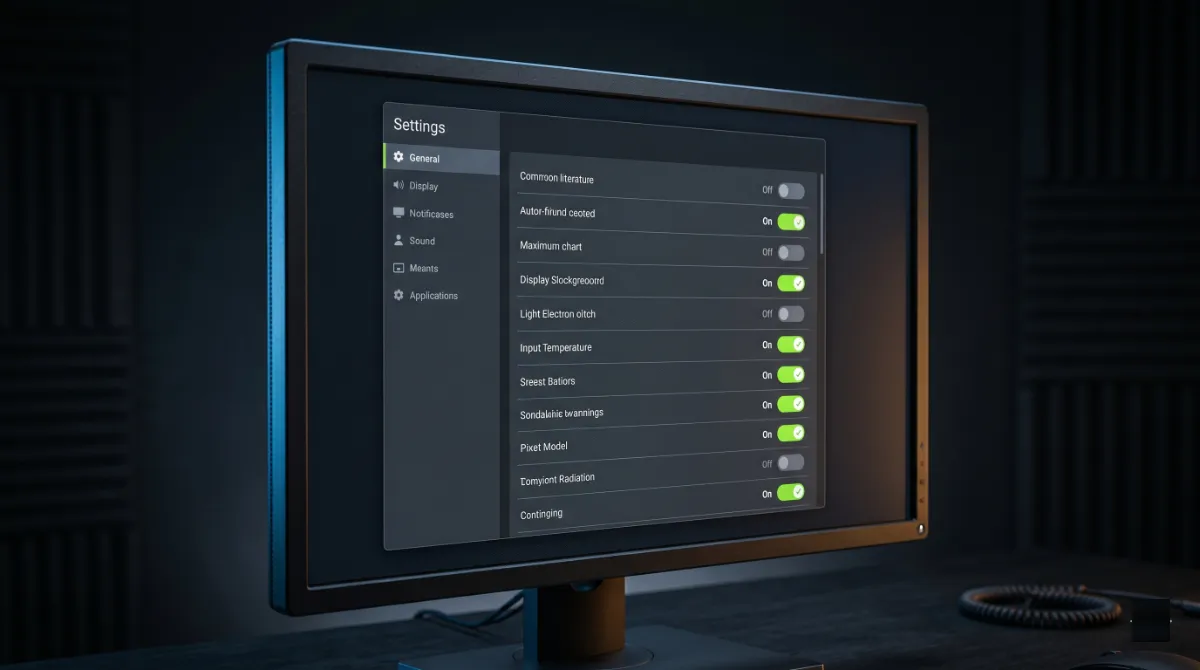
Settings alone can reduce Elementor bloat noticeably. Once they are working for you, the next layer tackles the markup underneath your designs.
Layer 2: Fix the DOM With Flexbox Containers
Layer two of how you reduce Elementor bloat is structural: shrink the DOM by moving off the old Section and Column system and onto Flexbox Containers. The legacy structure wraps every layout in multiple nested divs, and that nesting is the single biggest reason Elementor pages trip Google’s DOM size warning. Containers produce the same layouts with far fewer elements, commonly 50 to 70 percent fewer per layout unit, so they reduce Elementor bloat at the structural level.
Why does this matter so much? Each DOM node costs the browser parse time, memory, and rendering work, and it gets worse on low-end phones. According to Elementor’s own DOM size guidance, Lighthouse starts warning once a page passes roughly 800 nodes and flags an error above 1,400. Containers, flattened nesting, and full-width inner containers are the three moves that pull you back under that line.
Pro tip: Do not wrap a single widget in its own container out of habit. Set Flex direction on one container and place several widgets inside it. Every container you avoid is a handful of DOM nodes saved.
Structure handled, the third layer is where the quiet, recurring bloat hides.
Layer 3: Cut the Assets, Fonts, and Plugins
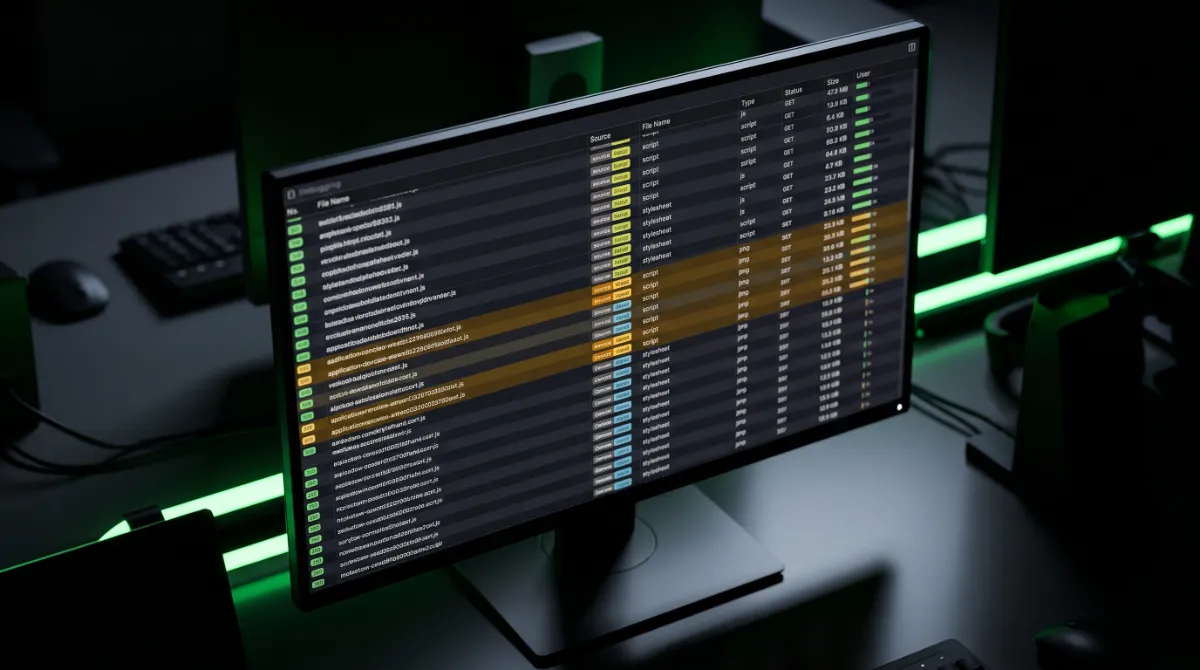
To reduce Elementor bloat that builds up over time, audit the three assets that grow silently: fonts, icons, and plugins. This is the layer most people ignore, and on real client sites it is often the biggest single win. The reason is simple. A typical Elementor site runs 20 to 30 plugins, and their combined CSS and JavaScript frequently match or exceed Elementor’s own weight.
Audit and trim your plugins
To reduce Elementor bloat here, install the free Query Monitor plugin, open a front-end page while logged in, and check its Scripts and Styles panels. You will quickly see which plugins load assets site-wide. Delete anything unused, and replace single-purpose plugins with native features where you can, such as using Elementor Pro’s form widget instead of a separate forms plugin. Fewer plugins means less code and fewer conflicts.
Self-host fonts and use SVG icons
Every Google Font pulled from Google’s servers adds a DNS lookup and a separate request. Instead, self-host your fonts through Elementor’s Custom Fonts feature in WOFF2 format, or use system fonts for body text. For icons, upload an SVG rather than loading an entire icon font for three or four glyphs. Stick to one or two font families total, since extra families reduce Elementor bloat savings you just earned.
Limit database revisions
Elementor stores a full copy of your page data every time you save, so a heavily edited page can leave dozens of revisions sitting in your database. Cap them by adding one line to wp-config.php:
define( 'WP_POST_REVISIONS', 5 );With the assets trimmed, the final layer moves the heavy lifting off the browser and onto the server.
Layer 4: Server and Caching
The last layer to reduce Elementor bloat is server-side, and it delivers the largest perceived speed gain: caching. A properly configured cache stores the finished HTML of each page, so Elementor’s PHP rendering only runs on the first uncached visit. After that, visitors get a static file in milliseconds. On a LiteSpeed host like Hostinger, LiteSpeed Cache is the natural choice, while WP Rocket is the strongest option on most other stacks.

Inside your cache plugin, two settings matter most for Elementor. Remove Unused CSS strips the styles a page never uses, and Delay JavaScript holds non-critical scripts until the user interacts. Both cut render-blocking weight and reduce Elementor bloat that survives caching, but both can break sticky headers, sliders, or forms, so test every template after enabling them. Finally, do not forget the server itself. Elementor recommends at least 256 MB of memory and 768 MB for best performance, and a slow shared host will stay slow no matter how much you work to reduce Elementor bloat on top of it.
Pro tip: Add a CDN, even Cloudflare’s free tier. It serves your static assets from a location near each visitor, which is the cheapest way to fix slow loads for an international audience.
Worked through all four layers and your PageSpeed score still will not budge?
That usually means a deeper conflict or a hosting limit. I diagnose and fix slow Elementor builds fast. See my WordPress development service.
What Most Guides Get Wrong About Reducing Elementor Bloat
Most guides tell you to switch on every performance feature at once, including Optimized DOM Output, on whatever site you happen to have. On an existing, live site, that advice is a fast way to reduce Elementor bloat and break your layout at the same time. Optimized DOM Output changes Elementor’s markup by removing wrapper divs, and if any of your custom CSS targets those old classes, your styling breaks the moment you flip the toggle.

The counter-intuitive truth is that markup-level optimization belongs on new builds, not as a blind first move on a mature site. Elementor itself flags this in its documentation and even pushed the core wrapper removals into Elementor 3.19 as mandatory, which means custom code written against the old classes already needs refactoring.
.elementor-row and .elementor-column-wrap classes. Test on staging first, always.
This is exactly why order matters in the 4-Layer Elementor Bloat Fix. Settings and caching are safe and reversible. Markup changes are not. When a markup change is the right call but your custom CSS depends on the old structure, that is the moment a developer earns their fee, because someone has to refactor the styles cleanly. Get the sequence right and you reduce Elementor bloat without the broken-layout panic entirely.
How to Measure Your Results
You only know you reduce Elementor bloat successfully if you measure before and after with the same tools on the same pages. Numbers turn a vague “feels faster” into proof you can show a client. Run each key page through PageSpeed Insights for the Core Web Vitals view, then dig deeper in Chrome DevTools.
As you reduce Elementor bloat, track these three things specifically:
- DOM node count. Open DevTools, run a Lighthouse report, and read the “Avoid an excessive DOM size” item. Aim to stay under 1,400 nodes.
- Unused CSS and JS. Use the DevTools Coverage tab to see how much downloaded code each page never runs. That number should drop sharply after Layer 1 and Layer 4.
- Largest Contentful Paint. Your hero image or heading should render within 2.5 seconds. This is the metric your visitors feel first.
Re-test after each layer, not just at the end, so you can see which change did the most to reduce Elementor bloat. That habit also tells you fast if a cache setting broke something.
Done everything and still stuck in the red?
Some bloat hides in a plugin conflict, a theme, or a server limit that settings cannot fix. If you would rather hand it off, I audit and optimize Elementor sites end to end. See my WordPress development service or book a free call.
Frequently Asked Questions
Is Elementor bloated?
Elementor is heavy by default, adding roughly 200 to 400 KB of frontend assets plus extra DOM wrappers. It is not bloated in a way you cannot fix, though. Enabling its performance features, using Containers, trimming plugins, and caching can reduce Elementor bloat by well over half.
How do I reduce Elementor bloat without breaking my design?
Reduce Elementor bloat in a safe order: enable the reversible performance settings first, then trim plugins and self-host fonts, then add caching. Save markup changes like Optimized DOM Output for last and test them on staging, since they can break custom CSS that targets old wrapper classes.
Do Elementor’s performance settings really help?
Yes. Improved Asset Loading, Improved CSS Loading, Inline Font Icons, and Element Caching each remove code from your pages with no rebuild required. They are the highest value, lowest risk wins available, which is why they are the first layer when you reduce Elementor bloat.
Should I switch from Sections and Columns to Flexbox Containers?
For new pages, yes. Containers produce the same layouts with 50 to 70 percent fewer DOM elements, which directly lowers your Lighthouse DOM size warning. For existing pages, migrate during a redesign rather than all at once, and prioritize high-traffic pages like your homepage first.
Does the number of plugins affect Elementor speed?
Significantly. On a typical site running 20 to 30 plugins, their combined CSS and JavaScript can match or exceed Elementor’s own weight. Use Query Monitor to see which plugins load assets on your front end, then delete the unused ones and replace single-purpose plugins with native features to reduce Elementor bloat.
Which caching plugin is best for Elementor?
It depends on your host. On a LiteSpeed server like Hostinger, LiteSpeed Cache is the natural fit. On most other stacks, WP Rocket is the strongest option. Whichever you use, enable Remove Unused CSS and Delay JavaScript, then test sliders, forms, and sticky headers afterward.
Can a bloated Elementor site still pass Core Web Vitals?
Yes, with optimization. Enabling performance features, moving to Containers, optimizing images, self-hosting fonts, and caching and a plan to reduce Elementor bloat makes 90-plus PageSpeed scores realistic on most Elementor pages. Image-heavy pages need extra work, but the targets are achievable without leaving Elementor.
When should I hire a professional to reduce Elementor bloat?
Hire a professional when settings and caching are not enough, when a markup change would break custom CSS, or when a plugin or hosting conflict is the real bottleneck. A developer audits the full stack and fixes the cause. My WordPress development service covers exactly this kind of optimization work.
Conclusion
Reduce Elementor bloat by working four layers in order: turn on Elementor’s performance features, fix the DOM with Flexbox Containers, cut unused assets and plugins, then cache at the server. The three things to remember are that you reduce Elementor bloat by working a short, fixable list, that order matters because markup changes can break live designs, and that you must measure before and after to prove the win. Start with the safe settings today, test as you go, and bring in help when a build outgrows what toggles can fix.
Want a fast Elementor site without the trial-and-error?
I reduce Elementor bloat and rebuild sites so they load fast and pass Core Web Vitals. Book a free call or browse my recent project portfolio.
The exact settings-to-server checklist I run on every client site, in the safe order that never breaks a live design.
Get it free →This article was last reviewed and updated in June 2026 to reflect the latest Elementor performance features and best practices.