
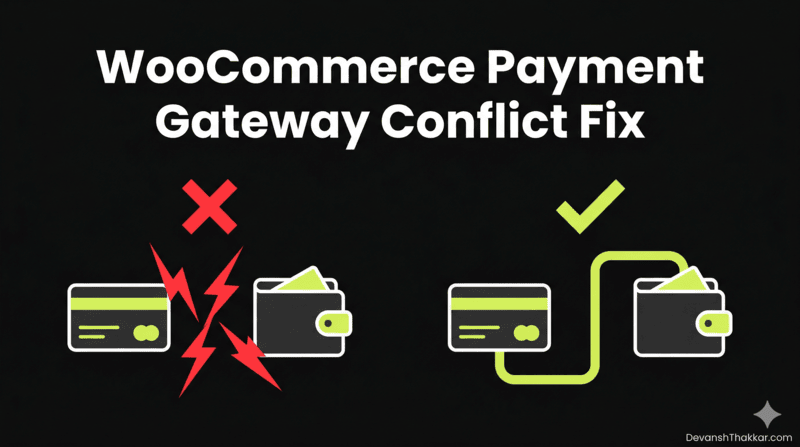
A WooCommerce payment gateway conflict fix is needed when two or more payment plugins on your store interfere with each other, causing failed checkouts, duplicate orders, missing payment options, or frozen input fields. This is one of the most revenue-damaging WooCommerce bugs because it directly blocks sales, and customers rarely tell you why they left – they just leave.
WooCommerce specialist Devansh Thakkar has resolved payment gateway conflicts on stores running Stripe alongside PayPal, Square with Stripe, and custom gateways conflicting with WooCommerce Payments. After working on 250+ WooCommerce projects, the root cause almost always falls into one of eight categories. This guide covers every one of them.
What Causes WooCommerce Payment Gateway Conflicts?
A WooCommerce payment gateway conflict is a situation where multiple payment plugins load competing scripts, hooks, or API calls that interfere with each other during checkout. For example, both Stripe and PayPal load their own JavaScript SDKs on the checkout page. If both try to render Apple Pay or Google Pay buttons, one overwrites the other or both break.
The most common conflict combinations include:
| Gateway Combination | Common Conflict | Symptom |
|---|---|---|
| Stripe + PayPal Payments | JavaScript SDK collision on checkout | Input fields freeze after typing one character |
| Stripe + WooCommerce Payments | Duplicate Stripe integration (both use Stripe API) | Double charges or “payment method not available” |
| PayPal Standard + PayPal Payments | Two PayPal plugins active simultaneously | Duplicate PayPal buttons, wrong account charged |
| Any gateway + caching plugin | Cached checkout serves stale payment tokens | Payment form loads but fails on submission |
| Any gateway + JS optimization plugin | Minified/deferred gateway scripts break execution order | Payment fields do not render at all |
Fix 1: Isolate the Conflicting Gateway
The fastest way to identify a WooCommerce payment gateway conflict is systematic isolation. This is the first step before trying anything else, because it tells you exactly which combination is broken.
- Go to WooCommerce > Settings > Payments
- Disable all payment methods except one (start with “Cash on Delivery” as a baseline)
- Test a checkout in an incognito browser window
- If checkout works, enable your primary gateway (Stripe) and test again
- If still working, enable your secondary gateway (PayPal) and test again
- When checkout breaks, you have found the conflicting combination
Pro Tip: Always test in incognito mode with caches cleared. I have seen store owners waste hours debugging a “conflict” that was actually a cached checkout page from before they made changes. Incognito bypasses browser cache, and purging server cache ensures you are testing the live state. – Devansh Thakkar, WordPress Developer
Fix 2: Remove Duplicate PayPal Integrations
This is the most common WooCommerce payment gateway conflict fix I perform on client stores. WooCommerce has had multiple PayPal plugins over the years, and stores that have been running for a while often have two active simultaneously without realizing it.
The problematic combinations:
- PayPal Standard (legacy, now hidden in WooCommerce settings) + WooCommerce PayPal Payments (current official plugin)
- PayPal Checkout (older plugin by WooCommerce) + WooCommerce PayPal Payments
- Any third-party PayPal gateway + the official WooCommerce PayPal Payments
The Fix
Keep only WooCommerce PayPal Payments (the current official plugin maintained by WooCommerce and PayPal jointly). Deactivate and delete any other PayPal plugin. The WooCommerce PayPal Payments troubleshooting docs cover additional edge cases. Then go to WooCommerce > Settings > Payments and verify that only one PayPal method appears in the list.
If you see “PayPal” and “PayPal Standard” both listed, PayPal Standard is the legacy integration. Disable it. It is deprecated and causes duplicate payment buttons, duplicate IPN callbacks, and sometimes charges the wrong PayPal account.
Fix 3: Resolve Stripe and PayPal JavaScript Collision
Running Stripe and PayPal together is the most common multi-gateway setup, and it works fine in most cases. But on the WooCommerce block-based checkout (introduced in WooCommerce 8.3+), both gateways load heavy JavaScript SDKs that can conflict.
The symptom is specific: you click into a checkout input field (email, name, address), type one character, and the cursor jumps out. You have to click back into the field after every single keystroke. This has been reported on the official WordPress.org support forums and is caused by both Stripe and PayPal re-rendering the checkout block on every state change.
The Fix
- Update both plugins to the latest versions. This bug has been patched in recent releases.
- If updating does not resolve it, switch to the classic checkout shortcode temporarily by creating a page with
[woocommerce_checkout]and assigning it as the checkout page in WooCommerce > Settings > Advanced. - If you must use the block checkout, disable one of the two gateways’ express payment buttons. In Stripe, go to Settings > Payments > Stripe > Express Checkouts and disable Apple Pay / Google Pay. This reduces the JavaScript load and often resolves the input field conflict.
Fix 4: Fix the DUPLICATE_INVOICE_ID PayPal Error
If customers see “Something went wrong” during PayPal checkout and your WooCommerce logs show a DUPLICATE_INVOICE_ID error, this is not a plugin conflict in the traditional sense. It is a PayPal-side security feature that blocks payments when it detects an invoice number it has already processed.
This happens when:
- You restored a site backup and WooCommerce order numbers reset to numbers that PayPal already has on file
- You run multiple WooCommerce stores connected to the same PayPal account with the same invoice prefix
- A customer’s previous payment failed but PayPal recorded the invoice ID, and now the retry uses the same ID
The Fix
- Go to your PayPal Business Settings
- Under “Block accidental payments,” select “No, allow multiple payments per invoice ID”
- Alternatively, change the invoice prefix in WooCommerce PayPal Payments settings to something unique for this site (e.g., change
WC-toSTORE2-)
Pro Tip: Every WooCommerce store connected to the same PayPal account must have a unique invoice prefix. If you run a staging site and a production site on the same PayPal account, the staging orders will create invoice IDs that block the same order numbers on production. Set staging to
STG-and production toLIVE-or similar. This is one of the most overlooked causes of payment failures I fix on client stores. – Devansh Thakkar, WordPress Developer
Fix 5: Stop Caching Plugins from Breaking Payment Scripts
Payment gateway scripts are dynamic. They generate unique payment tokens, load user-specific sessions, and communicate with external APIs in real time. If your caching plugin caches the checkout page, these scripts serve stale data and the payment fails.
This is technically not a gateway conflict, but it is the most frequently misdiagnosed one. Store owners see “payment failed” and blame Stripe or PayPal, when the real cause is LiteSpeed Cache, WP Rocket, or Cloudflare serving a cached checkout.
The Fix
Exclude these pages from all caching layers:
/cart//checkout//my-account/
Also exclude WooCommerce payment gateway scripts from JavaScript minification, combination, and deferral. In LiteSpeed Cache, add Stripe and PayPal script handles to the JS Excludes list. In WP Rocket, go to File Optimization > Excluded JavaScript Files and add stripe and ppcp.
For more on caching configuration, see my WordPress speed optimization service page, which covers the exact caching rules for WooCommerce stores.
Fix 6: Verify Webhook Configuration
Webhooks are how payment gateways tell WooCommerce that a payment succeeded, failed, or was refunded. If webhooks are misconfigured, WooCommerce does not update the order status, and the customer sees a “pending payment” status even though they were charged.
Duplicate webhooks cause duplicate orders. Missing webhooks cause stuck orders. Wrong webhook URLs cause lost payment confirmations entirely.
Stripe Webhook Check
- Log into your Stripe Dashboard > Developers > Webhooks
- Verify the endpoint URL matches your live site:
https://yourdomain.com/?wc-api=wc_stripe - Check for failed delivery attempts (red entries in the webhook log)
- If you see failures, your server may be blocking Stripe’s webhook requests. Check your firewall or security plugin.
PayPal Webhook Check
- In WooCommerce PayPal Payments, go to the plugin settings and look for “Webhook Status”
- If it shows errors, disconnect and reconnect your PayPal account through the plugin setup wizard
- Verify the IPN notification URL in your PayPal account points to your live site, not a staging or old domain
Fix 7: Resolve API Key and Mode Mismatches
Every payment gateway has two modes: test/sandbox and live. Each mode has its own set of API keys. Using test keys in live mode (or vice versa) causes immediate payment failures with cryptic error messages.
The most common mismatch: a developer sets up Stripe in test mode during development, the site goes live, but nobody switches to live keys. Payments appear to process (the test API accepts them) but no actual money moves. Or the reverse: live keys are used on a staging site, and real customers get charged during testing.
The Fix
- Stripe: Go to WooCommerce > Settings > Payments > Stripe. Verify “Test mode” is unchecked for production. Verify the publishable key starts with
pk_live_and the secret key starts withsk_live_. Test keys start withpk_test_andsk_test_. - PayPal: In WooCommerce PayPal Payments settings, verify “Sandbox” is unchecked. If the onboarding flow was done in sandbox mode, you need to disconnect and reconnect in live mode.
- Square: Check Settings > Payments > Square and verify the environment shows “Production,” not “Sandbox.”
Fix 8: Disable Conflicting Express Payment Buttons
Both Stripe and PayPal can render Apple Pay, Google Pay, and express checkout buttons. If both are active, you get duplicate buttons, and clicking one may trigger the wrong gateway’s payment flow.
The Fix
Decide which gateway handles express payments and disable it on the other:
- If Stripe handles Apple Pay/Google Pay: Go to WooCommerce PayPal Payments > Settings and disable “Pay Later” and “Alternative Payment Methods” buttons on the checkout page. Keep PayPal’s standard button only.
- If PayPal handles express checkout: Go to Stripe > Settings > Express Checkouts and uncheck “Apple Pay” and “Google Pay.”
Only one gateway should own the express payment buttons. The other handles standard card or account payments. This eliminates the JavaScript collision and prevents duplicate button rendering.
How to Read WooCommerce Payment Gateway Logs
Before changing any settings, check the logs. WooCommerce logs every payment gateway interaction if logging is enabled.
- Go to WooCommerce > Status > Logs
- Select the gateway log file (e.g.,
woocommerce-paypal-paymentsorwc_stripe) - Look for entries timestamped around the time of the failed payment
- Search for keywords:
error,failed,declined,conflict,duplicate
The log will often tell you the exact cause. A DUPLICATE_INVOICE_ID error, a card_declined response, an authentication_required message, these are specific and actionable. The WooCommerce payment gateway conflict fix becomes much faster when you read the log before guessing.
Need a WooCommerce Payment Gateway Conflict Fixed?
If your checkout is losing sales because of a payment gateway conflict, this is exactly what Devansh Thakkar fixes on WooCommerce stores daily. From duplicate PayPal integrations to Stripe webhook failures to caching plugins breaking payment scripts, the diagnosis is usually fast and the fix is clean.
After working on 250+ WooCommerce projects across 15+ countries, payment gateway issues are one of the most common WordPress bug fixing requests. Related problems like WooCommerce checkout not loading or dynamic pricing not working often surface during the same debugging session.
Book a call or send a message with a description of the error, and I will diagnose the root cause and give you a fixed-price quote before starting work.
Pro Tip: Before contacting any developer, go to WooCommerce > Status > Logs, find the payment gateway log for the day the error occurred, and copy the relevant entries. This saves at least 30 minutes of back-and-forth diagnosis. A good WooCommerce developer can often identify the exact fix from the log alone. – Devansh Thakkar, WordPress Developer
Frequently Asked Questions
What causes a WooCommerce payment gateway conflict?
A WooCommerce payment gateway conflict is caused by two or more payment plugins loading competing JavaScript, firing duplicate webhooks, or hooking into the same WooCommerce checkout actions at conflicting priorities. The most common scenario is running Stripe and PayPal together with both rendering express payment buttons.
How do I fix a WooCommerce payment gateway conflict between Stripe and PayPal?
Update both plugins to the latest version first. If the conflict persists, disable express payment buttons (Apple Pay, Google Pay) on one of the two gateways so only one handles express checkout. If using the block-based checkout and input fields freeze, switch to the classic checkout shortcode temporarily.
Why is my WooCommerce checkout showing duplicate PayPal buttons?
You likely have two PayPal plugins active simultaneously: the legacy PayPal Standard integration and the current WooCommerce PayPal Payments plugin. Deactivate PayPal Standard and keep only WooCommerce PayPal Payments. Check WooCommerce > Settings > Payments to verify only one PayPal method is listed.
What does the DUPLICATE_INVOICE_ID error mean in WooCommerce PayPal?
PayPal rejects a payment when it receives an invoice ID it has already processed. This happens after restoring a site backup (order numbers reset) or when multiple stores use the same PayPal account with the same invoice prefix. Fix it by changing the invoice prefix in the PayPal Payments plugin settings or disabling duplicate payment blocking in your PayPal business account.
Can caching plugins cause WooCommerce payment failures?
Yes. If your caching plugin caches the checkout page, payment gateways receive stale tokens and session data. Exclude /cart/, /checkout/, and /my-account/ from page caching. Also exclude payment gateway JavaScript files from script minification and deferral.
How do I check WooCommerce payment gateway logs?
Go to WooCommerce > Status > Logs and select the log file for your payment gateway. Look for entries with timestamps matching the failed payment. Search for “error,” “failed,” or “declined” to find the specific error message. Most gateway conflicts produce a clear error in these logs.
Why does WooCommerce create duplicate orders when using PayPal?
Duplicate orders are usually caused by duplicate webhook or IPN callbacks, not by customers clicking the button twice. Check your PayPal account for duplicate IPN endpoints. Also verify that you do not have both PayPal Standard and PayPal Payments active, as both will attempt to process the same payment notification.
Should I use test mode or live mode for WooCommerce payment gateways?
Use test/sandbox mode only on staging or development sites. Production sites must use live mode with live API keys. Stripe live keys start with pk_live_ and sk_live_. If you are testing on production, use Stripe’s test card numbers (e.g., 4242 4242 4242 4242) with live mode disabled, never use live mode with test cards.
How does Devansh Thakkar fix WooCommerce payment gateway conflicts?
Devansh Thakkar follows a systematic approach: read the gateway logs first, isolate the conflicting plugin through selective deactivation, check webhook and API configuration, verify caching exclusions, and test in an incognito window with all caches cleared. Most WooCommerce payment gateway conflict fixes take 1 to 3 hours including testing across all payment methods.
Can I run three or more payment gateways on WooCommerce without conflicts?
Yes, but only if each gateway handles a distinct payment method. For example, Stripe for credit cards, PayPal for PayPal wallet payments, and Square for in-person POS sync. Problems arise when multiple gateways try to handle the same payment type (credit cards via both Stripe and Square) or render the same express buttons (Apple Pay via both Stripe and PayPal).