
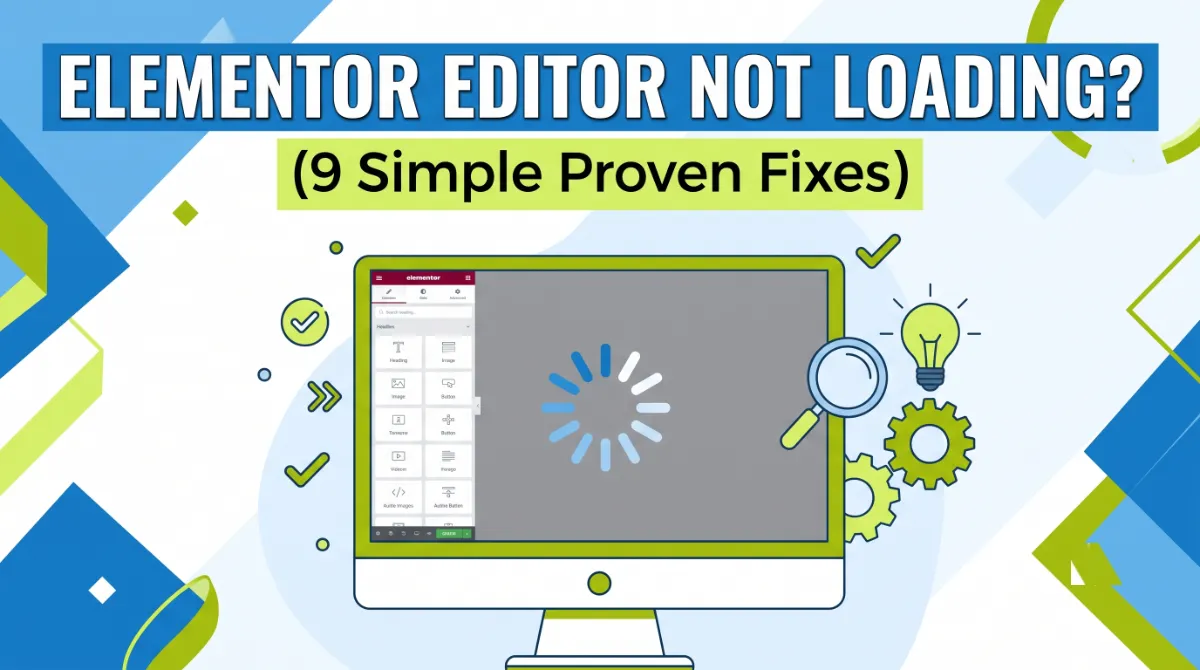
- Elementor editor not loading is usually a low PHP memory limit, a browser or CDN conflict, or a plugin clash.
- Start with the cheapest checks: clear your browser cache and try incognito before touching any settings.
- Raise your PHP memory limit to at least 256MB, or 512MB for WooCommerce and heavy sites.
- Use Elementor Safe Mode to test for conflicts, since it does not affect your live site.
- Cloudflare Rocket Loader is a common hidden cause that most guides never mention.
Elementor editor not loading is almost always caused by a low PHP memory limit, a browser or CDN conflict, or a plugin clash. You can usually fix it in a few minutes by clearing your browser cache, raising your memory limit, switching the editor loader method, and testing in Safe Mode. Work through the fixes in order and the grey screen clears.
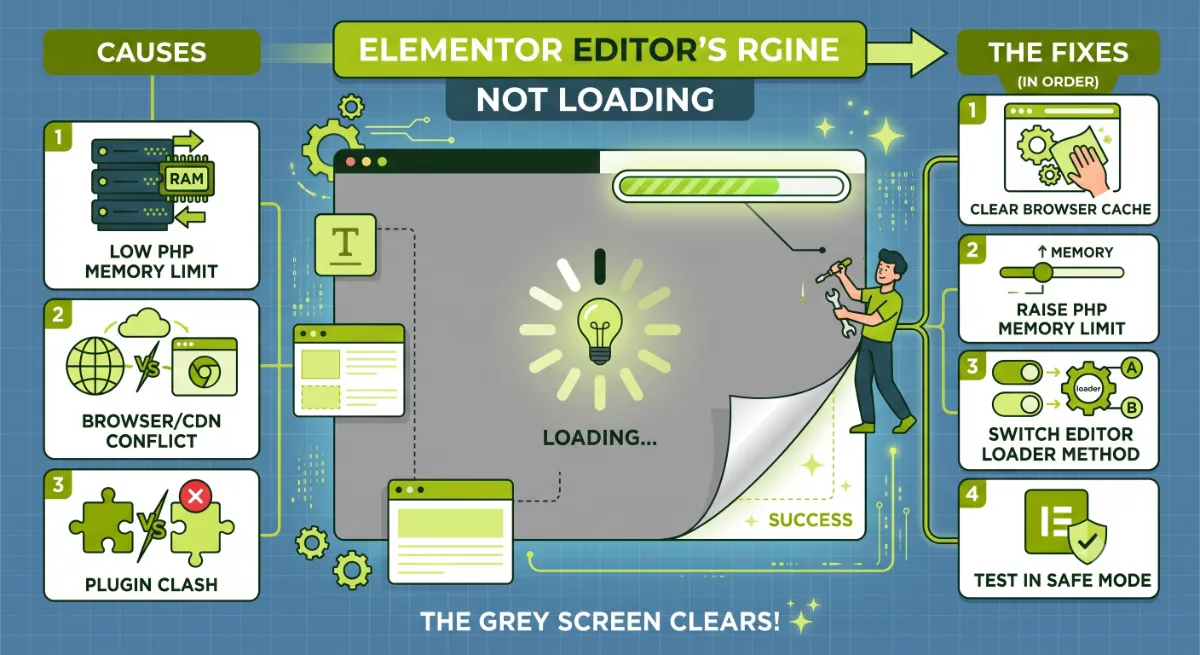
After fixing broken WordPress sites for clients in 15+ countries, I can tell you this problem looks scary but is rarely serious. The Elementor editor not loading has a short list of causes, and each one has a clean fix. So do not panic-deactivate everything the moment you see the Elementor editor not loading. Work up the ladder from the cheapest, most common cause to the rarest, and you will usually clear it well before the hard steps. Here is that exact order.
Why Is Your Elementor Editor Not Loading?
Your Elementor editor is not loading because something is starving it of resources or blocking its scripts, and there are only a handful of usual suspects. The Elementor editor not loading comes down to resources or blocked scripts: the editor renders every widget live in your browser, so it needs server memory and a clean path to load its JavaScript. When either is missing, you get a blank grey screen or a spinner that never stops, the exact symptom Elementor documents as a stuck editor.
The common causes, roughly in order of how often I see them:
- Low PHP memory limit, especially on cheap shared hosting.
- Browser cache or an extension like an ad blocker or Grammarly blocking scripts.
- A CDN setting, most often Cloudflare Rocket Loader, delaying the editor scripts.
- A plugin or theme conflict, often an outdated addon after an Elementor update.
- Server or URL issues, like a memory cap, X-Frame-Options, or mismatched site URLs.
I call the fix sequence the Load-Fault Ladder: test the cheapest, most common cause first and climb only if needed. Do not start by deactivating plugins. Start with your browser.
Start Here: 2-Minute Browser Checks
Before you touch any server setting, rule out your browser, because a stale cache or an extension is the fastest possible cause of Elementor editor not loading. It is the first rung on the ladder for a reason. These two checks take two minutes and solve a surprising share of Elementor editor not loading cases with zero risk.
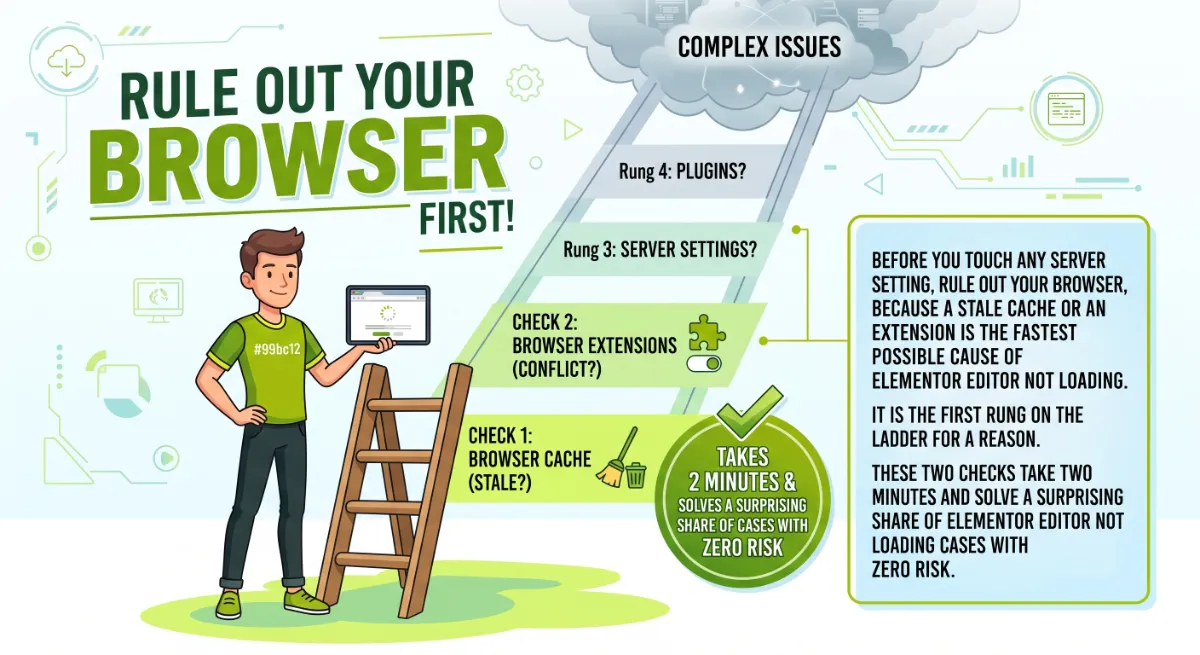
Do these first:
- Open the editor in an incognito or private window. If it loads there but not in your normal browser, your cache or an extension is the entire problem. Clear your browser cache and try again.
- Disable script-blocking extensions. Ad blockers, script blockers, and writing assistants like Grammarly can block Elementor’s JavaScript. Turn them off for your site, or test in a different browser.
Pro tip: Right-click the grey screen, choose Inspect, and open the Console tab. A red error there often names the exact script or plugin that is failing, which saves you a lot of guessing.
If incognito does not help, the problem is on the server side, and memory is the first place to look.
Fix the PHP Memory and Time Limits
A low PHP memory limit is the single most common server-side reason for Elementor editor not loading, because the editor simply stops when it runs out of memory. If one fix solves Elementor editor not loading for most sites, it is this one. Per Elementor’s official requirements, you need at least 256MB, with 512MB recommended and 768MB for best performance. WooCommerce and addon-heavy sites should start at 512MB.
To fix Elementor editor not loading here, first check your current limit at Elementor, then System Info, or WordPress Tools, then Site Health, then Info, then Server. If it reads 128MB or lower, raise it. Add these lines to wp-config.php, just above the line that says “That’s all, stop editing”:
define( 'WP_MEMORY_LIMIT', '512M' );
define( 'WP_MAX_MEMORY_LIMIT', '512M' );
If your host lets you set PHP values, also raise the time and input limits, since a heavy editor can time out. In a .user.ini or php.ini file:
memory_limit = 512M
max_execution_time = 300
max_input_vars = 3000If memory is already high and the editor still hangs, the next fix is a setting Elementor built for exactly this.
Switch the Editor Loader Method
Switching the editor loader method fixes Elementor editor not loading on many server configurations, and it is a toggle Elementor created specifically for the Elementor editor not loading problem. It changes how the editor initializes, which gets past certain server and hosting quirks that cause Elementor editor not loading in the first place.
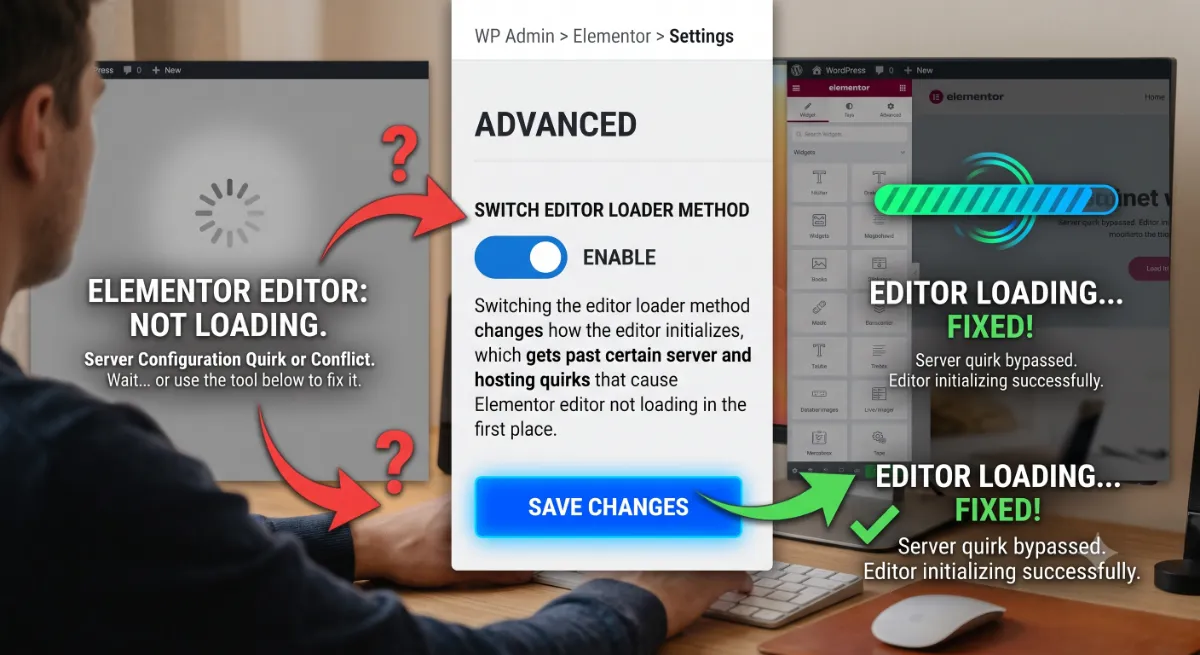
Here is the path:
- Go to Elementor, then Settings in your WordPress dashboard.
- Open the Advanced tab.
- Set Switch Editor Loader Method to Enable.
- Click Save Changes, then reload the editor.
This one toggle resolves a real chunk of Elementor editor not loading cases on its own. If it does not, it is time to check for a conflict, the right way.
Rule Out a Plugin or Theme Conflict
To find a plugin or theme causing Elementor editor not loading, use Safe Mode rather than deactivating plugins on your live site, because Safe Mode tests the editor without affecting your visitors. It loads Elementor with your theme and third-party plugins temporarily disabled, only for you, so you can test Elementor editor not loading without your live site being touched.
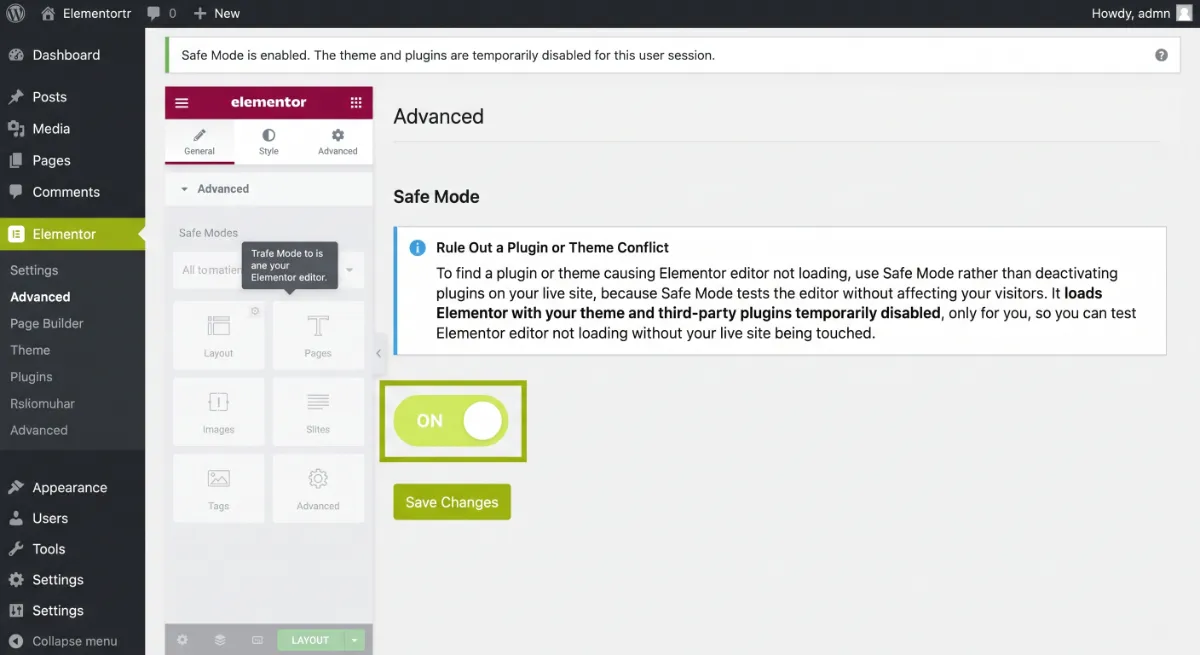
Turn it on at Elementor, then Tools, then Safe Mode, then Enable, and reload the editor. That is the safe way to trace Elementor editor not loading to a conflict. Then read the result:
- If the editor loads in Safe Mode, a plugin or your theme is the culprit. Disable Safe Mode, then deactivate your third-party plugins one at a time, testing after each, until the editor works. The last one you disabled is the conflict.
- If it still fails in Safe Mode, the problem is not a plugin or theme. Move to the server and CDN checks below.
Pro tip: After any Elementor update, update your third-party addons first. Most post-update breakages happen because an addon has not shipped its compatibility update yet, and keeping Elementor and Elementor Pro on matching versions prevents another common failure.
If Safe Mode cleared the editor but you suspect something deeper, or if it did not, the last layer is your server and CDN.
Check Cloudflare, Server, and URL Settings
When browser, memory, and plugin checks all pass, Elementor editor not loading usually points to a CDN, server, or URL setting, and Cloudflare is the most common hidden offender. Elementor’s own guidance flags Cloudflare Rocket Loader, which can delay or block the editor scripts and leave you stuck on the grey screen.
Run through these:
- Turn off Cloudflare Rocket Loader, or add a rule to exclude the editor. Also pause aggressive JS or CSS minification while you edit.
- Match your site URLs. In Settings, then General, make the Site Address and WordPress Address identical, since a mismatch causes a blank editor.
- Fix X-Frame-Options. If it is set to DENY, ask your host to set it to SAMEORIGIN so Elementor can render.
- Update and regenerate. Update Elementor and Elementor Pro to matching latest versions, then run Elementor, Tools, Regenerate CSS and Data to clear corrupted files.
Work these and you have covered every common cause of Elementor editor not loading. But there is a smarter way to think about the whole process, which is where most guides go wrong.
Tried everything and the editor still will not load?
Some causes hide in server config, a stubborn conflict, or a hosting limit. I diagnose and fix Elementor loading issues fast. See my WordPress development service.
What Most People Get Wrong
The most common mistake is jumping straight to deactivating every plugin on a live site. That is disruptive and usually wrong, because most cases of Elementor editor not loading are memory, browser, or CDN issues, not a plugin at all. Diagnosing Elementor editor not loading is faster when you rule those out first. Deactivating plugins in bulk also breaks your live site for real visitors while you debug, which is a self-inflicted second problem.
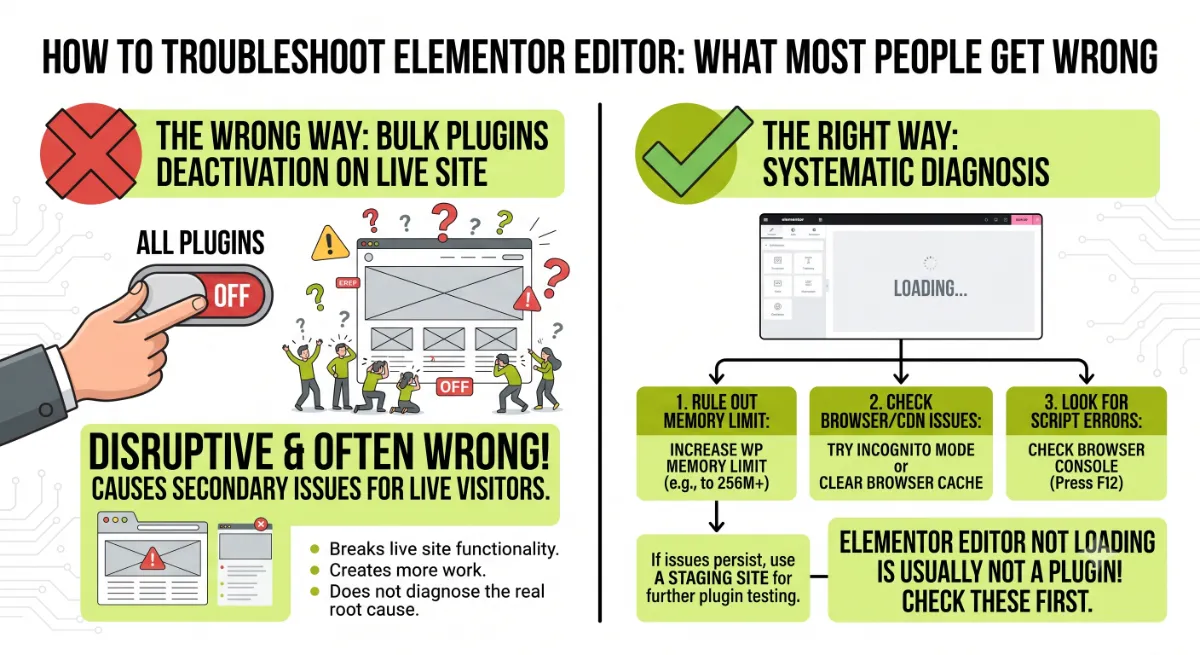
Here is the observation from years of client work: nine times out of ten, the real cause is a low memory limit on cheap hosting or Cloudflare Rocket Loader silently blocking the scripts. Almost nobody suspects the CDN, yet it is a leading cause of Elementor editor not loading. That is why the Load-Fault Ladder puts browser, memory, and CDN before plugins. And remember the memory trap: raising WP_MEMORY_LIMIT in wp-config does nothing if your host caps memory lower at the server level.
When the cause is buried in server config or a stubborn conflict, that is where an experienced developer saves you hours, by reading the console, checking the server, and fixing the root cause the first time.
Editor still stuck and you need it working today?
Send me the details and I will get your Elementor editor loading again fast, whatever is behind the Elementor editor not loading. See my WordPress development service or book a free call.
Frequently Asked Questions
Why is my Elementor editor not loading?
Usually because of a low PHP memory limit, a browser cache or extension blocking scripts, a CDN setting like Cloudflare Rocket Loader, or a plugin or theme conflict. Test in this order, cheapest first, and you will find the cause without disrupting your live site.
How do I fix the Elementor grey loading screen?
Try incognito to rule out your browser, raise your PHP memory limit to at least 256MB, enable Switch Editor Loader Method in Elementor Settings Advanced, and test in Safe Mode. If it still fails, turn off Cloudflare Rocket Loader and match your site URLs.
How much PHP memory does Elementor need?
Elementor requires a minimum of 256MB, with 512MB recommended and 768MB for best performance. WooCommerce and addon-heavy sites should start at 512MB. Check your current limit at Elementor, System Info, and raise it in wp-config.php or by asking your host.
What is the Switch Editor Loader Method?
It is a setting Elementor built specifically for loading problems, found in Elementor, Settings, Advanced. It changes how the editor initializes, which gets past certain server configurations that block the default method. It is a one-click toggle and a common fix for a stuck editor.
Does Cloudflare cause Elementor not to load?
Yes. Cloudflare Rocket Loader can delay or block Elementor’s editor scripts, leaving you stuck on the grey screen. Turn Rocket Loader off, or add a rule to exclude the editor, and clear your Cloudflare cache. It is one of the most overlooked causes of this issue.
Should I deactivate all my plugins to fix Elementor?
Not on a live site. Use Elementor Safe Mode instead, which tests the editor without third-party plugins or your theme and does not affect visitors. Bulk-deactivating plugins from the Plugins screen breaks your live site for real users while you debug, so avoid it.
Why did editing wp-config not raise my memory limit?
Because many managed hosts set a server-level PHP memory cap that overrides wp-config.php. If your limit will not increase after saving, your host has a hard cap. Contact them and ask them to raise the PHP memory limit to at least 512MB at the server level.
When should I hire a developer for Elementor loading issues?
Hire a developer when the editor still fails after the standard fixes, when the cause is in server config or a stubborn conflict, or when you cannot afford the downtime. A developer reads the console, checks the server, and fixes the root cause. My WordPress development service covers exactly this.
Conclusion
Elementor editor not loading is a common, fixable problem, and the trick to solving Elementor editor not loading is to work up the Load-Fault Ladder in order: check your browser, raise your memory limit, switch the editor loader method, test in Safe Mode, then check Cloudflare and your server. The two things to remember are that memory and the CDN cause most cases, not plugins, and that Safe Mode lets you test conflicts without touching your live site. Start at the top of the ladder now, and bring in help when the cause is buried deeper than a setting.
Want your editor fixed and your whole site running faster?
I fix Elementor loading issues and optimize the site around them so it stays stable. Book a free call or browse my recent project portfolio.
The exact step-by-step order I use to fix a stuck Elementor editor, from the 2-minute browser check to the server-level fixes.
Get it free →This article was last reviewed and updated in June 2026 to reflect the latest Elementor versions and troubleshooting steps.