

- Bricks Builder dynamic data not working is almost always a setting, tag syntax, or provider plugin issue, not a Bricks bug.
- Run the four-minute diagnostic first to identify whether the cause is settings, syntax, missing data, or provider integration.
- Enabling the “Render dynamic data text on canvas” setting in Bricks resolves roughly 40 percent of cases where tags show as plain text.
- ACF, Pods, JetEngine, and Meta Box each need provider-specific configuration before Bricks recognizes their custom fields properly.
- Persistent dynamic data failures after these eight fixes usually point to a query loop context bug or a custom code conflict needing developer help.
Bricks Builder dynamic data not working traces to eight root causes: the render dynamic data setting is disabled, tag syntax is malformed, the field has no value, the provider plugin is unregistered, caches are stale, query loop context is broken, header scope mismatches data, or Bricks needs updating. Most fixes take under five minutes.

In 250+ client projects across Elementor, Divi, and Bricks Builder, the second most common Bricks emergency I get (right after template rendering failures) is dynamic data tags showing as literal text on the frontend instead of pulling the actual field value. The cause is almost never Bricks itself. It is one of eight specific settings, syntax issues, or plugin integrations that the official docs cover only partially. This guide walks through all of them in the order I check them on real client sites.
Why is Bricks dynamic data not working?
Bricks dynamic data not working almost always traces to one of four buckets: settings issues (the Render dynamic data toggle is off, or the tag is in an unsupported field), syntax errors (curly braces missing, wrong tag name, broken filter), missing data (the field exists but has no value for the current post), and provider integration gaps (ACF, Pods, JetEngine, or Meta Box not properly registered with Bricks).
Settings issues account for the largest share of cases I see, especially the “Render dynamic data text on canvas” setting that controls whether Bricks evaluates dynamic tags inside basic text elements. Syntax issues are common with developers new to Bricks who use Elementor-style shortcodes instead of Bricks curly-brace tags. Missing data fails silently because Bricks renders nothing rather than showing an error message. Provider integration gaps happen when ACF or another custom field plugin is installed but Bricks does not see its fields.
The diagnostic order matters. Checking the Render dynamic data setting takes 10 seconds and resolves nearly half of all cases. Running through all eight fixes blindly wastes time when the actual cause might be the very first one. Run the diagnostic below to identify which bucket applies to your situation, then jump to the matching fix.
Quick diagnostic: which Bricks dynamic data fix do you need?
Before changing any settings, run this four-question diagnostic. It isolates the root cause in under a minute and tells you which of the eight fixes to try first. Skipping this step means rotating through fixes that do not apply.
Fix 1: Enable the "Render dynamic data text on canvas" setting
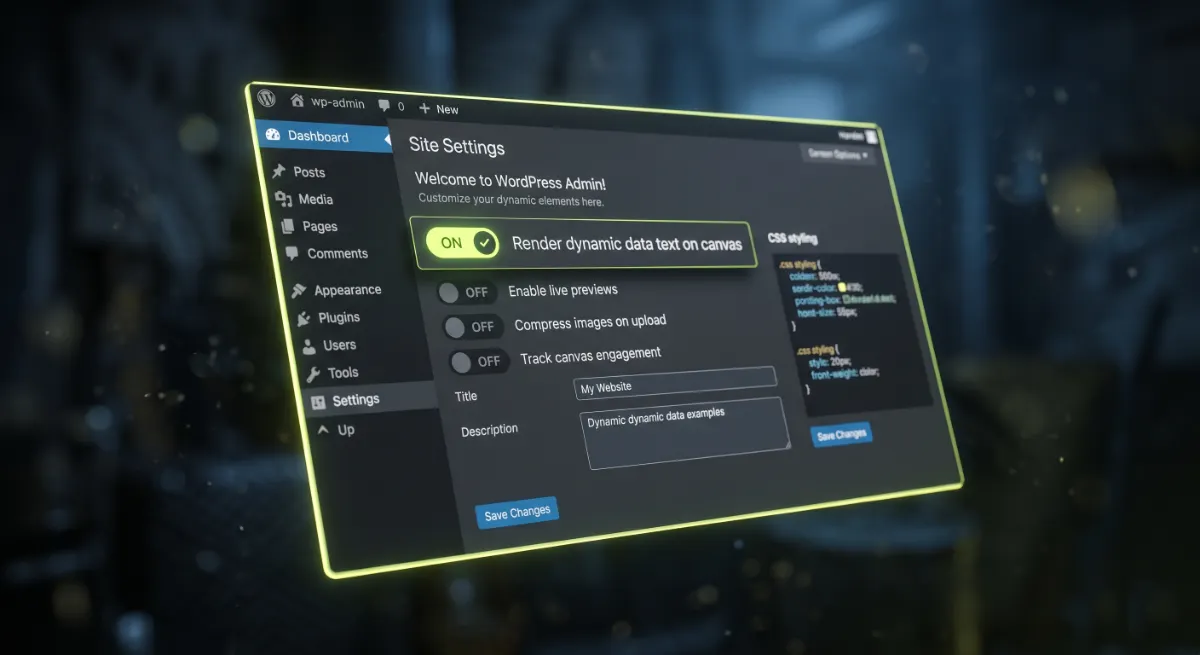
The most common cause of Bricks dynamic data not working is the "Render dynamic data text on canvas" setting being disabled. When this toggle is off, Bricks shows the raw tag (like {post_title}) as literal text in the basic text element instead of evaluating it. This catches developers new to Bricks dynamic data who expect tags to evaluate everywhere automatically like Elementor shortcodes do.
Open Bricks, Settings, then navigate to Builder Access and General. Scroll to find "Render dynamic data text on canvas." Toggle it ON. Click Save Settings at the bottom. Refresh both the builder editor and the frontend. The tag should now evaluate to the actual field value.
This setting only affects basic text elements. Other elements (Heading, Rich Text, Button label, Link URL, Image source, Background image) evaluate dynamic data automatically without needing this toggle. If your tag is in a basic text element and not evaluating, this is almost certainly the cause.
Pro tip: If you imported a Bricks template from another site or a Bricks Wizard template marketplace, the "Render dynamic data text on canvas" setting often resets to disabled after import. Always check this setting first on any imported template before deeper debugging. I have lost 2 to 3 hours debugging dynamic data on imported templates before realizing this setting reset itself.
Fix 2: Check your dynamic tag syntax

Bricks dynamic data syntax is strict and case-sensitive. The format is always curly braces around the tag name: {post_title}, {post_date}, {acf_field_name}, {post_meta_custom_key}. Missing braces, mismatched braces, typos in tag names, or trying to use Elementor or WPBakery shortcode syntax (like [post_title]) all fail silently when Bricks dynamic data tries to parse them.
The safest way to insert Bricks dynamic data is to use the built-in picker. Click inside any text or text-supporting element. Look for the lightning bolt icon at the top right of the field. Click it. A dropdown shows every dynamic data tag available on your site, organized by category (Post, Author, Site, ACF, Pods, etc). Click the tag you want. Bricks inserts it with correct syntax automatically.
If you need to combine static text with dynamic data, the format is plain: "Posted on {post_date} by {post_author}" with the static words outside the braces. According to the official Bricks Academy dynamic data documentation, you can also apply filters using the colon syntax: {post_date:U} formats the date as a Unix timestamp, {post_title:upper} renders the title in uppercase. Wrong filter names fail silently and show no output.
Fix 3: Verify the field exists and has a value

Bricks dynamic data not working can mean the tag is correct, the setting is enabled, and the syntax is perfect, but the field simply has no value for the current post. Bricks returns an empty string for missing or empty field values instead of an error message, so the tag appears to do nothing.
To verify, open the affected post in the WordPress editor. Find the field you are trying to display in Bricks dynamic data. If it is an ACF field, scroll to the ACF field group section. If it is a Pods field, look in the Pods custom fields panel. If it is a native WordPress field (excerpt, featured image), check the relevant editor area. Confirm the field actually has a value saved. Save the post if you just added the value. Refresh the frontend.
For custom post types specifically, this is the most common reason new content shows blank values. The field group exists, the field is registered, but the specific post you are viewing was created before the field group was attached and never had values entered. Open the post, fill in the field, save, and the dynamic data tag now renders correctly.
Fix 4: Verify your custom field provider integration

Bricks Builder dynamic data not working with custom fields almost always means the provider plugin (ACF, Pods, JetEngine, Meta Box, or Toolset) is installed but not properly integrated with Bricks. Each provider has slightly different requirements.
For ACF, the field group must have a Location Rule that includes the post type you are viewing. Bricks dynamic data reads ACF field groups through the ACF API, so any field group not assigned to the current post type is invisible to Bricks. Open ACF, Field Groups, edit the group, scroll to Location Rules, and confirm the rule includes "Post Type is equal to [your CPT]."
For Pods, each field has a "Visible in Bricks" toggle that must be enabled. Open Pods Admin, edit the Pod, click the Field, and check "Visible in Bricks Builder." Save. The field now appears in the Bricks dynamic data dropdown.
For JetEngine, the Bricks dynamic data integration is automatic on JetEngine 3.0 and later, but Custom Content Types built in JetEngine sometimes need their fields manually exposed. Open JetEngine, Meta Boxes, edit the meta box, and confirm "Visible to Bricks" is enabled.
For Meta Box, the integration is via the MB Builder add-on. Without MB Builder, Bricks does not see Meta Box fields. Install and activate MB Builder, then your fields appear in the Bricks dynamic data picker.
Stuck on a Bricks dynamic data issue that refuses to resolve?
Most of these fixes take under 10 minutes once you know which one applies. If you have run the first four and the tag still does not render, the issue usually needs developer access. My WordPress bug fixing service covers Bricks Builder issues with same-day turnaround.
Fix 5: Regenerate Bricks CSS files and clear all caches

Bricks dynamic data not working after a recent change is often a cache problem. WordPress sites typically run four cache layers: browser cache, page cache (LiteSpeed Cache, WP Rocket, hosting cache), CDN cache (Cloudflare, Bunny), and object cache (Redis or Memcached at the hosting level). When you change a Bricks dynamic data tag or update a field value, the new output gets stuck behind any of these layers.
Clear them in this order. Browser first: open the site in incognito with DevTools, Network tab, "Disable cache" enabled, hard reload. Page cache next: in WordPress admin, find your cache plugin and purge all pages. CDN cache after: log into Cloudflare, Caching, Configuration, Purge Everything. Object cache last: in LiteSpeed Cache or your hosting dashboard, Purge All. On managed hosting like Cloudways or Kinsta, the dashboard has a "Purge All Cache" button that handles object and page cache together.
After clearing all four layers, also regenerate Bricks CSS files: Bricks, Settings, Performance, "Regenerate CSS Files." This ensures any dynamic data used in CSS (background images, custom properties) is recompiled. Test the frontend in a fresh incognito window. If the tag now renders correctly, cache staleness was the cause.
Fix 6: Resolve query loop context issues
Bricks dynamic data not working inside query loops is one of the most common advanced cases. When you add Bricks dynamic data tags inside elements within a query loop, Bricks needs to know whether the tags refer to the current loop item or the parent page. This context is set automatically for most cases but breaks in specific scenarios.
Inside a standard query loop on a page, Bricks dynamic data tags refer to the current loop item by default. {post_title} inside a query loop shows the title of each looped post. However, if your query loop is inside a Section that has its own data context (like a WooCommerce single product template), the loop items may inherit the parent product context instead of their own.
To fix, click the query-looped element, find the Query settings panel, and verify the loop Type matches your intent. For a loop of products, Type should be "Products." For a loop of custom post types, Type should be "Custom" with the post type selected. Click the parent loop container, check Query, and confirm the loop scope. If still broken, set the Dynamic Data tag with explicit context: {post_title:loop} forces the tag to evaluate in the loop context regardless of parent scope.
Pro tip: If you have nested query loops (a loop inside a loop, common for WooCommerce variations or related posts), Bricks dynamic data tags inside the inner loop sometimes leak context from the outer loop. The fix is to use the Bricks "Sub Query Loop" element from Bricks 2.0+ instead of nesting standard query loops. The Sub Query Loop maintains its own isolated context. This single change has fixed dozens of complex WooCommerce template bugs on client sites.
Fix 7: Fix dynamic data inside header and footer templates
Bricks dynamic data not working inside header or footer templates is a common context issue. Headers and footers run before the post context is fully loaded on some page types, so post-specific Bricks dynamic data tags like {post_title} or ACF fields tied to the current post may return empty or wrong values.
The most common symptom: a header that shows the post title works fine on single posts but shows the homepage title on archive pages. This is because on archives, there is no "current post" until the loop starts. The header renders before the loop, so {post_title} on an archive resolves to whatever WordPress considers the current queried object (often the site name or the archive title).
To fix, use context-aware dynamic data tags. Instead of {post_title}, use {archive_title} on archive headers (it auto-falls back to {post_title} on single pages). For ACF fields, use the conditional dynamic tag syntax: {acf_field|fallback_value} to provide a fallback when the field is empty. For headers that must show different content per page type, use Bricks element conditions to show different elements based on the page context (Single Post vs Archive vs WooCommerce).
According to the Bricks Academy template types documentation, header and footer templates have their own template type and their own conditions, separate from the page they appear on. Setting conditions correctly on header and footer templates prevents most context issues.
Fix 8: Update Bricks and provider plugins to latest versions
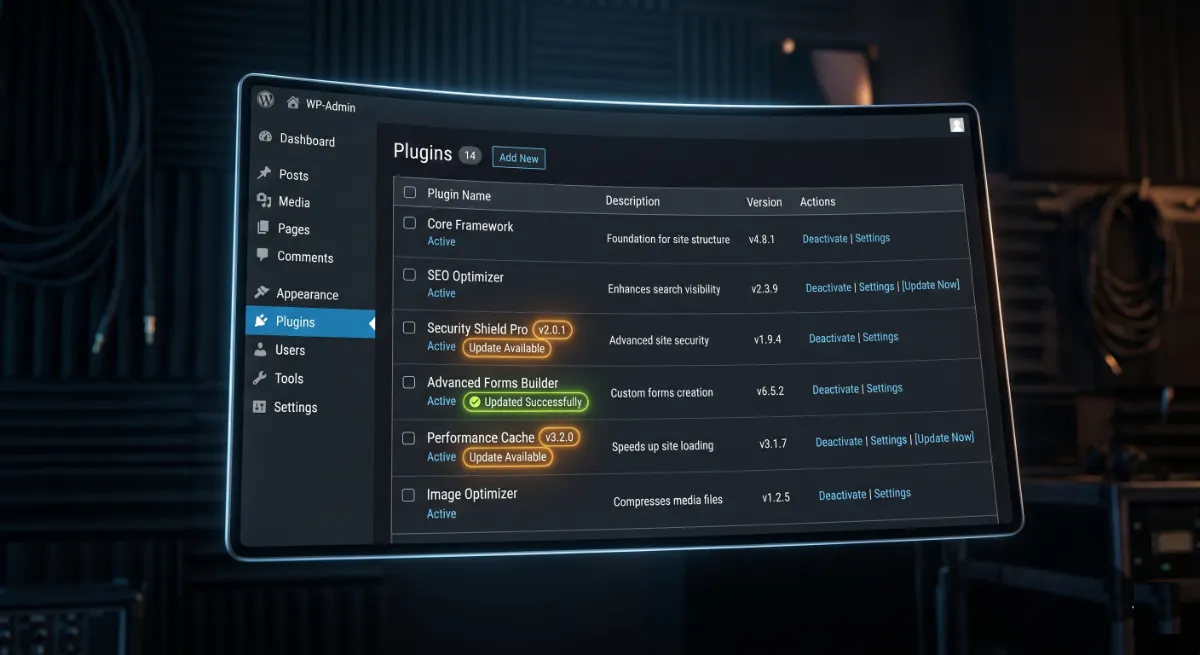
Bricks dynamic data not working can result from version mismatches between Bricks and the provider plugin (ACF, Pods, JetEngine, Meta Box). Bricks releases monthly updates with dynamic data fixes, and provider plugins update independently. A site running Bricks 1.9 with ACF 6.4 will hit known dynamic data bugs that Bricks 2.0 with ACF 6.5 resolved.
Check current versions in WordPress, Plugins. Update Bricks first (Appearance, Themes, Bricks, Update). Then update all provider plugins. Then update WordPress core if pending. Run updates in this order to avoid compatibility gaps. After updating, regenerate CSS files in Bricks Settings, Performance, and clear all caches. Test the Bricks dynamic data tag again.
If updates resolved the issue, set a monthly maintenance schedule. Bricks updates typically ship on the first Tuesday of each month. ACF updates every 4 to 8 weeks. Pods and JetEngine update less frequently but include important compatibility fixes. The WordPress update documentation recommends always testing updates on staging before production, especially for sites with custom Bricks templates and complex dynamic data setups.
Tried all eight fixes and the dynamic data tag still does not render?
At this point the issue is almost always a custom code conflict in functions.php, a corrupted provider plugin database table, or a server-level issue like PHP version mismatch with the provider plugin requirements. Same-day emergency WordPress support resolves these cases, usually within 2 to 4 hours.
How to prevent Bricks dynamic data issues

Bricks dynamic data not working is preventable on most sites with three habits. First, always use the lightning-bolt picker to insert Bricks dynamic data tags instead of typing them manually. Typed tags introduce typos. The picker guarantees correct syntax and exposes only tags that actually exist on your site, so you cannot accidentally reference a field that does not exist.
Second, maintain a custom field mapping document. List every custom field used in your Bricks templates, its provider (ACF, Pods, JetEngine, Meta Box), the post types it is attached to, and which templates use it. When something breaks, this document tells you immediately whether the field is missing from a post type, whether the provider updated and changed its API, or whether the field name was renamed. On client sites with 30+ custom fields, this document saves hours of debugging per incident.
Third, test all dynamic data changes on staging before production. Staging environments catch the most common issue (an ACF field renamed in dev but not migrated to production) before it hits live customers. Cloudways, Kinsta, WP Engine, and SiteGround include staging in their managed plans. WP Staging plugin offers it for any host. Skipping staging is how most "worked yesterday, broken today" reports happen.
When to hire a Bricks Builder developer
If you have run all eight fixes and your Bricks dynamic data is still not working, the issue is usually one of three things: a custom code conflict in functions.php or a child theme that intercepts Bricks dynamic data rendering, a corrupted provider plugin database table (especially after a failed migration or update), or a deep query loop context bug that requires custom PHP to resolve.
These categories require developer access to PHP debugging, database queries, and possibly custom Bricks filter implementations. A site owner who keeps trying random fixes usually makes the problem worse by introducing more variables. The most common pattern I see is a developer who spent 6 to 10 hours debugging, then booked a call where the actual fix took 20 to 40 minutes once I had access to logs and the staging environment.
Hire a developer at the point where your time spent debugging exceeds the cost of professional help. For most businesses, that crossover is 3 to 5 hours of self-debugging. After that, paying for expert time is cheaper than continuing to lose hours and risking more damage.
Frequently Asked Questions
Why is my Bricks dynamic data not working in basic text elements?
Your Bricks dynamic data not working in basic text elements almost always means the "Render dynamic data text on canvas" setting is disabled. Open Bricks, Settings, Builder Access and General, find and enable that toggle, then save. Refresh the builder and frontend. This single setting controls whether Bricks evaluates dynamic tags inside basic text elements.
Why does my Bricks dynamic data tag show as plain text?
Bricks dynamic data tags showing as plain text like {post_title} means Bricks is not evaluating the tag. The two main causes are the "Render dynamic data text on canvas" setting being disabled (for basic text elements) and incorrect tag syntax. Use the lightning-bolt picker to insert tags with guaranteed correct syntax instead of typing them manually.
How do I use ACF fields as dynamic data in Bricks?
Use ACF fields as Bricks dynamic data by first creating the field group in ACF with a Location Rule that includes your target post type. Then in Bricks, click the lightning-bolt icon on any text field, scroll to the ACF section in the dropdown, and select your field. Bricks reads ACF fields automatically when ACF and Bricks are both installed and the field group is properly assigned.
Does Bricks Builder work with Pods custom fields?
Bricks Builder works with Pods custom fields when each Pods field has "Visible in Bricks Builder" enabled in the field settings. Open Pods Admin, edit your Pod, click the field, scroll to the visibility options, check the Bricks toggle, and save. The field now appears in the Bricks dynamic data picker dropdown automatically.
Why does my Bricks dynamic data work in the builder but not the frontend?
Bricks dynamic data working in the builder but failing on the frontend is usually a cache issue. The builder bypasses cache layers for live preview, while the frontend reads from page cache, CDN cache, and object cache. Clear all four cache layers (browser, page, CDN, object) and regenerate Bricks CSS files. The tag should then render correctly on the frontend.
How do I fix dynamic data inside a Bricks query loop?
Fix dynamic data inside a Bricks query loop by verifying the loop Type matches your content. For products, set Type to Products. For custom post types, set Type to Custom and select the post type. Use {tag:loop} syntax to force loop context if a parent scope is interfering. For nested loops, use Bricks 2.0 Sub Query Loop element instead of nesting standard query loops to maintain isolated context.
Can I use Bricks dynamic data in header and footer templates?
You can use Bricks dynamic data in header and footer templates, but post-specific tags like {post_title} may return wrong values on archive or WooCommerce pages where post context is not fully loaded. Use context-aware fallback tags like {archive_title} for archives or apply Bricks element conditions to show different elements per page type for reliable rendering.
What is the lightning bolt icon in Bricks Builder?
The lightning bolt icon in Bricks Builder is the dynamic data picker. Click it inside any text field to see every dynamic data tag available on your site, organized by category (Post, Author, Site, ACF, Pods, JetEngine, Meta Box, WooCommerce). Selecting a tag from the picker inserts it with correct curly-brace syntax automatically, preventing typo-related failures.
Why are JetEngine fields not showing in Bricks dynamic data?
JetEngine fields not showing in Bricks dynamic data usually means the JetEngine meta box visibility toggle is disabled or you are using a JetEngine Custom Content Type whose fields are not exposed to Bricks. Open JetEngine, Meta Boxes, edit the meta box, and enable "Visible to Bricks." Update JetEngine to version 3.0 or later for full Bricks compatibility.
When should I hire a developer for Bricks dynamic data issues?
Hire a developer for Bricks dynamic data issues when you have spent more than 3 to 5 hours debugging without resolution, when the issue affects revenue (broken product templates, broken landing pages during campaigns), or when the fix requires custom PHP filters or database queries. Devansh Thakkar offers Bricks Builder expert services with same-day turnaround on stuck dynamic data issues.
Conclusion
Bricks dynamic data not working traces to eight specific root causes: the Render dynamic data text on canvas setting disabled, tag syntax errors, missing field values, provider integration gaps, stale caches, query loop context issues, header and footer scope mismatches, or version mismatches between Bricks and provider plugins. Run the diagnostic widget first to isolate which bucket applies, then jump to the matching fix. The first three fixes resolve roughly 75 percent of cases, usually in under 15 minutes. If all eight fixes fail, the issue needs developer-level diagnosis of custom code, provider databases, or query loop logic. Start with Fix 1 if you have not run the diagnostic yet.
Want this fixed today instead of next week?
I have shipped 100+ WordPress and Bricks Builder projects with same-day bug fixing on stuck dynamic data tags. Book a free 30-minute call and I will identify the cause within the first 10 minutes.