

- You can convert Figma to Elementor three ways: rebuild by hand, use a plugin, or hire a developer for a pixel-perfect build.
- There is no true one-click conversion. The best plugins get you about 70 percent, and you fine-tune the rest.
- The biggest predictor of quality is how well your Figma file is prepped, not the tool you use.
- Figma Auto Layout maps directly to Elementor Flexbox Containers, so design with Auto Layout from the start.
- The hard 30 percent is responsiveness, performance, and clean structure, which is where quality lives.
To convert Figma to Elementor, you either rebuild the design by hand in Elementor for the cleanest result, use a Figma to Elementor plugin to speed up the first draft, or hand it to a developer for a pixel-perfect, responsive, fast build. Each path trades speed for control. This guide covers all three so you pick the right one for your project.
After turning countless designs into fast WordPress sites for clients in 15+ countries, I can tell you the tool matters far less than most people think. A clean conversion is decided before you ever open Elementor, in how the Figma file is built. So this guide is not just a list of plugins. It is the honest workflow, the trade-offs of each method, and the prep that separates a pixel-perfect build from a broken one.
Can You Convert Figma to Elementor?
Yes, you can convert Figma to Elementor, but there is no true one-click button that turns a design into a finished website. A true Figma to Elementor conversion has to bridge two different tools: Figma is a design tool and Elementor is a builder, so something has to translate the layout, styles, and structure between them. That translation happens one of three ways: by hand, by plugin, or by a developer.
The three methods, in short:
- Manual rebuild: the cleanest, most controlled result, and the slowest.
- Plugin conversion: the fastest first draft, with fine-tuning still required.
- Hire a developer: pixel-perfect, responsive, and fast, done for you.
Pro tip: Whichever method you choose, the single biggest predictor of a clean Figma to Elementor conversion is how well the Figma file is organized. A messy file produces messy output every time.
Let us start with the method that gives you the most control.
Method 1: Rebuild It Manually in Elementor
The manual method to convert Figma to Elementor means recreating the design section by section using Elementor Flexbox Containers, which gives you the cleanest, fastest, most responsive result. It takes the longest, but nothing else matches it for quality, because you control every element, breakpoint, and byte of output.
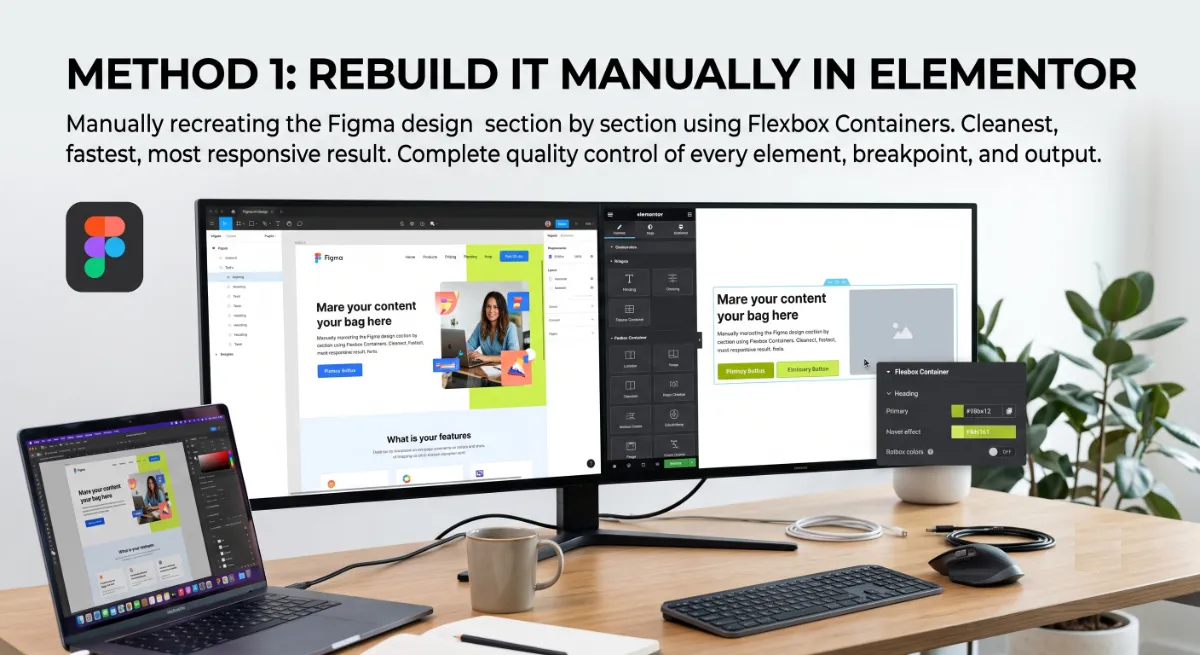
The workflow, in order:
- Enable Flexbox Containers in Elementor, Settings, Features. Elementor’s Flexbox Containers map directly to Figma Auto Layout, which is what makes a clean rebuild possible.
- Set your global styles first. Add your Figma colors, fonts, and sizes to Elementor’s global settings so every element inherits the right styling automatically.
- Rebuild section by section. For each Figma frame, add a container, match its direction, gap, and padding, then drop in heading, text, image, and button widgets.
- Set responsive behavior. Adjust each container for tablet and mobile so the layout holds on every screen.
Pro tip: Build content first, style second. Get every widget on the page with the right structure, then style using your global settings. It is far faster than styling each element as you go.
If a full manual rebuild feels slow, a plugin can shortcut the first draft.
Method 2: Use a Figma to Elementor Plugin
A Figma to Elementor plugin converts your design into editable Elementor widgets automatically, and the leading tool for this is UiChemy. It reads your Figma structure, frames, layers, and Auto Layout, and turns it into real, native Elementor widgets rather than raw code, which means you can keep editing normally in Elementor afterward.

Here is the honest picture. UiChemy handles roughly 70 percent of the work and leaves you the last 30 percent to fine-tune, which is completely fair for the time it saves on standard pages. It syncs your Figma colors and typography to Elementor global styles, supports Auto Layout, adds no extra CSS or JavaScript, and works with the free version of Elementor for basic use. It tags Figma elements to specific widgets, so a heading becomes a Heading widget, not a generic block.
Plugins are excellent for standard pages. For complex or business-critical builds, the third option wins.
Method 3: Hire a Developer
Hiring a developer to convert Figma to Elementor gives you a pixel-perfect, fully responsive, fast, and dynamic build without you touching a single setting. This is the right call when the site is business-critical, the design is complex, or the layout needs dynamic content, custom functionality, or performance that a plugin’s raw output cannot deliver.
A developer does what no tool can: reads the design intent, sets up clean global styles and containers, builds semantic structure, wires up dynamic content, and optimizes every breakpoint for speed and Core Web Vitals. The plugin gives you 70 percent. A good developer delivers the full 100, including the responsive and performance work that decides whether the site actually succeeds.
Pro tip: If you use a plugin to save time, still budget a developer pass for the responsive and performance polish. That last 30 percent is exactly where a design goes from looking right to working right.
Whichever method you choose, one workflow keeps all three clean.
Have a Figma design ready to build?
I convert Figma designs into pixel-perfect, fast, responsive Elementor sites, done for you. See my WordPress development service.
The Workflow That Actually Works
The Figma to Elementor workflow that produces clean results every time follows five phases I call the Figma-to-Elementor Handoff: Prep, Tokens, Structure, Build, and Optimize. This Figma to Elementor workflow works whether you rebuild by hand or use a plugin, because it fixes the real problem, which is translation quality, not tool choice.
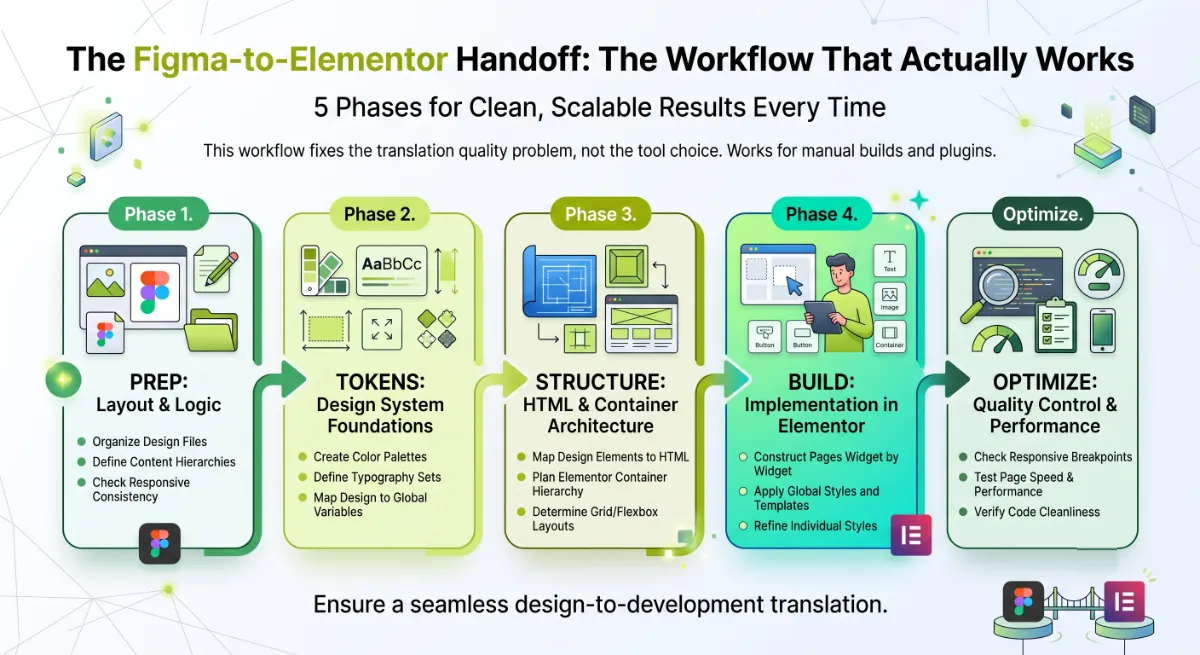
The five phases:
- Prep the Figma file. Apply Figma Auto Layout, minimize frames, name layers semantically, and set explicit gap and padding values, not “auto.”
- Translate tokens. Move your colors, typography, and spacing into Elementor global styles so the whole build stays consistent.
- Map structure. Match your Figma frame hierarchy to Elementor containers, one to one.
- Build. Convert or rebuild section by section, tagging elements to the right widgets.
- Optimize. Set every breakpoint, compress images, and check Core Web Vitals before launch.
The structure map is the part people skip, and it is the most important. Figma and Elementor use the same logic, so each Figma frame maps to an Elementor element one to one:
- A Figma Page Frame becomes a Section container in Elementor.
- A Section Frame becomes a container set to row or column.
- A Content Frame becomes a nested container.
- A Heading text layer becomes a Heading widget.
- A Button frame becomes a Button widget.
Follow the handoff and any method produces clean output. Skip it, and even the best tool disappoints, which is where most people go wrong.
What Most People Get Wrong
The biggest mistake is expecting a plugin to deliver a finished website. It will not. Even the best Figma to Elementor tool gets you about 70 percent, and the remaining 30 percent, responsiveness across breakpoints, performance, and clean structure, is exactly where a site succeeds or fails. Auto-converted output usually looks right on desktop and breaks on mobile.

Here is the observation from years of client work: prepping the Figma file well is about 80 percent of a clean conversion. The other trap is container bloat, since every Figma frame becomes an Elementor container, an over-framed design imports as a heavy, slow page. So the quality is decided in Figma, before conversion, not by the plugin you pick. Prep the file, translate tokens to global styles, and keep frames lean, and any method produces a clean result.
When the design is complex or the site has to perform, that is where an experienced developer turns a rough conversion into a fast, pixel-perfect build.
Want your Figma design built into a fast, pixel-perfect Elementor site?
I handle the full conversion, prep to launch, responsive and optimized. See my WordPress development service or book a free call.
Frequently Asked Questions
Can you convert Figma to Elementor automatically?
Partly. A plugin like UiChemy converts your Figma design into editable Elementor widgets in minutes, handling roughly 70 percent of the work. You still fine-tune responsiveness, spacing, and performance. There is no true one-click tool that produces a finished, production-ready website on its own.
What is the best way to convert Figma to Elementor?
For quality, a manual rebuild or a developer gives the cleanest, fastest, most responsive result. For speed on standard pages, a plugin like UiChemy is excellent. The best choice depends on complexity and how much pixel-perfect performance matters for the specific project.
Do I need Elementor Pro to convert a Figma design?
Not necessarily. The UiChemy plugin works with the free version of Elementor for basic conversions. You may want Elementor Pro or an addon pack for advanced widgets and dynamic content, but the free version is enough to import and edit a straightforward Figma design.
Why does my converted Elementor page look broken on mobile?
Because auto conversion optimizes the desktop layout, and responsiveness needs a manual pass. It usually happens when the Figma file was not built with Auto Layout. Fix it by setting proper container behavior at each breakpoint, which is the 30 percent of work a plugin cannot do for you.
How do I prepare a Figma file for Elementor conversion?
Use Auto Layout on every content frame, minimize the number of frames since each becomes a container, name layers semantically, set explicit gap and padding values, avoid absolute positioning, and optimize images. Good prep is the single biggest factor in a clean, responsive conversion.
Does converting Figma to Elementor slow down my site?
It can, if the Figma file has too many frames, because each frame becomes an Elementor container and inflates the DOM. Keep frames lean, use Flexbox Containers, compress images, and do a performance pass after conversion to keep Core Web Vitals healthy and the page fast.
How long does it take to convert Figma to Elementor?
A manual rebuild can take several hours per page depending on complexity. A plugin imports in minutes, then needs one to two hours of fine-tuning for responsiveness and polish. A developer handles the full build for you, delivering a production-ready page start to finish.
When should I hire a developer instead of using a plugin?
Hire a developer when the design is complex, the site is business-critical, or you need dynamic content, custom functionality, and top performance. A plugin is great for standard pages, but the responsive and performance work on important sites is where a developer earns the fee. My WordPress development service covers full Figma to Elementor builds.
Conclusion
To convert Figma to Elementor well, match the method to the project: rebuild by hand for full control, use a plugin like UiChemy to shortcut standard pages, or hire a developer for a pixel-perfect, business-critical build. But remember the part that decides everything: prep the Figma file, translate your tokens to global styles, keep frames lean, and always do the responsive and performance pass. A plugin gets you 70 percent, and the last 30 percent is the difference between a design that looks right and a site that works. Start with a clean Figma file, and every method gets easier.
Want the whole thing handled, from Figma to a fast live Elementor site?
I convert designs into pixel-perfect, responsive, optimized WordPress builds. Book a free call or browse my recent project portfolio.
The exact Prep, Tokens, Structure, Build, Optimize checklist I use to convert Figma designs into clean, responsive Elementor sites.
Get it free →This article was last reviewed and updated in June 2026 to reflect current Figma and Elementor conversion tools and workflows.