
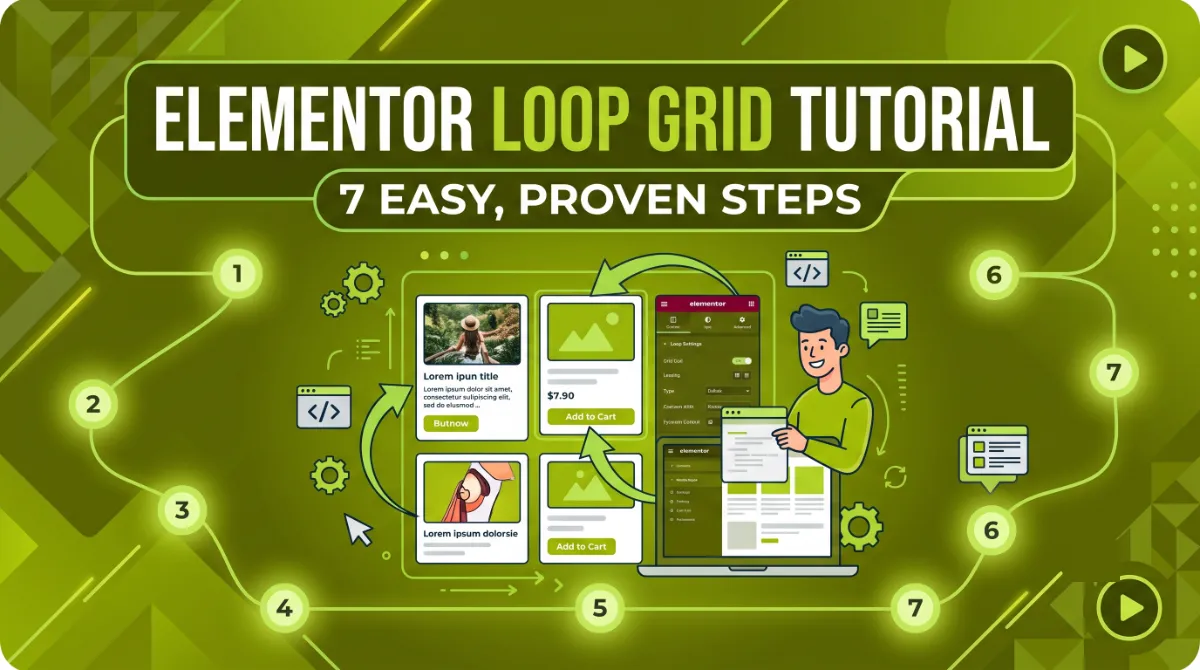
- An Elementor Loop Grid repeats one template across a query of posts, products, or custom post types, so you build a card once.
- The loop item is a template, not a page, so design it with dynamic tags or every card shows the same content.
- Build in the right order: Item, then Dynamic tags, then Query, then Style.
- The Query section controls what shows: Posts, Products, taxonomies, Related, Current Query, or a custom query.
- If the grid does not show, the cause is usually an empty query or a missing dynamic tag, not a bug.
An Elementor Loop Grid lets you design one template, called a loop item, and automatically repeat it across a query of posts, products, or custom post types. Instead of building a card by hand ten times, you build it once and Elementor renders the rest. This tutorial walks you through it step by step, from your first loop to custom queries and troubleshooting.
After building dozens of dynamic WordPress sites for clients in 15+ countries, I can tell you the Loop Grid is one of Elementor Pro’s most useful tools, and one of the most misunderstood. Most people design an Elementor Loop Grid like a normal section and wonder why every card looks identical. The trick is a mindset shift you will get in the first two minutes below. So here is the clear, correct way to build one, plus the traps that waste everyone’s afternoon.
What Is an Elementor Loop Grid?
An Elementor Loop Grid is a Pro widget that displays a repeatable template across a set of items chosen by a query. You design a single loop item once, connect its fields to dynamic data, and the Loop Grid outputs one copy per post, product, or custom post type that matches your query, as Elementor’s Loop Grid widget documentation describes. The Elementor Loop Grid is Elementor’s answer to WordPress query loops, done visually.
Why use an Elementor Loop Grid instead of building cards by hand? Because it stays in sync automatically. Publish a new post and it appears in the grid. Edit a product and the card updates. With an Elementor Loop Grid you maintain one design, not fifty. That is the entire value of the Elementor Loop Grid: build once, display everywhere, update in one place.
Pro tip: The single most important idea in this whole tutorial: a loop item is a template, not a page. If you type real text into it instead of using dynamic tags, every card will show that same text. Dynamic tags are what make the Elementor Loop Grid dynamic.
Before you drag the widget onto the page, make sure you have the few things it needs.
What You Need Before You Start
To follow this Elementor Loop Grid tutorial you need Elementor Pro and some content to display, since the Loop Grid is a Pro-only feature that pulls from your existing posts, products, or custom post types. Without Pro, the widget is not available, and without content, the grid has nothing to render.
Here is your quick checklist:
- Elementor Pro, installed and activated. The free version does not include the Loop Grid.
- Content to display, such as blog posts, WooCommerce products, or a custom post type with entries.
- Dynamic data in mind, meaning the fields each card will show: title, featured image, excerpt, price, or a custom field.
- A clear layout goal, like a 3-column blog grid or a product listing, so you design with intent.
With those ready, you can build your first Elementor Loop Grid in about ten minutes, start to finish.
How to Build a Loop Grid: Step by Step
To build an Elementor Loop Grid, add the widget, create a loop item template, connect dynamic tags, set your query, and style the layout, in that order. I call this the Loop Grid Build Order: Item, Dynamic, Query, Style. Following this Elementor Loop Grid order stops you from reworking the design later, which is the most common time-waster.
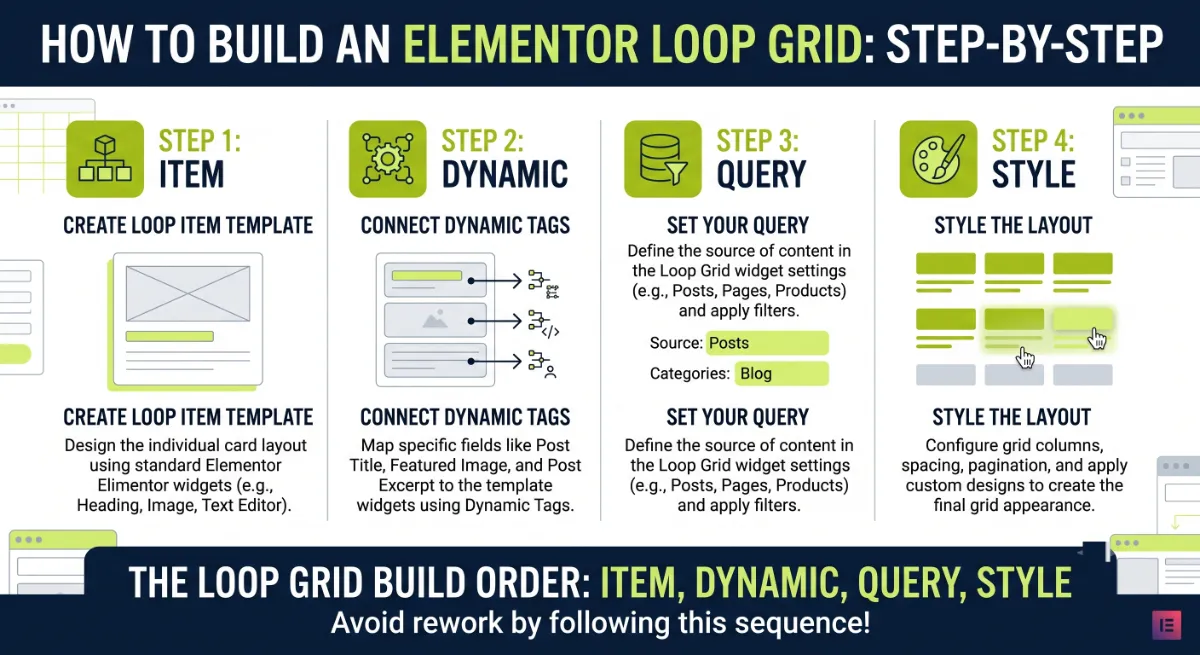
Follow these steps:
- Add the Loop Grid widget. Drag Loop Grid onto your page or template from the widgets panel.
- Create the loop item template. Click Create a Template, choose the correct type (Posts for posts, pages, or products, or Products for WooCommerce), and give it a name.
- Design the card with dynamic tags. Add a heading, image, and text, then connect each one to a dynamic tag: Post Title, Featured Image, Post Excerpt, and so on. This is the step beginners skip.
- Save and return to the grid. Your loop item now becomes the repeatable card for every item in the query.
- Set the query. Open the Query section and choose what to display, covered in detail next.
- Style the layout. Set columns, gaps, and spacing so the grid looks right on every device.
Once the card is built, the real power lives in the Query section.
Control the Query: Sources and Custom Queries
The Query section of an Elementor Loop Grid decides exactly which items your Elementor Loop Grid displays and in what order, and it is where the widget goes from simple to genuinely powerful. Per Elementor’s official query documentation, you start by choosing a Source, then filter from there.
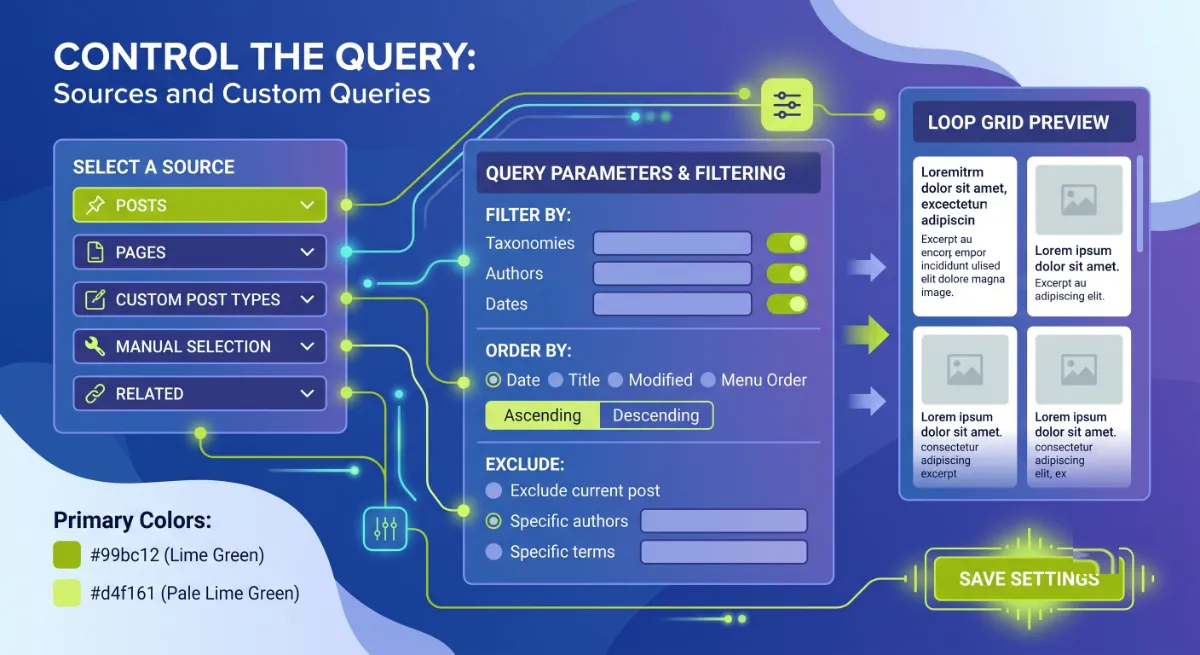
Your main source options are:
- Posts: the default, for blog posts, pages, or products, filtered by category, tag, or author.
- Products: for WooCommerce stores, to build product grids.
- Related: automatically shows items sharing a property, like all posts in the same category, ideal for a related-posts block.
- Current Query: reuses the page’s own query, which is how you build dynamic archive and search-results templates.
For anything beyond the built-in filters, Elementor exposes a custom query filter. Give your Loop Grid a unique Query ID in the widget, then hook into it to modify the underlying WP_Query with code:
add_action( 'elementor/query/my_loop_query', function( $query ) {
    // Only show posts published in the last 30 days
    $query->set( 'date_query', [
        [ 'after' => '30 days ago' ],
    ] );
} );
Pro tip: If a custom query shows nothing, the Query ID is almost always the reason. The ID in your widget must match the hook name exactly, so
my_loop_queryin the widget pairs withelementor/query/my_loop_queryin the code.
With the right items showing, it is time to make the grid look good everywhere.
Style It and Make It Responsive
Style your Elementor Loop Grid in the Layout and Style tabs, where you control columns, gaps, and how the grid reflows on tablet and mobile. An Elementor Loop Grid that looks great on desktop can crowd on a phone, so set your responsive values deliberately rather than leaving the defaults.
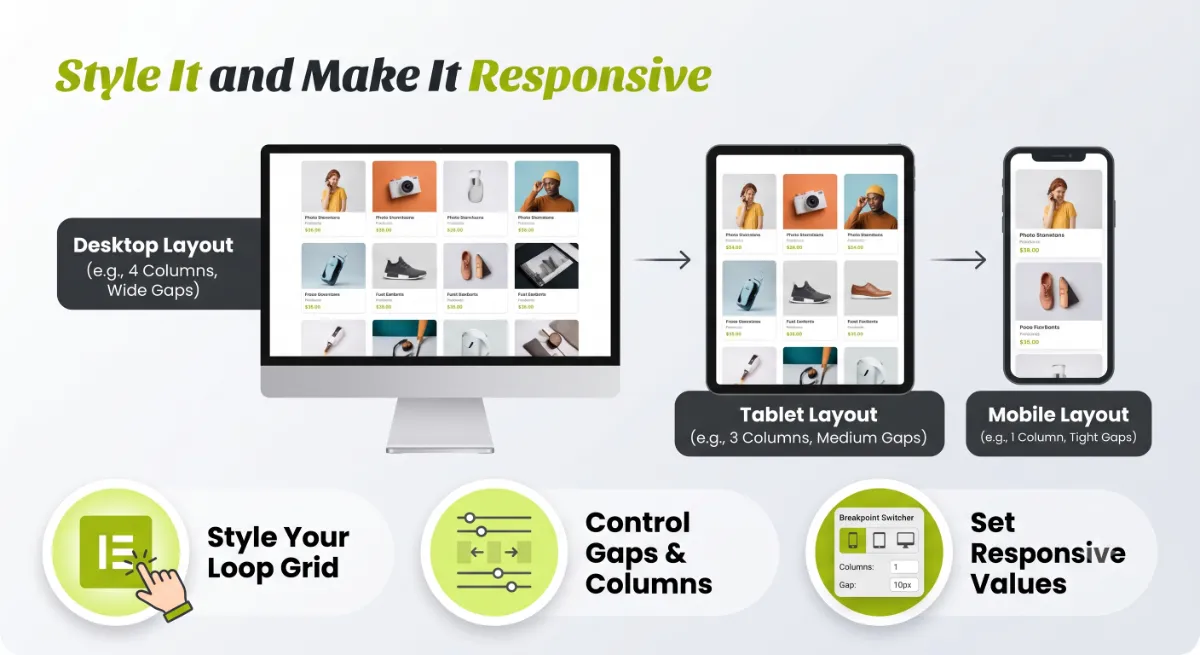
The settings that matter most:
- Columns per device. A common pattern is three on desktop, two on tablet, one on mobile.
- Column and row gap. Consistent spacing keeps the grid clean and scannable.
- Pagination. Add numbered pages or a load-more control so long lists stay usable.
- Masonry and equal height. Use equal height for tidy rows, or masonry for a Pinterest-style flow.
- Alternate template. Show a different design on every Nth item, useful for slotting a promo card into a product grid.
Style done, most grids are finished. But if yours is blank, do not panic, the cause is usually simple.
Troubleshooting: When the Loop Grid Doesn’t Show
When an Elementor Loop Grid does not show items, the cause is almost always an empty query, a missing dynamic tag, or a corrupted widget, not a genuine bug. Check these in order before you assume your Elementor Loop Grid is broken, and you will fix most cases in a minute.
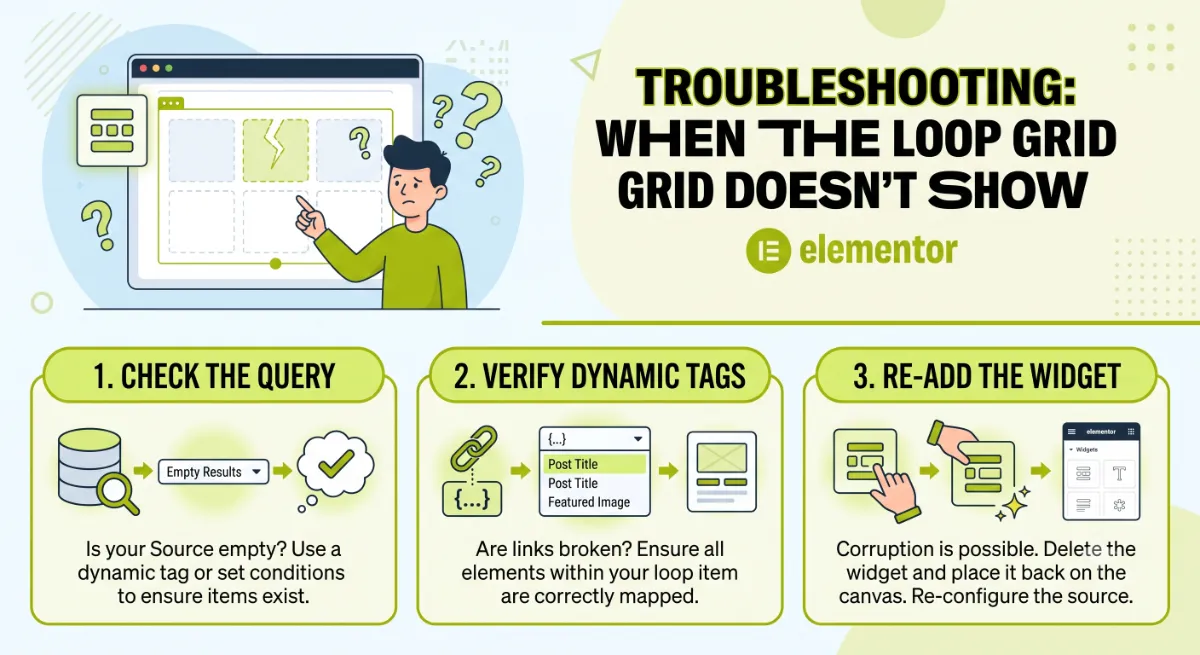
Work through this list:
- The query returns nothing. Your filters are too tight, for example a category with no posts. Loosen the query or add a fallback.
- No dynamic tags connected. If cards are blank or identical, your loop item uses static content. Reconnect each element to a dynamic tag.
- Wrong template type. A Products loop needs a Products template, not a Posts one. Recreate the loop item with the correct type.
- Widget corruption. Editing with caching or optimization active can corrupt the loop widget. The fix is to rebuild the Loop Grid widget from scratch on that page.
Knowing the fixes is good. Knowing why these problems happen at all is what makes you fast.
Loop Grid still not behaving, or building something complex with custom fields?
I build advanced Elementor loops, custom queries, and dynamic templates that just work. See my WordPress development service.
What Most People Get Wrong
The biggest mistake with an Elementor Loop Grid is treating the loop item like a static design instead of a data-driven template. People type a real headline and drop in a real image, then wonder why all twelve cards are identical. The loop item is a blueprint. Every element must pull from a dynamic tag so each card fills itself with its own post’s data.
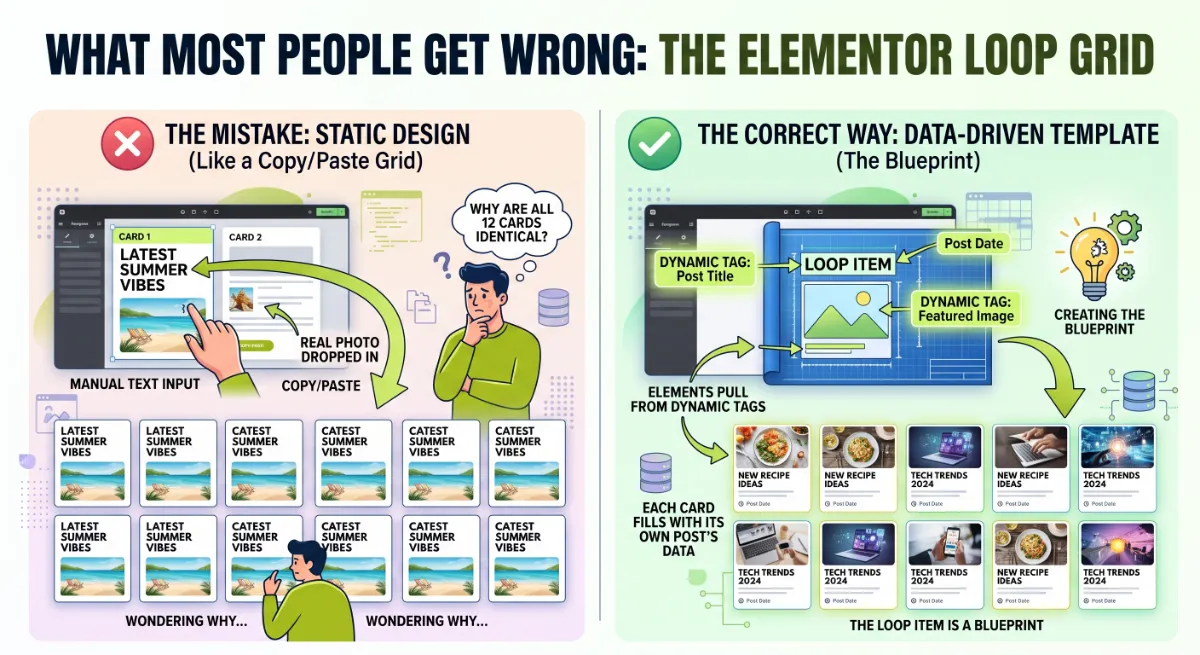
Here is the observation from years of client work: almost every “my Loop Grid is not working” message is one of two things, an empty query or a missing dynamic tag. Real bugs are rare. The genuine exception is widget corruption, which nearly always traces back to editing loops while caching or optimization is running. Pause those while you build, and most loop problems disappear before they start.
When the loop needs custom fields, complex queries, or a fully dynamic archive, that is where an experienced developer saves you hours, by writing the query cleanly and keeping it fast.
Building a complex loop with custom fields or a custom query?
I create advanced Elementor loops and dynamic templates that stay fast and reliable. See my WordPress development service or book a free call.
Frequently Asked Questions
What is an Elementor Loop Grid?
It is an Elementor Pro widget that repeats one template, called a loop item, across a query of posts, products, or custom post types. You design the card once, connect it to dynamic data, and Elementor renders one copy per matching item, keeping everything in sync automatically.
Is the Loop Grid free or Pro only?
The Loop Grid is an Elementor Pro feature. The free version of Elementor does not include it. You need Elementor Pro installed and activated to add the Loop Grid widget and build loop item templates from your posts, products, or custom post types.
Why is my Elementor Loop Grid not showing posts?
Usually the query returns nothing, or the loop item has no dynamic tags connected. Check that your query filters actually match existing content, and that each element in the loop item is linked to a dynamic tag. A wrong template type or a corrupted widget can also cause it.
Why do all my Loop Grid cards look the same?
Because your loop item uses static content instead of dynamic tags. If you type a real title or add a fixed image, every card repeats it. Connect the heading to Post Title, the image to Featured Image, and so on, so each card pulls its own post’s data.
Can the Loop Grid display custom post types?
Yes. The Loop Grid can display any registered custom post type, along with custom fields through dynamic tags. Choose the correct source and template type, then connect your fields. For complex filtering, you can use a custom query filter with a unique Query ID and a small code snippet.
How do I build a custom query for the Loop Grid?
Give the Loop Grid a unique Query ID in the widget settings, then hook into elementor/query/your_id in code to modify the WP_Query. This lets you apply any WordPress query logic, such as date ranges or meta filters. The Query ID must match the hook name exactly.
Loop Grid vs Posts widget: which should I use?
Use the Loop Grid when you want full design control over each card, since you build the item visually with any widgets. The older Posts widget uses fixed skins with limited layout options. For custom card designs and modern builds, the Loop Grid is the better choice.
When should I hire a developer for Loop Grid work?
Hire a developer when you need custom queries, custom field logic, complex archive templates, or a loop that must stay fast at scale. Getting the query and dynamic data right is where loops succeed or fail. My WordPress development service covers advanced Elementor builds.
Conclusion
An Elementor Loop Grid turns one well-built card into an entire dynamic listing, and the whole skill comes down to one idea: the loop item is a template, so connect everything to dynamic tags. Build in order, Item, Dynamic, Query, then Style, control what shows through the Query section, and pause caching while you edit to avoid corruption. Do that and your Elementor Loop Grid will build blog grids, product listings, and custom archives that update themselves. Start with a simple posts loop today, and reach for a custom query when the built-in filters run out of room.
Want dynamic Elementor templates built right the first time?
I build fast, reliable Loop Grids, custom queries, and dynamic archives for WordPress sites. Book a free call or browse my recent project portfolio.
The exact Item, Dynamic, Query, Style checklist I use to build Elementor loops right the first time, with the troubleshooting steps included.
Get it free →This article was last reviewed and updated in June 2026 to reflect the current Elementor Pro Loop Grid features.